Sign Transaction
About
Sign Transaction enables a clean, air-gapped flow:
- Export an unsigned transaction from the online wallet (JSON or QR).
- Sign it in the offline wallet.
- Import the signed transaction back into the online wallet to broadcast.
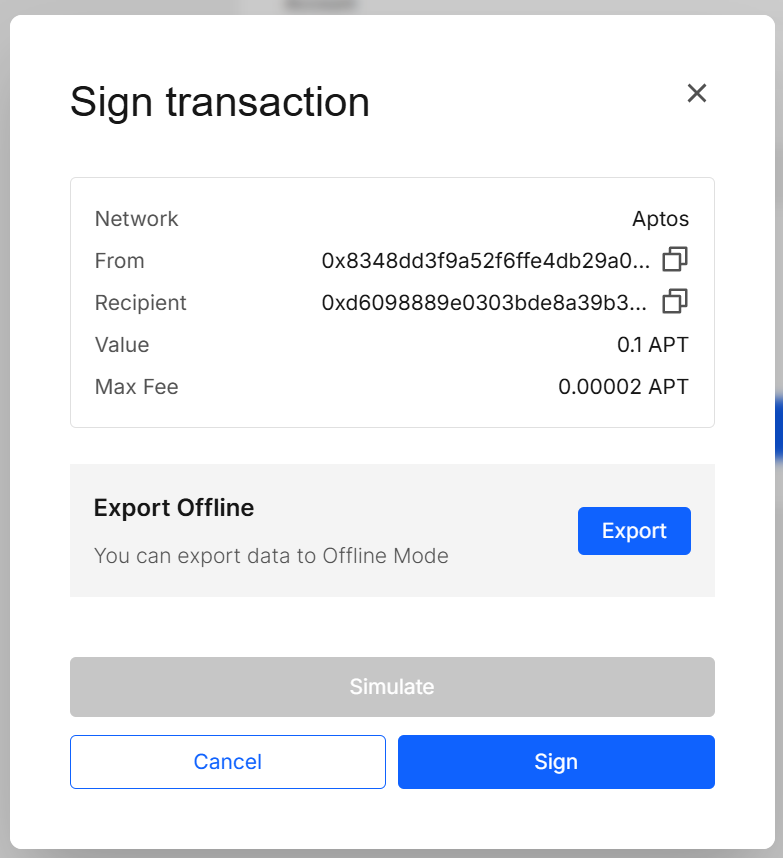
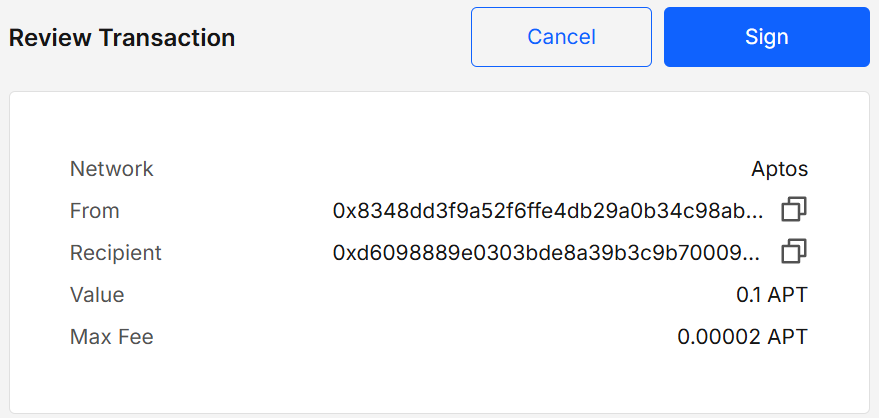
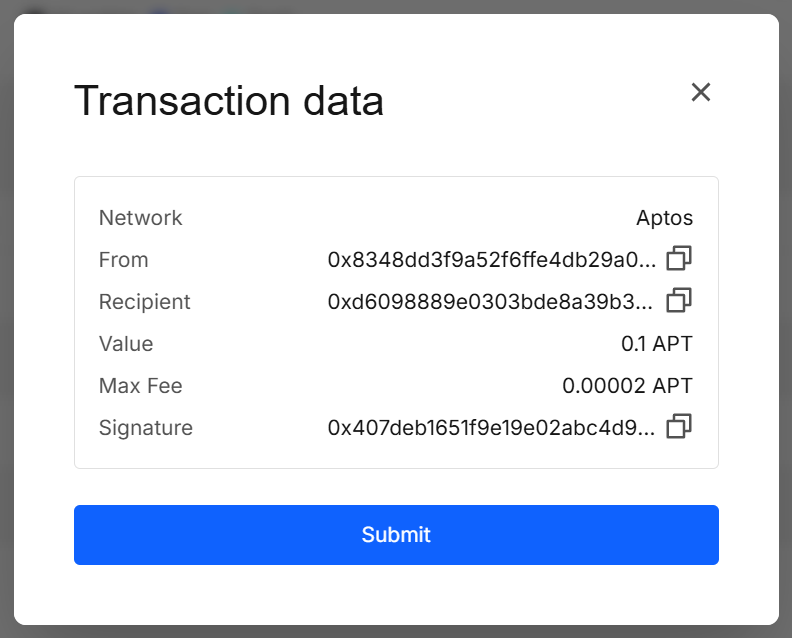
The tool shows a human-readable review (network, from, recipient, value, max fee) both before and after signing.
Key Features
- Export unsigned transaction from online wallet as JSON or QR
- Sign fully offline (no internet, isolated signer iframe)
- Re-import signed transaction via file upload or QR scan
- Clear before/after Review screens with all critical fields
- Payload Pairing: only the exact exported payload is accepted for its corresponding “Send transaction” modal
How to Use
Export an unsigned transaction from the online wallet
-
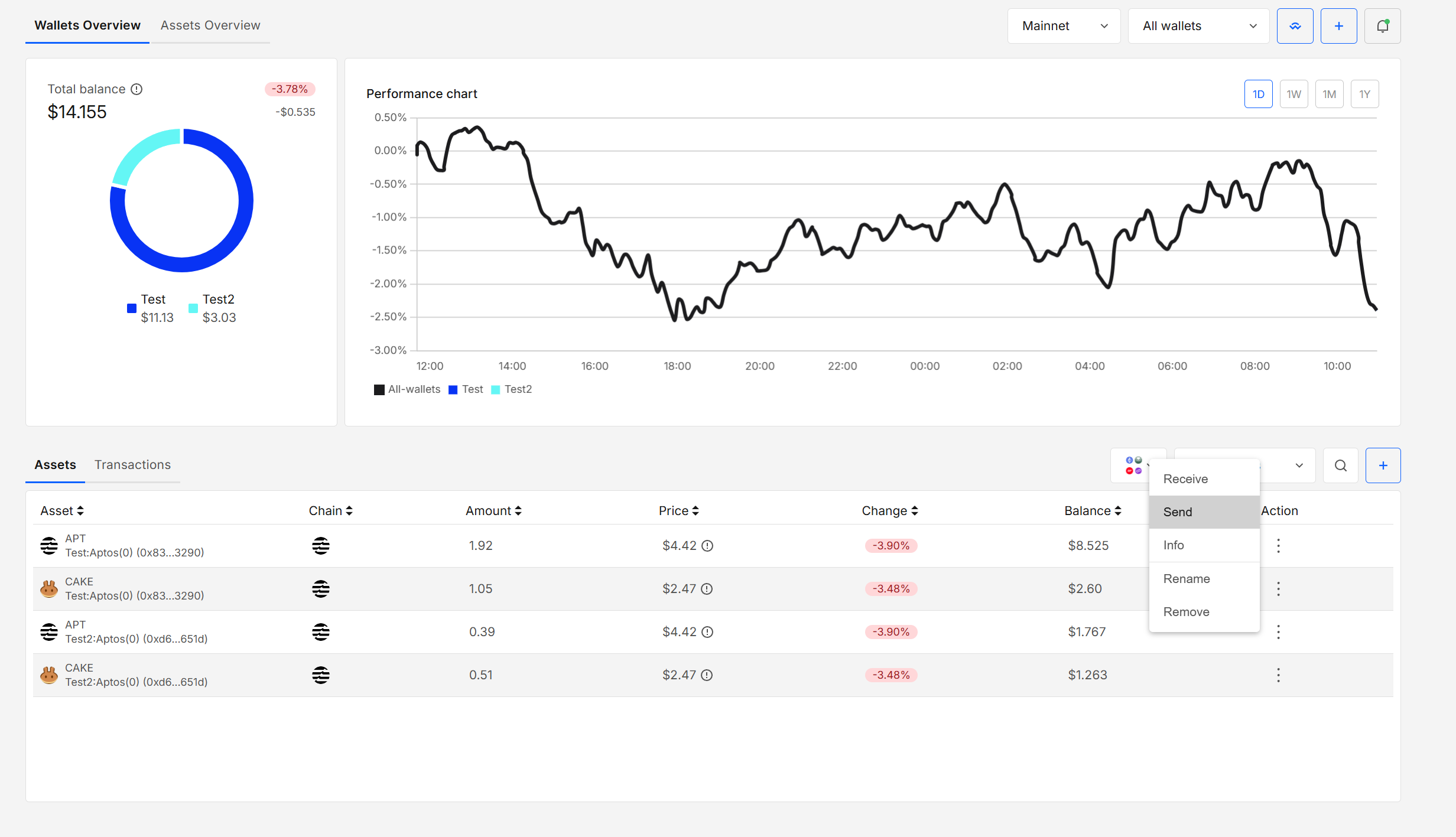
Open Send
On the portfolio/wallet page, Assets → ••• → Send.
-
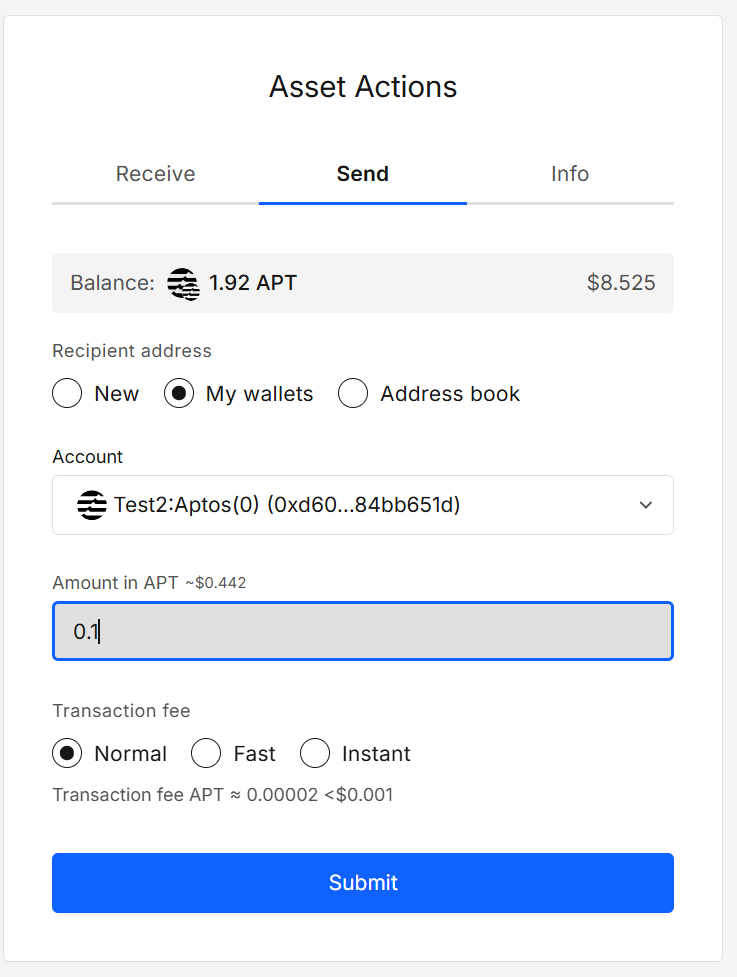
Fill the Send panel
Specify recipient and amount, then Submit.
-
Open “Sign transaction” modal → Click "Export" button
-
Download the unsigned payload
In Export modal, download the transaction in JSON or QR format by clicking Download, then tick “I have read the instructions” and click Done.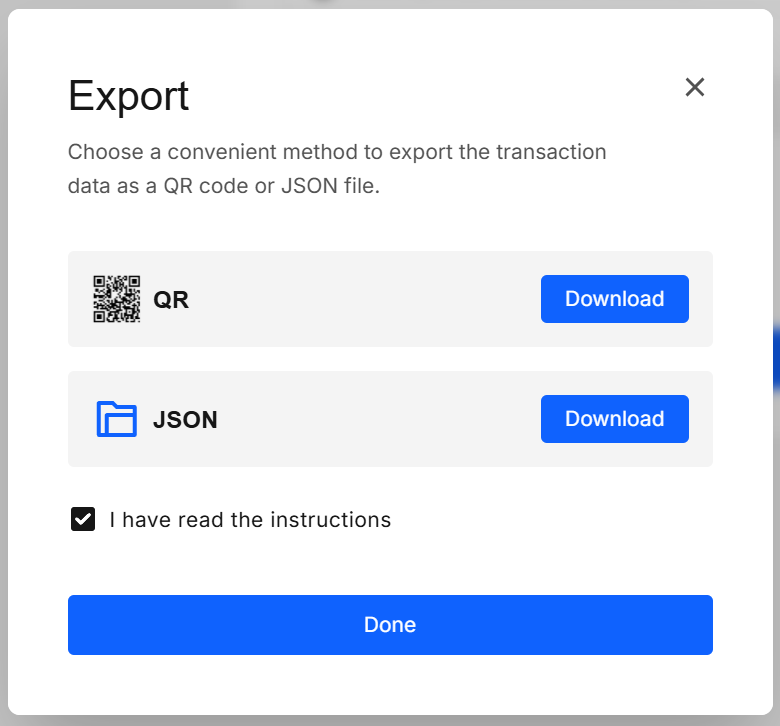 Follow the process to the end
Click Done in the Offline export dialog to proceed. It opens the Send transaction modal and adds a pending item to Notifications (bell).
If you skip Done, no item is queued and you’ll have to re-export the unsigned transaction. -
Online modal waits for a signed payload
You’ll see the Send transaction modal that accepts the signed transaction (via File or Scan QR). Keep it open, or retrieve it later from the bell icon in the header.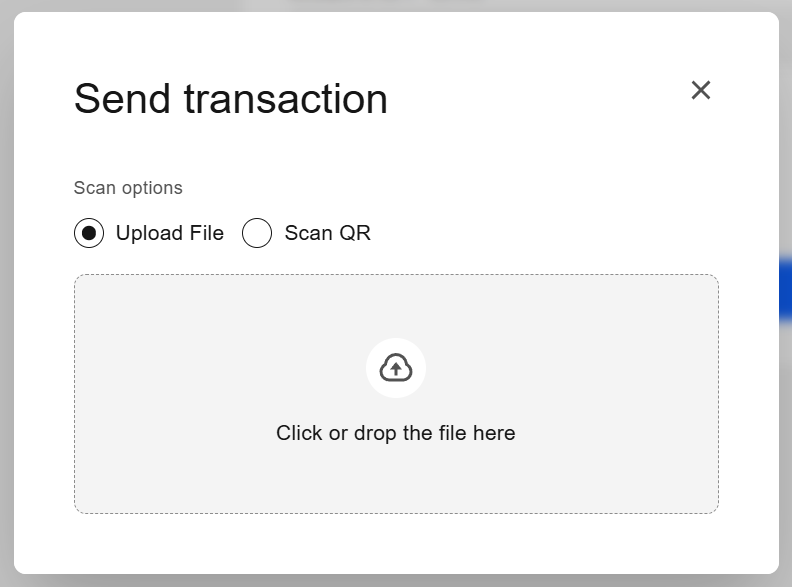
Sign the Payload in the Offline Wallet
-
Open Offline Wallet → Sign Transaction
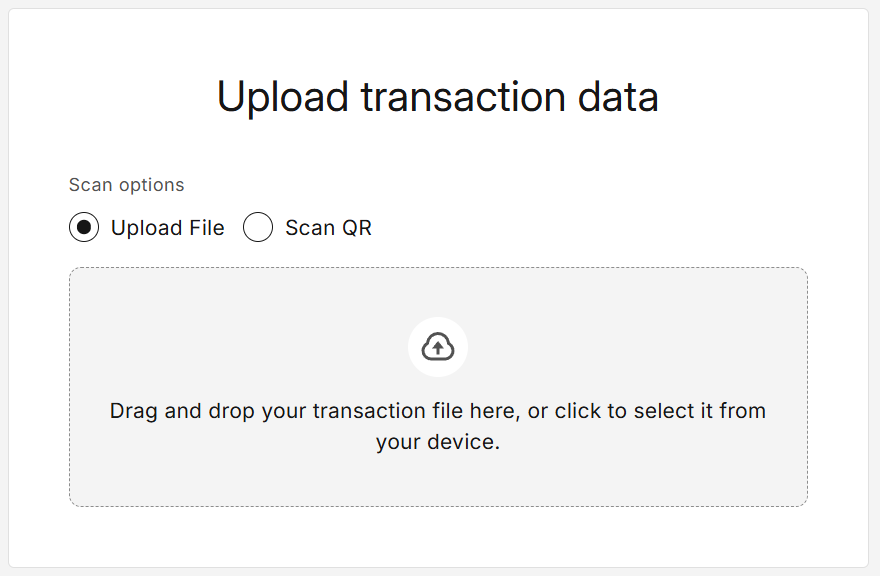
Upload the unsigned file from the step 1.4 (JSON/QR) or scan the QR.
-
Review & Sign
If the file is valid, the Review Transaction appears. Verify fields and click Sign → enter portfolio password → Confirm.
-
Export the signed payload
Click Export and select JSON or QR. Confirm with the checkbox and click Done. Keep this file/QR safe.
Import the Signed Transaction Back Online and Broadcast
-
Return to online wallet
- If the “Send transaction” modal is still open: upload/scan the signed file you exported in step 2.3.
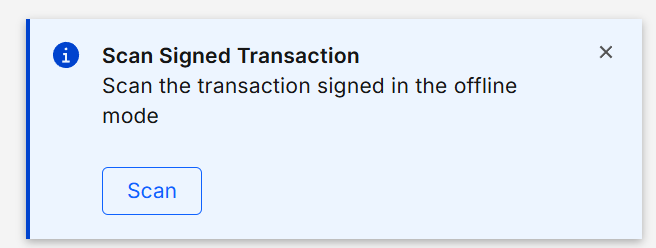
- If you closed it: open the bell (notifications) and click Scan on the pending item.
Payload pairing requiredYou must upload the exact signed payload for this specific pending transaction.
Files from other transactions (even if valid) are rejected.
Also ensure you signed with the correct account that owns the private key for the From address. -
Final review & submit
The transaction details appear again. Verify and click Submit to broadcast.
| Stage | Outcome |
|---|---|
| Online → Offline export | Unsigned transaction saved (JSON/QR) and queued in notifications once Done is clicked. |
| Offline → Sign | Signed payload generated offline; export as JSON/QR. |
| Online → Import & Submit | Signed payload verified (must match original); transaction is broadcast on success. |
Validation & Tips
- Payload Pairing: the online modal accepts only the signed payload for the exact pending transaction (matching identifiers/payloads).
- Correct Account: sign using the wallet/account that owns the From address; mismatches are rejected.
- Double-check Fees: the Max Fee shown may not match the current network fee.
Security & Privacy
- All signing occurs locally in the offline wallet; no data leaves the device.
- Sensitive UI (passwords, decrypted text, signing) runs in a separate-origin iframe for strong DOM isolation.
- It's recommended to use a separate, extension-free browser profile for the offline environment.
FAQ
I uploaded a signed file but it was rejected. Why?
Most often: (1) The file belongs to a different pending transaction, (2) it was altered, or (3) it was signed by the wrong account. Re-export the unsigned payload, re-sign offline, and try again.
Can I use this flow for swaps?
Yes — any action that presents the Export option can be signed with the same online ↔ offline ↔ online pattern.
Do I have to use QR?
No. You can use JSON files entirely if that’s simpler for your setup.
Developer Info
- Built and maintained by the EXTRA WALLET team.
- Source: Sign Transaction