Authentication & Portfolios
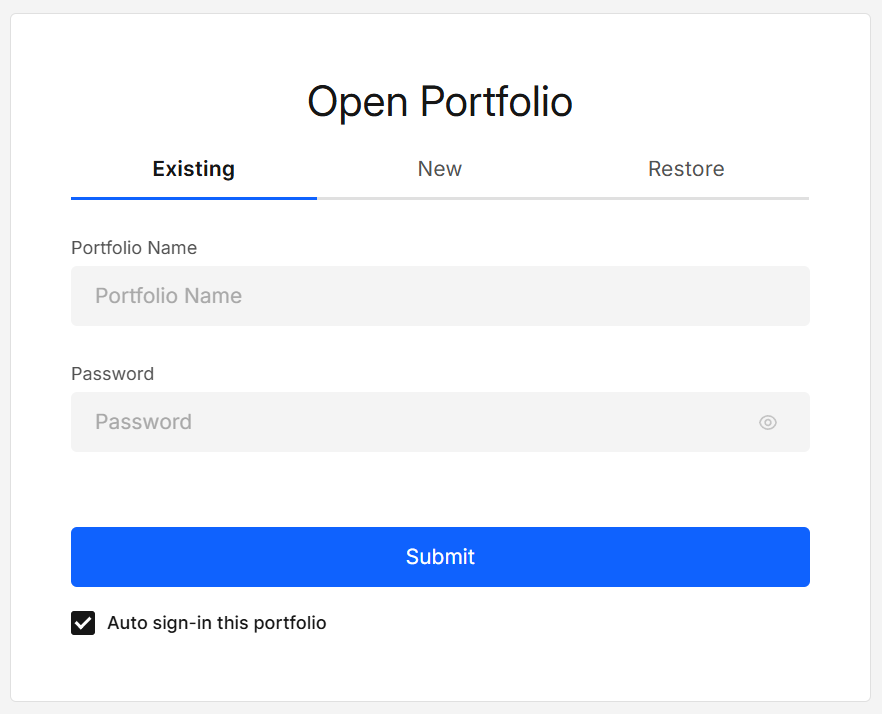
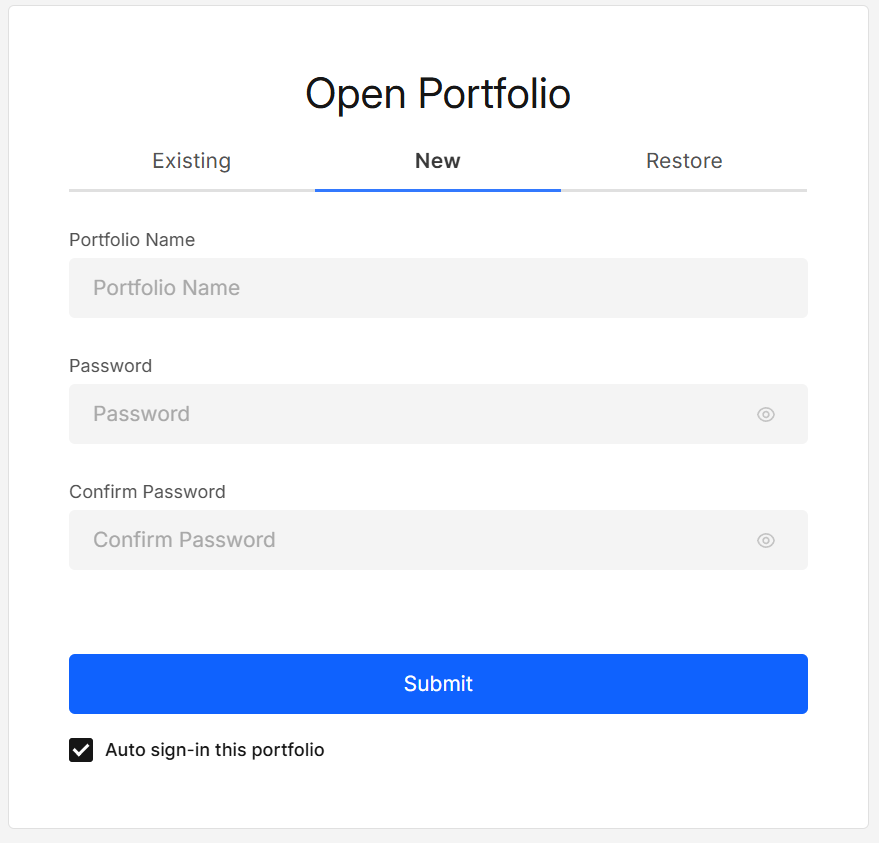
On first open, you’ll see the Auth page with two tabs - New and Restore
After logout there is also an Existing tab - for users that’ve already created a portfolio on EXTRA WALLET.
What You Can Do
Existing – Open an already created local portfolio.
New – Create a brand-new local portfolio.
Restore – Restore a portfolio into the offline environment.
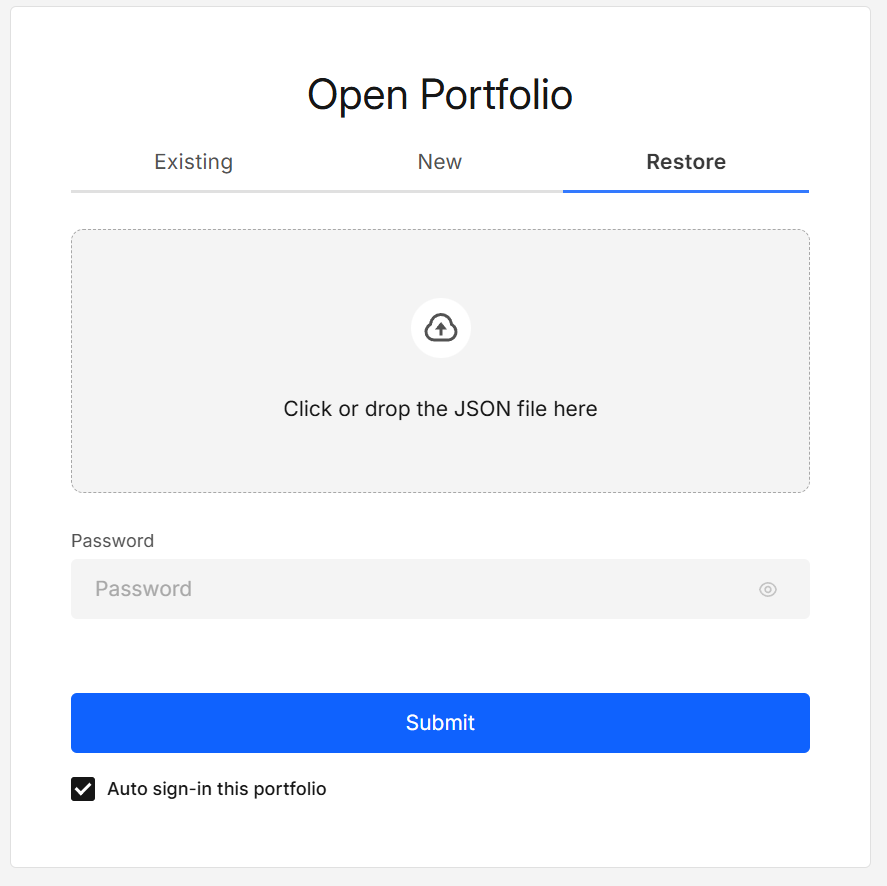
Auto sign in — When enabled, the portfolio reopens automatically on this browser profile after restarts. You’ll still be asked for your password before any sensitive action.
Fields & Validation
Portfolio name
- Must contain at least 3 characters
- Latin letters, digits, spaces,
_,-,'are allowed - Leading/trailing spaces are trimmed; multiple inner spaces collapsed
- Examples:
Main2025✅ ·treasury 01✅ ·my/wallet❌ ·dev#1❌ ·wa❌
Password
- Minimum 4 characters
- For New and Restore, Confirm password must match
Restore file
- Type: JSON
- Obtain from:
- Online Wallet → Settings → Backup portfolio, or
- Offline Wallet → header → open dropdown → Backup icon
Use a short, descriptive portfolio name; avoid secrets in names.
Prefer a long passphrase (e.g., 4–6 random words) or 12+ mixed characters; avoid reuse.
After Auth
You’ll land on the Offline Tools page.
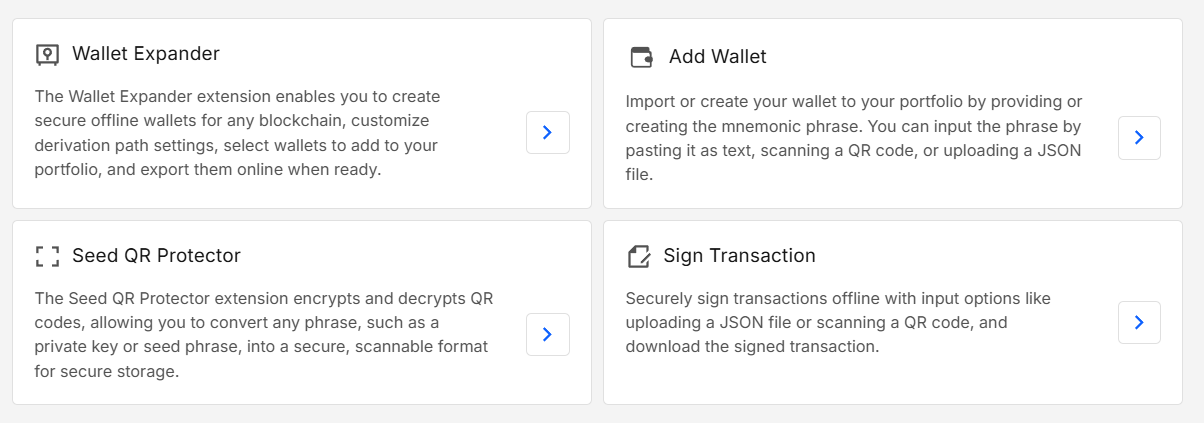
What you can do next:
- Create or import a wallet → Add Wallet
- Derive addresses → Wallet Expander
- Protect your phrase as QR → Seed QR Protector
- Sign transactions offline → Sign Transaction
Security & Privacy
- All crypto operations run locally.
- Password input and decrypted content are rendered in the separate-origin signer iframe.
- If you lose the portfolio password, we cannot recover it.
Troubleshooting
| Issue | Fix |
|---|---|
| Restore fails | Ensure the file is a valid portfolio JSON from Backup |
| Wrong portfolio opening | Log out and choose the correct one from Existing |
Developer Info
- Built and maintained by the EXTRA WALLET team.
- Source: Authentication