Add Wallet
About
Add Wallet lets you create a new wallet (with a generated recovery phrase) or import an existing one.
You then select one or more chains and optionally tweak advanced derivation settings per chain.
Saving requires your portfolio password so the mnemonic is stored encrypted locally.
Key Features
CreateorImporta wallet- Select one to all supported chains in a single flow
- Advanced settings per chain (derivation path, key scheme/type, client/vendor options, etc.)
- QR import for mnemonics encrypted with
Seed QR Protector - Local-only storage, encrypted with your portfolio password
How to Use
1. Choose Create or Import
Open Add Wallet and pick Create or Import.
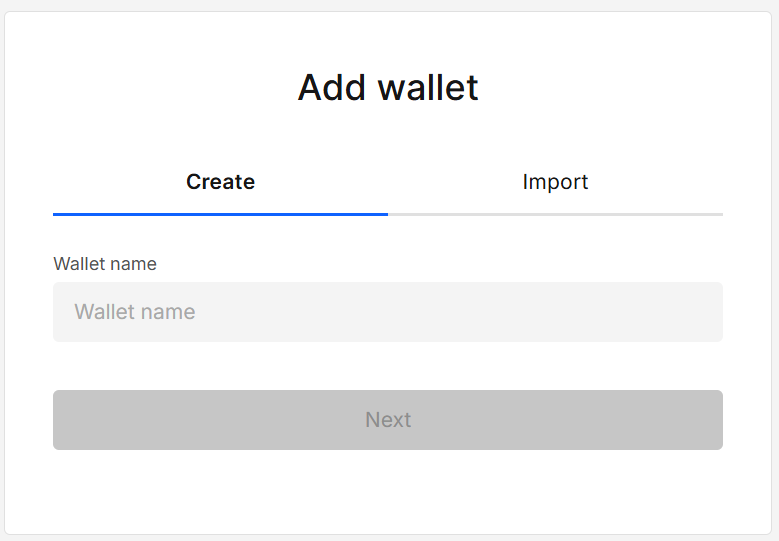
Enter a Wallet name, then Next.
Tip: Use a short, descriptive name (e.g.,
Research 2025,Cold ETH BTC). Avoid revealing secrets in the name.
2. Select Chains
Pick one to all chains from the checklist. Use search to filter the list.
A gear appears next to each selected chains for advanced configuration.
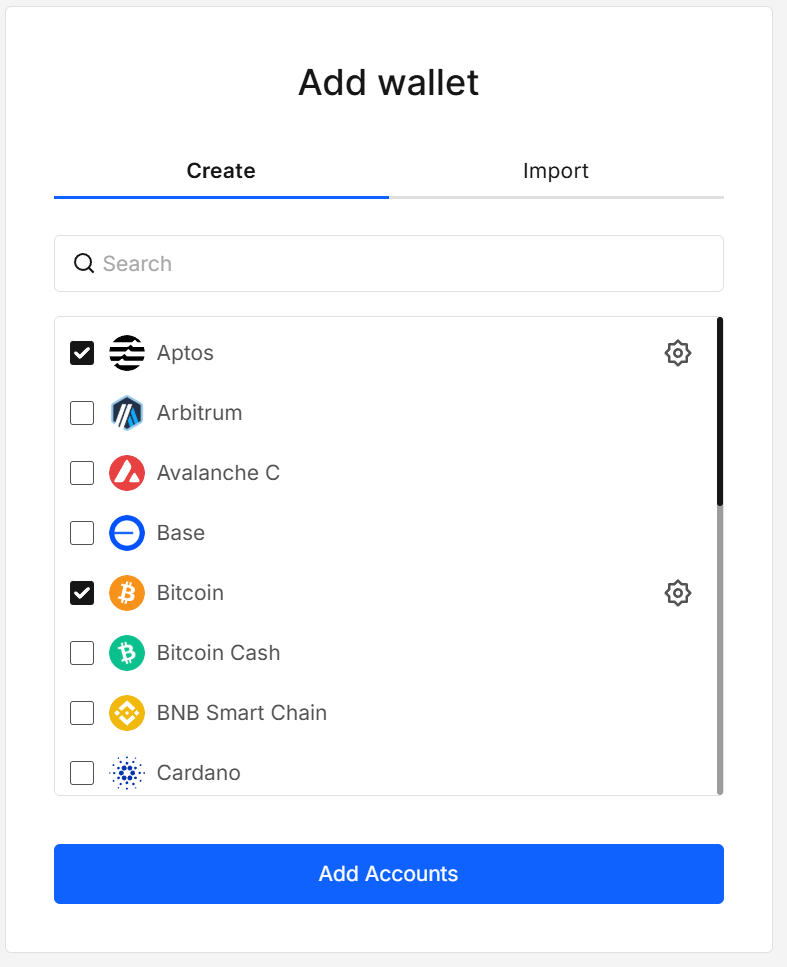
Advanced Settings (per Chain)
Click Advanced Settings gear icon to customize the chain’s derivation behavior.
Typical options include:
- Address Range (how many to preview per batch)
- Wallet Compatibility (configures derivation settings for a selected wallet)
- Chain-specific derivation paths (e.g., Enterprise, Reward, Account paths)
- Derivation Type / Scheme (e.g.,
ed25519,secp256k1,Legacy,Base – Recommended)
For most workflows you don’t need to change derivation specific fields under the Custom settings section. Adjust only if you know why (e.g., matching a path from another wallet, migrating accounts, testing a specific scheme/provider).
Fields vary by chain. Examples:
-
Aptos:
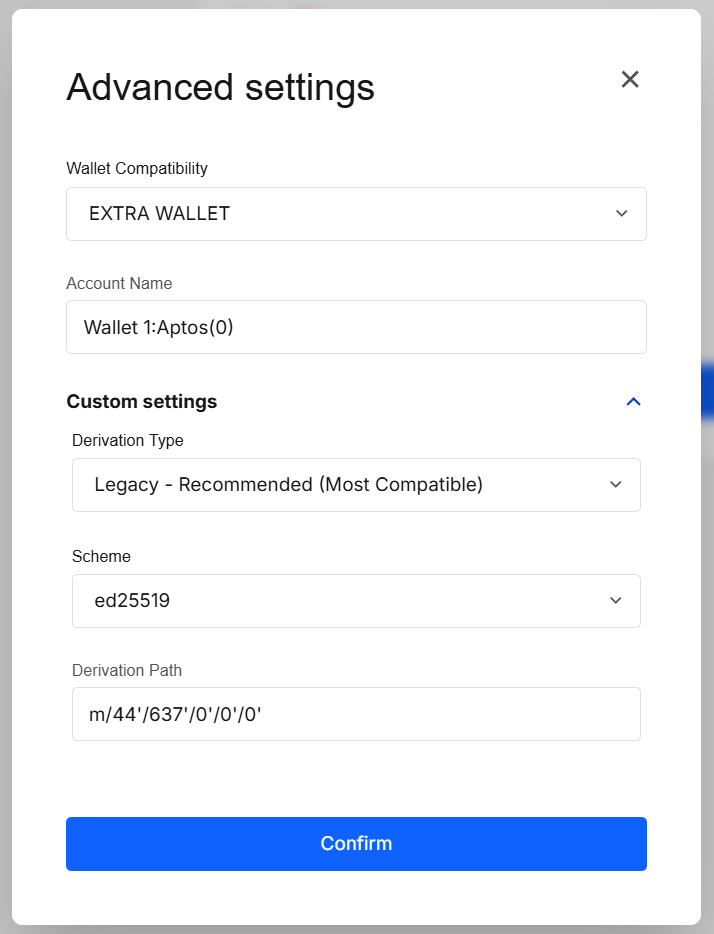
-
Bitcoin:
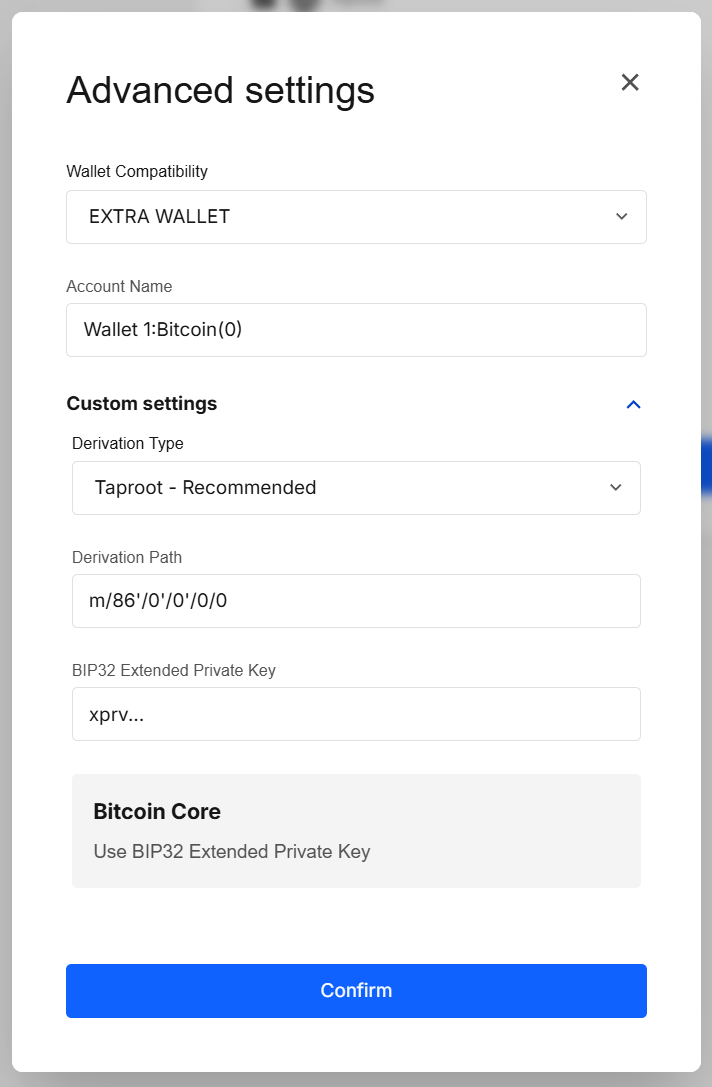
If you provide a custom derivation path, the range view is disabled and only the single address for that exact path is shown.
Each chain is customized independently. Click Add Accounts to continue.
If you don’t specify a custom path/index, the app fills gaps automatically:
- First default add → index
0 - Later you add an account with a custom index → e.g.,
2 - Next default add again → index
1(the next unused index)
3. Provide the Recovery Phrase
The next step depends on Create vs Import:
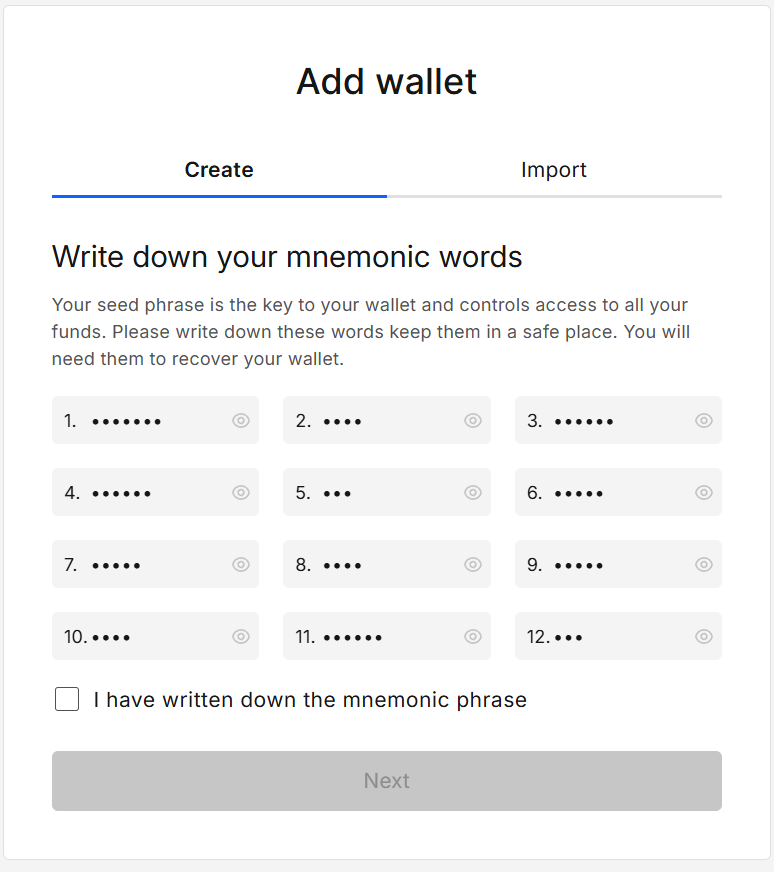
Create
- The app shows a generated mnemonic.
- Tick “I have written down the mnemonic phrase” to enable Next.
Import
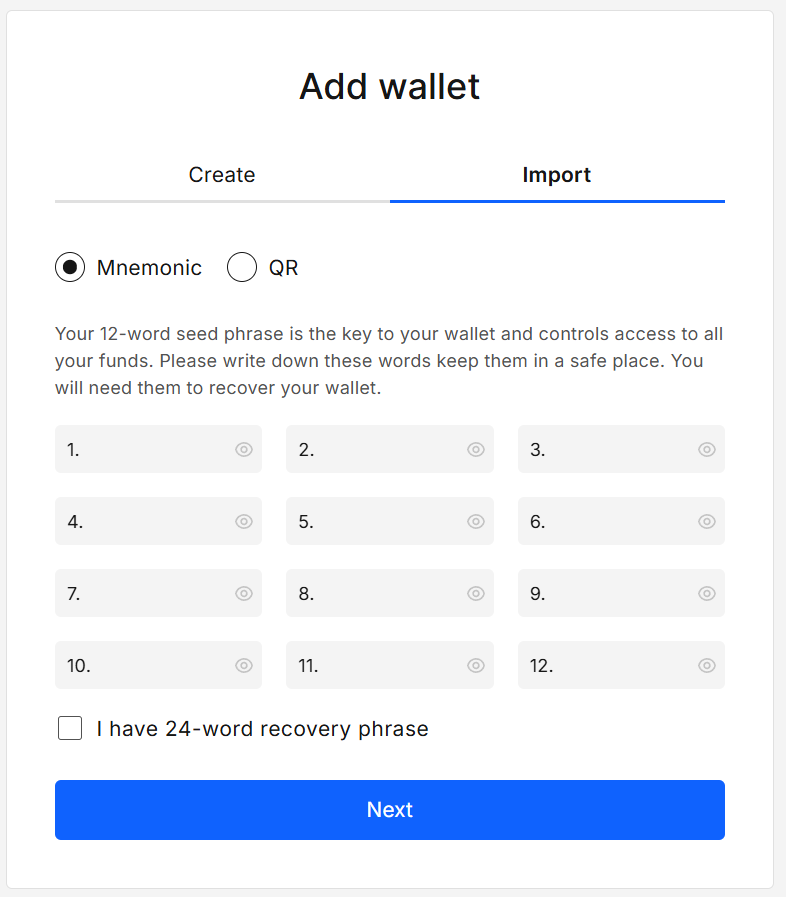
- Two import modes:
-
Mnemonic — paste the 12- or 24-word phrase. Toggle “I have 24-word recovery phrase” to switch the grid.
-
QR — same functionality as
Seed QR ProtectorDecrypt (mnemonics only). See the Seed QR Protector page for details.
Tick thePassword protected?checkbox if the QR mnemonic is encrypted with a password.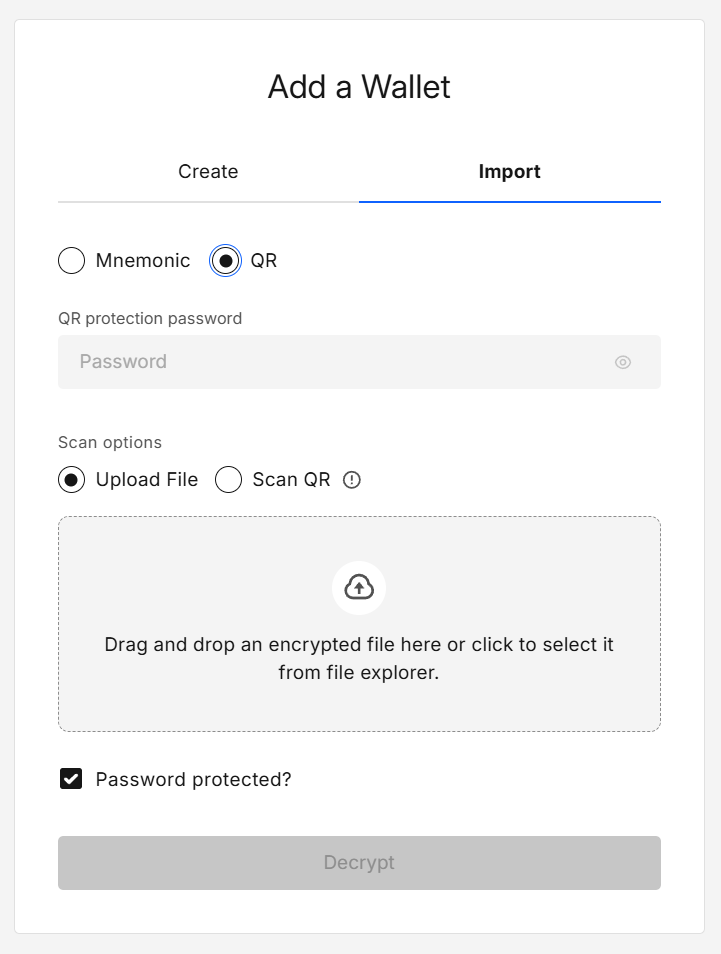
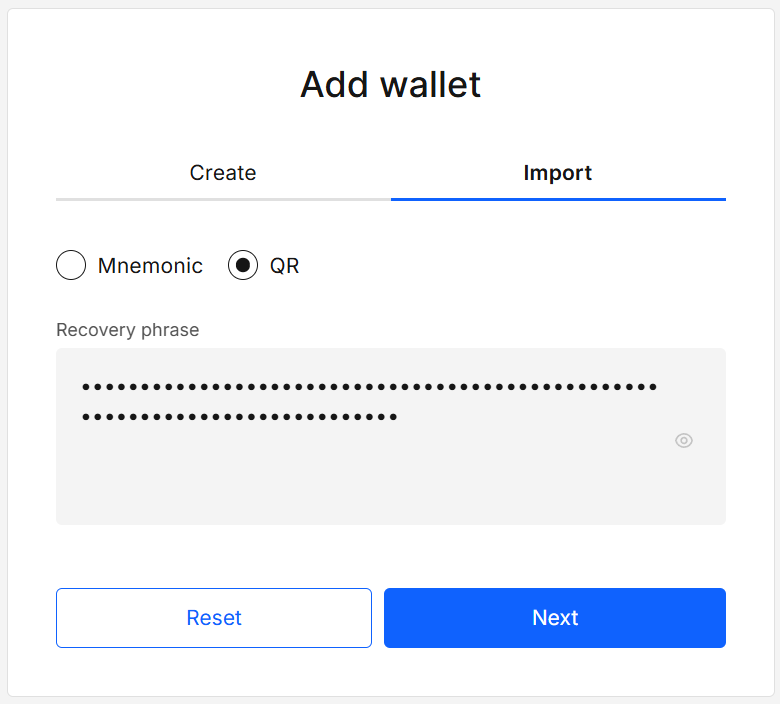
After decryption, a Review screen shows the recovered mnemonic with Reset and Next buttons.
-
4. Confirm with Portfolio Password
A confirmation modal asks for the portfolio password. This encrypts and stores the wallet locally. Click Confirm.
5. Finish
A short “Congrats” modal appears. Click Got it to return to the Offline Tools home.
Results
| Action / State | Result |
|---|---|
| Create with selected chains | A wallet is created; accounts for each selected chain are added with the chosen paths. |
| Import (Mnemonic / QR) | The mnemonic is imported; a wallet is created; accounts for each selected chain are added with chosen paths. |
| Advanced settings per chain | Overrides (path, scheme/type, client) apply only to that chain’s accounts. |
| Save (Confirm password) | Mnemonic & metadata are stored encrypted in the portfolio’s local storage. |
Validation & Tips
Wallet name
- Must be present before Next; Minimum 3 alphanumeric characters are required.
Chains
- Select at least one chain to proceed.
Mnemonic
- 12 or 24 words; words must be valid BIP-39 entries (for chains using BIP-39).
- 24 words provide higher entropy.
QR import
- Accepts plain mnemonics or encrypted with
Seed QR Protector. - Sources:
Upload file(JSON/QR image) orScan QR(camera). - After decryption, always review the phrase before continuing.
Security & Privacy
- No data leaves your device; decryption and saving happen locally.
- Sensitive UI (passwords, decrypted text) is rendered in an isolated iframe on a separate origin.
- Keep an offline paper copy of your mnemonic; consider an additional
Seed QR Protectorbackup stored separately.
FAQ
What does a “wallet” represent here?
A named set of accounts across multiple chains, all derived from the same mnemonic (unless you later import another account with a private key derived from another mnemonic).
Can I change derivation later?
Yes. Add a new account with customized settings via the gear next to a chain. If you added an account with the wrong path, you can delete it.
Where is the wallet stored?
Encrypted in your local IndexedDB storage. Sensitive actions require your portfolio password.
Developer Info
- Built and maintained by the EXTRA WALLET team.
- Source: Add Wallet