Payment Service
About
Payment Service is the central place to manage your API key and credits across the EXTRA WALLET ecosystem.
The ecosystem uses a credits-based model for paid features. You receive an API key with an initial credit balance, and the same API key can be used across products, such as:
- Wallet
- Mini apps
- CLIs
- Other EXTRA WALLET tools
On the Payment Service page you can:
- create / restore / add an API key
- see your current credit balance
- top up credits (fiat or crypto)
- review credit usage history
Key Features
- API key management
- Generate a free API key
- Restore an existing API key by email
- Add an API key manually
- Log out (remove the key from the current session)
- Credits management
- View current credits balance
- Top up credits with crypto or fiat
- Service price list
- See per-action credit cost for each paid module
- Usage history
- Track spending by application + endpoint with notes
How to use
Open the Payment Service
When you open the Payment Service, the first screen shows:
- Generate API Key
- Restore API Key
- a Services table with credit costs
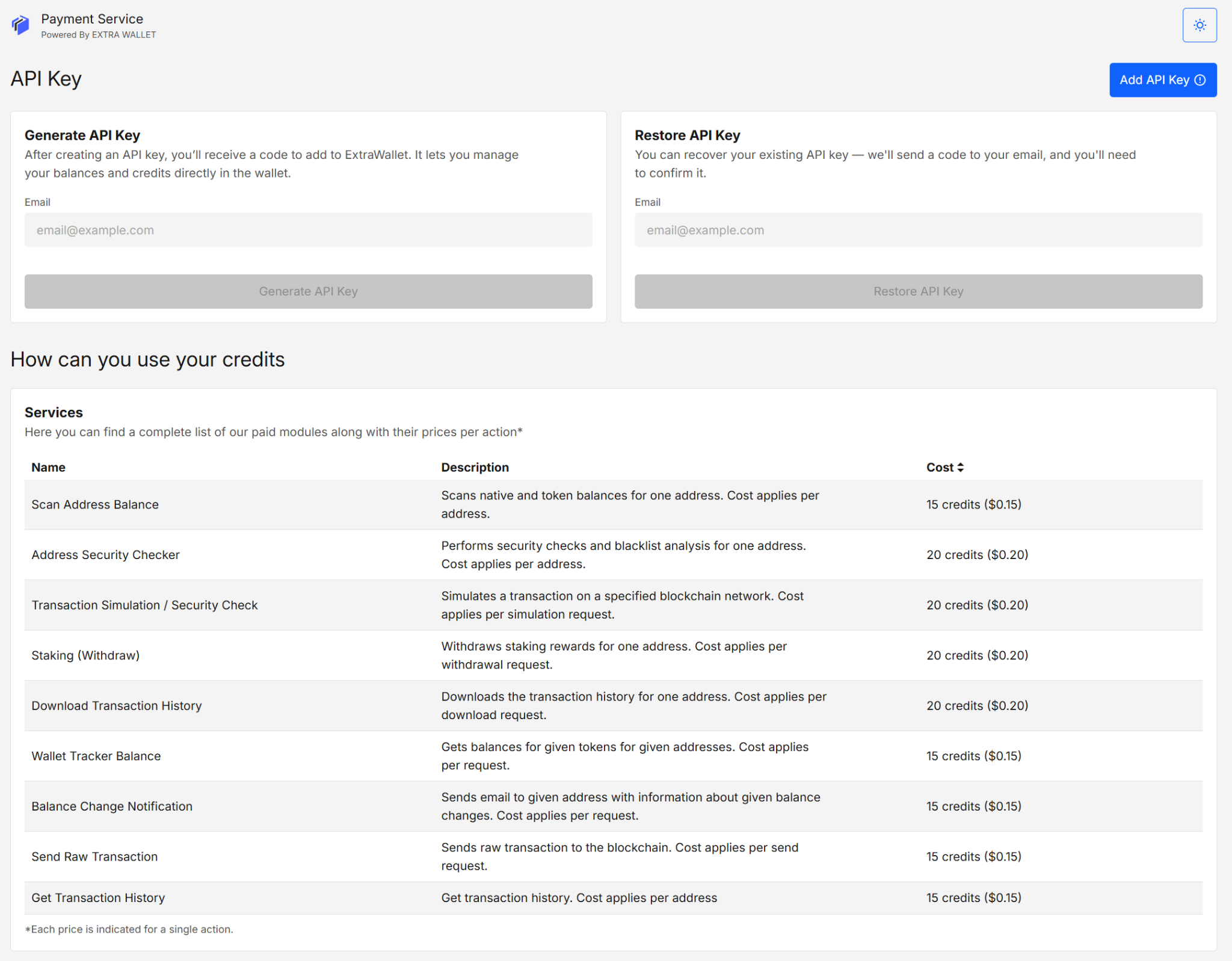
API Key
You can manage your API key in three ways:
- Generate (new free key)
- Restore (recover an existing key by email)
- Add API Key (paste a key you already have)
Treat the API key like a credential. Don’t share it publicly and avoid storing it on shared devices.
Generate API key
- Enter your email in Generate API Key.
- Click Generate API Key.
- Check your inbox and complete the verification step from the email.
- After verification, the API key is created and displayed in the UI along with your credits balance.

Restore API key
- Enter your email in Restore API Key.
- Click Restore API Key.
- You’ll receive an email with a new API key you can use in any EXTRA WALLET product.
Restoring will generate a new API key for your account while preserving the existing balance.
Add
Use this if you already have an API key (e.g., after Restore, or after logging out).
- Click Add API Key (top-right).
- Paste your API key.
- Confirm to save it for the current session.
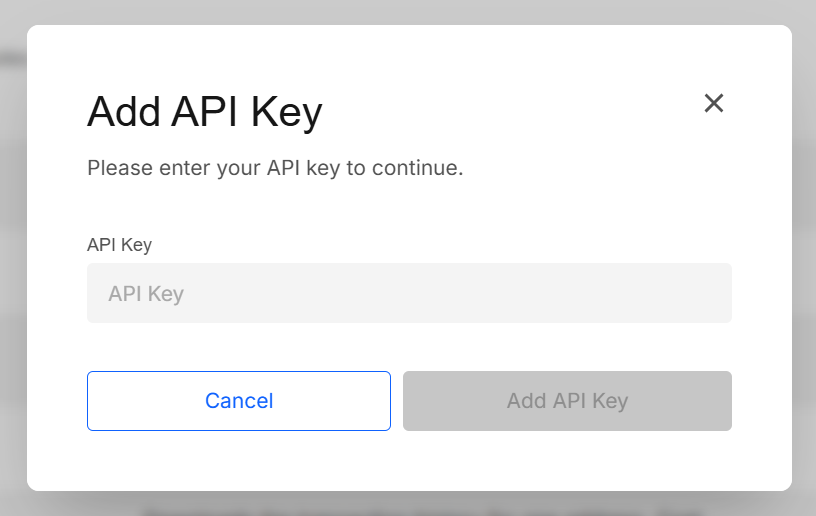
Log out
Click Log Out to remove the API key from the current session.
Credits and Top Ups
Credits are used by paid modules across the ecosystem. Your current credits balance is shown next to the API key.
Top up Credits
- Click Top Up Credits.
- Enter the credits amount.
- Amount is configured in steps of 10
- Minimum 20 credits
- Select a payment method:
- Crypto
- Fiat
- Continue to the payment provider page.
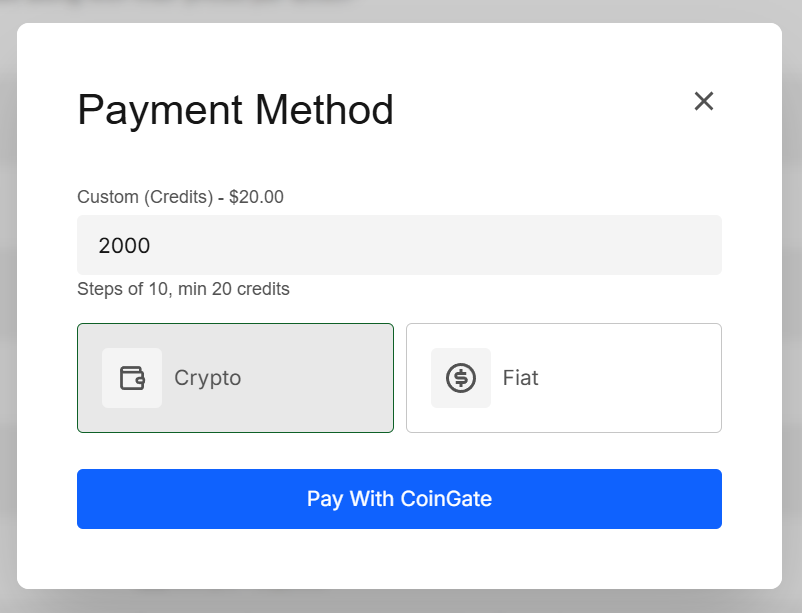
After you click the pay button, you’ll be redirected to the selected provider to complete the payment. Once complete, credits are added to your API key balance.
Services and Pricing
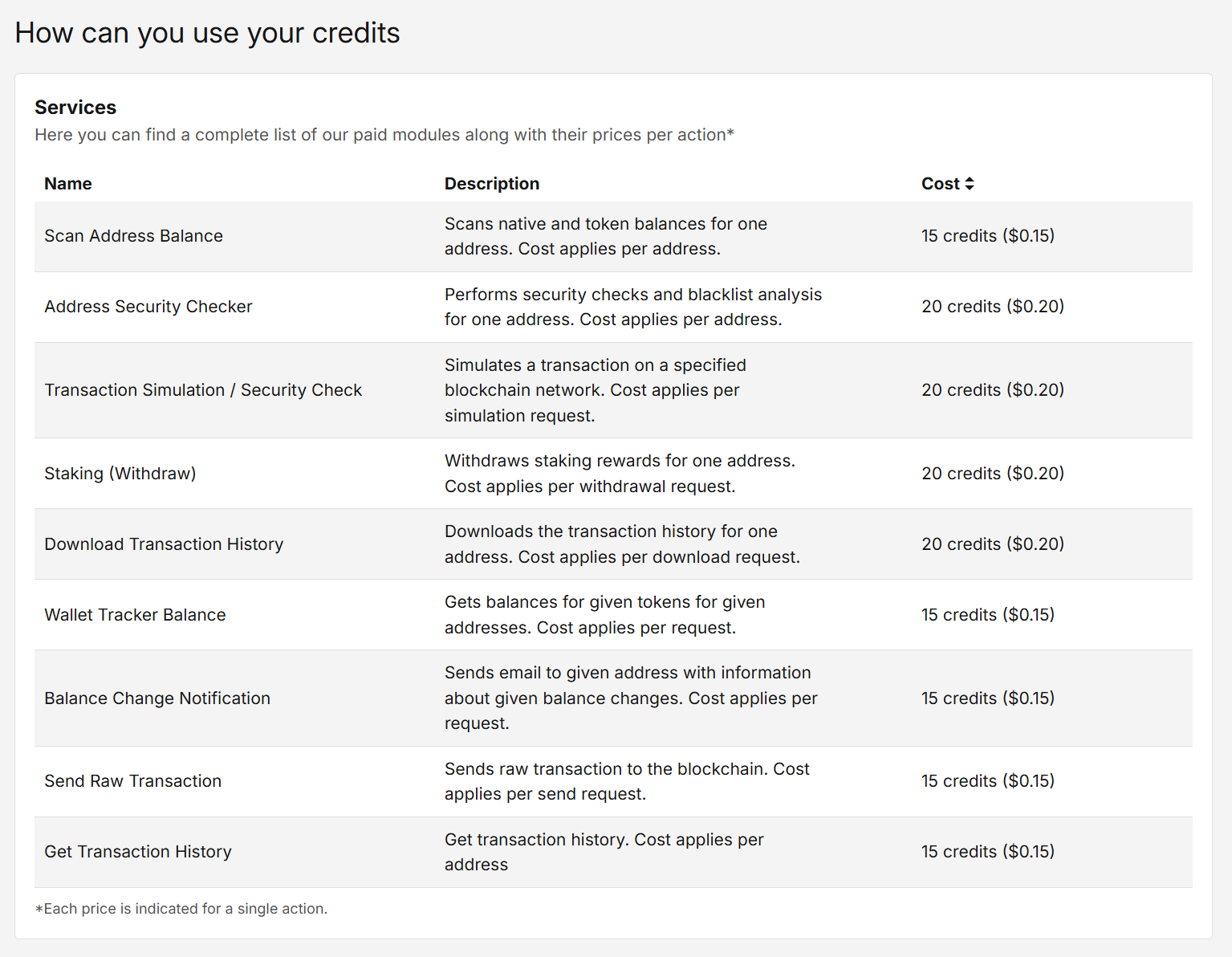
The Services table lists paid modules and their credit cost per action (each row is priced for a single action/request).
Typical examples include:
- scanning balances for an address
- transaction simulation / security checks
- downloading transaction history
- sending raw transactions
- notifications
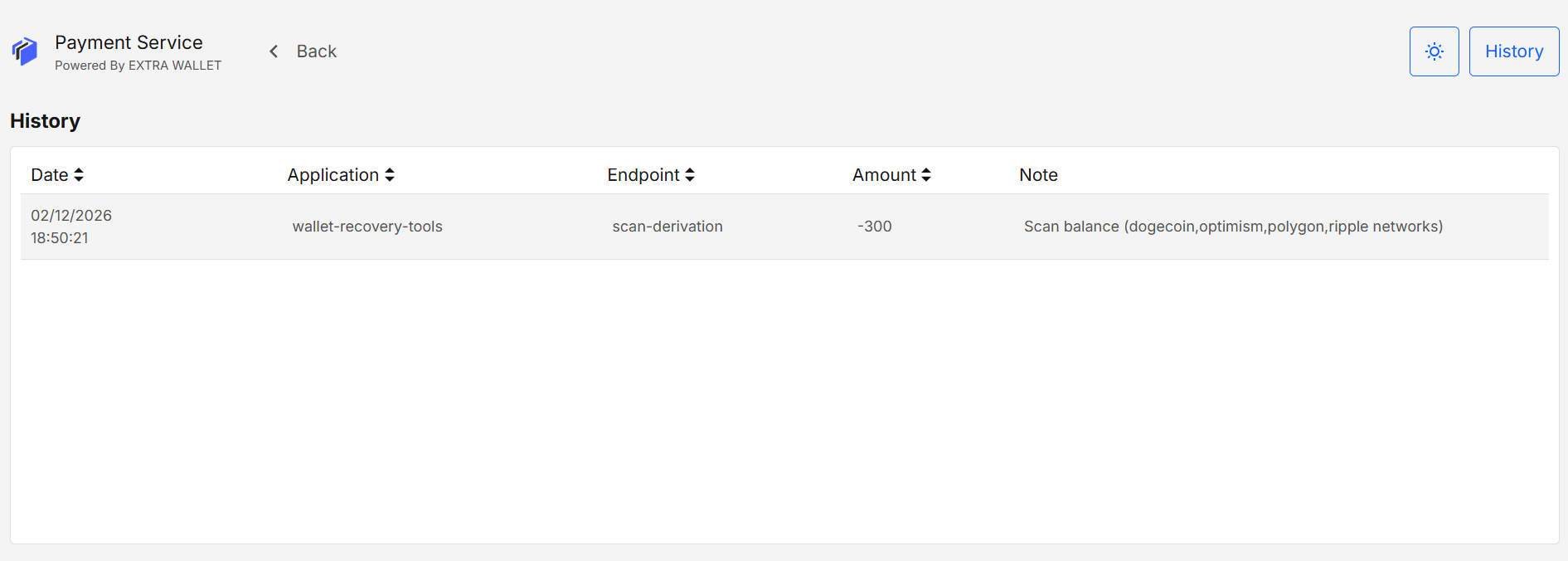
Usage History
When a paid service is used, an entry is added to History.
To open history:
- Click History in the top-right header.
History entries typically include:
- Date
- Application (which product triggered the request)
- Endpoint
- Amount
- Note (human-readable details)
Security & privacy
- API key hygiene: the API key unlocks access to paid operations. Keep it private.
- Logout on shared devices: use Log Out to remove the key from the session after use.
- Email verification: generating/restoring a key requires access to the linked email.
A compromised device (malware, untrusted extensions, screen recorders) can leak credentials regardless of app protections.
Developer Info
- Built and maintained by the EXTRA WALLET team.
- Source: Payment Service