Staking
About
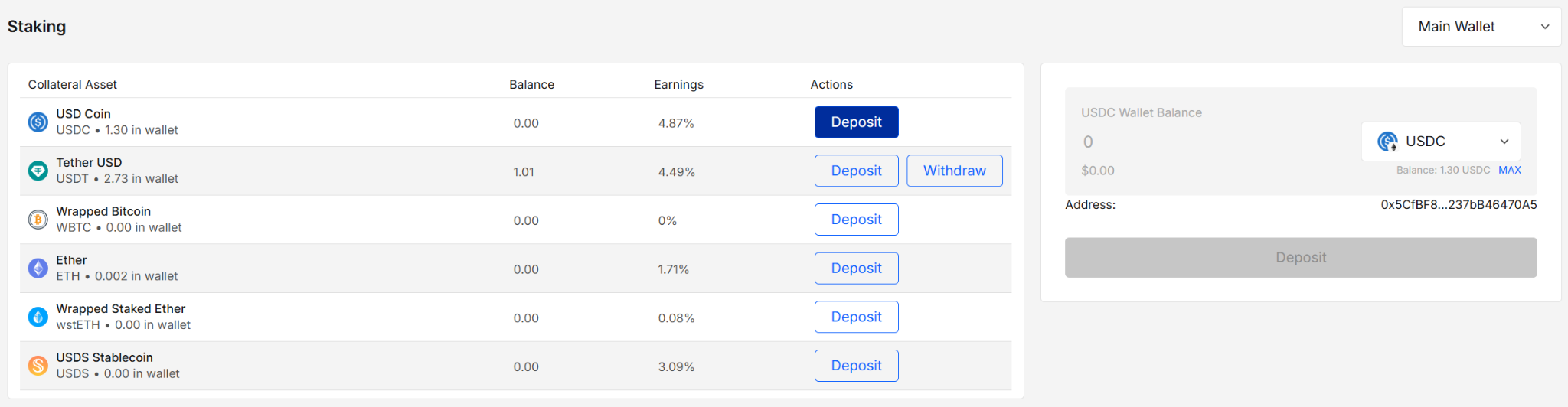
Staking lets you supply (deposit) and withdraw assets to/from the Compound protocol directly from EXTRA WALLET.
A left-side table shows supported collateral markets and your supplied balance per token; the right-side panel is the action form (select token, enter amount, deposit/withdraw).
Key features
- Token & chain picker (only tokens available on the chosen account’s chain)
- Deposit and withdraw in one place
- Simulate transactions before signing (Tenderly)
- Password-gated signing; private keys never leave the signer surface
How to Use
1. Pick wallet & account (optional)
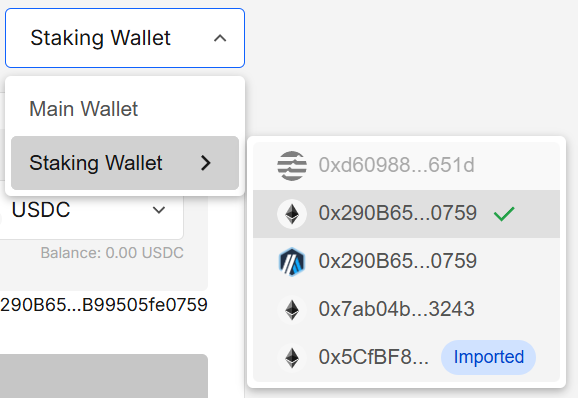
When the module opens, your default wallet/account is selected.
Use the selector to switch wallets; hover a wallet to see its accounts. Non-EVM accounts are disabled; Imported accounts are labeled.
2. Review available markets
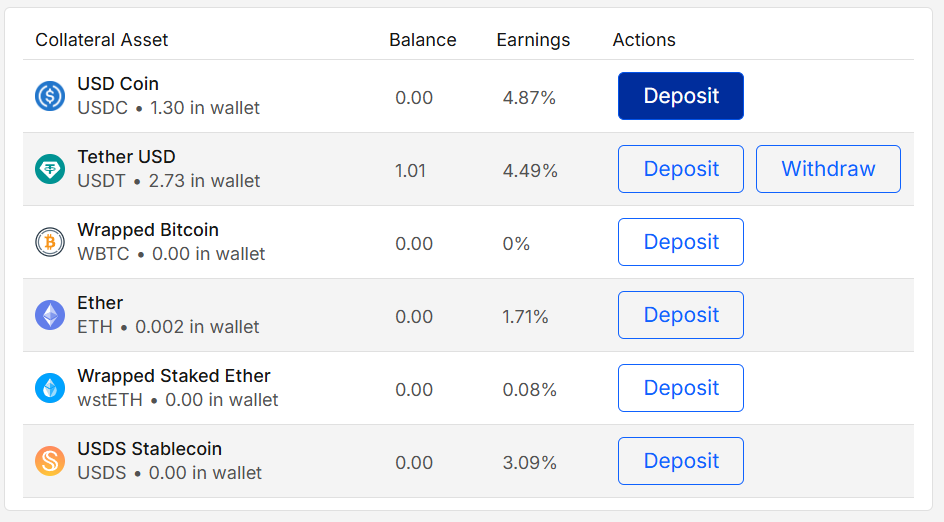
The left table lists supported tokens with four columns:
- Collateral Asset: Token and its amount in wallet (e.g., USDC • 1.30 in wallet)
- Balance: Amount currently supplied to Compound for this account
- Earnings: The current APY for the market
- Actions: Deposit (always), Withdraw (shows when you have a supplied balance)
3. Choose token & amount
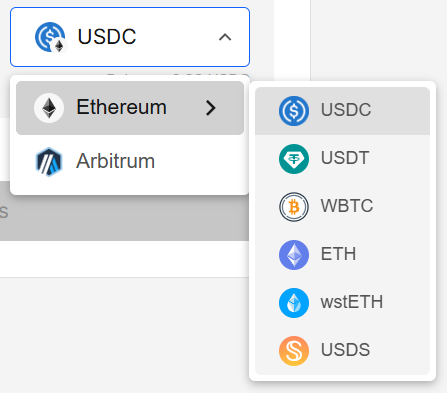
On the right panel, choose the token from the dropdown and enter the amount.
Your wallet balance for the selected token is shown under the selector.
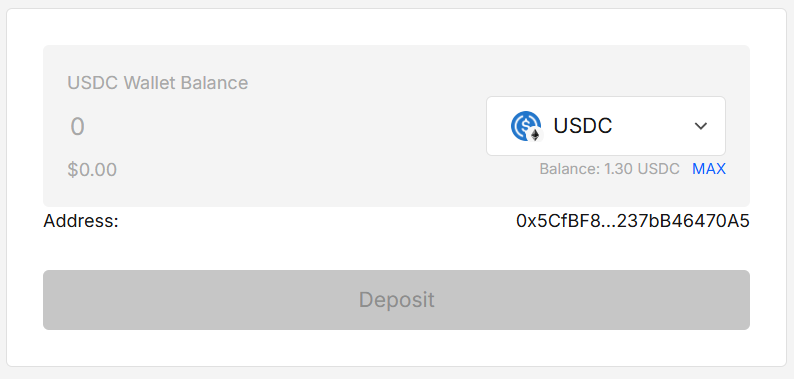
Token selector: first pick the chain (limited to chains of accounts added to the selected wallet), then pick a token available on that chain.
4. Deposit or Withdraw
The primary button reflects the action chosen in the table (e.g., Deposit or Withdraw).
Once a valid amount is entered, click the button to open Sign transaction modal.
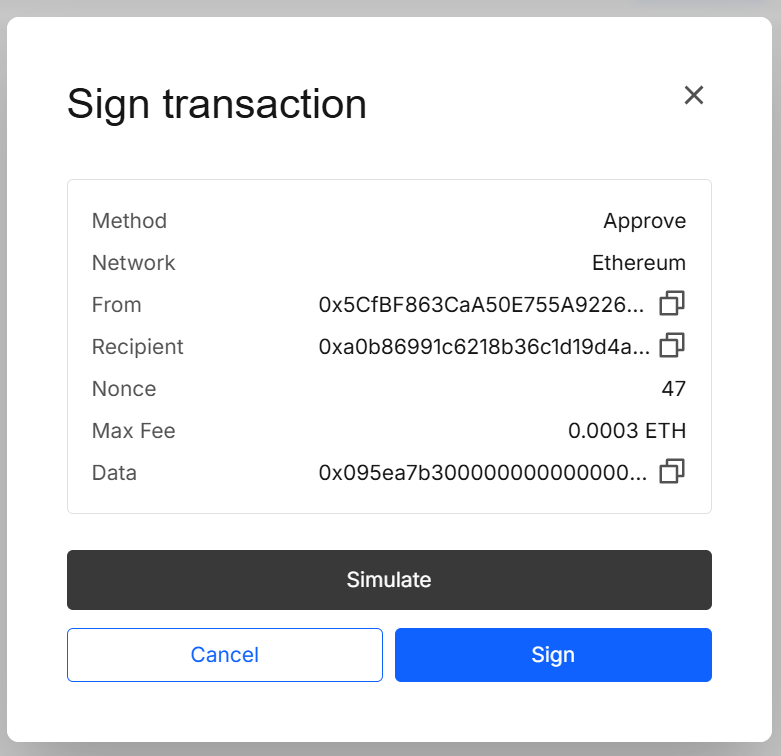
After the modal is opened you can:
- Simulate — run a Tenderly simulation to preview transaction result.
- Sign — sign and submit the transaction. You’ll be prompted for your portfolio password.
After a simulation, you’ll see the success/failure status and a link to the full Tenderly page with more details, and a Re-simulate option.
Withdrawing funds requires 20 credits.
5. Result
If the transaction completes successfully:
- Deposit — your supplied Balance for that token increases.
- Withdraw — your supplied Balance decreases; tokens return to your wallet.
Notes & tips
- Approvals: Some tokens require approval before the first deposit; you’ll be prompted automatically.
- Gas & Speed: Chain fees and confirmation times depend on the chosen chain.
- MAX button: Use MAX in the form to quickly populate the available wallet balance.
- Visibility: Withdraw appears only for markets where you have a non-zero supplied balance.
Security & privacy
- Quotes/market data and simulations may query third-party APIs/RPCs (e.g., protocol indexers, Tenderly). These requests use public data only.
- All password prompts are rendered in the signer’s separate-origin iframe. Mnemonics and private keys never leave the signer surface.
Services and Pricing
Each withdrawal consumes credits from your balance. For more details, explore the Payment Service Services and Pricing section.
FAQ
Why is the button disabled/missing?
Check that you’ve selected a token, entered an amount, and have enough wallet balance (for deposit) or supplied balance (for withdraw).
Why don’t I see my token?
Only tokens supported by Compound on the current chain are shown, and only for EVM accounts.
Can I simulate without sending?
Yes. Use Simulate first; you can cancel or tweak details before signing.
Developer Info
- Built and maintained by the EXTRA WALLET team.
- Source: EXTRA WALLET