Balance Recovery
About
Balance Recovery Tool helps you locate funds scattered across derived addresses. It derives addresses by range for each supported chain, shows per-address balance and tokens, and lets you add the corresponding accounts to a wallet.
Key features
- Per-chain scanning with range preview
- Balance and tokens shown for each derived address
- Add to Wallet in one step (with password confirmation)
- Password requested on demand (never stored in memory)
How to use
1. Open the tool
Open Balance Recovery Tool. You’ll see the list of supported chains.
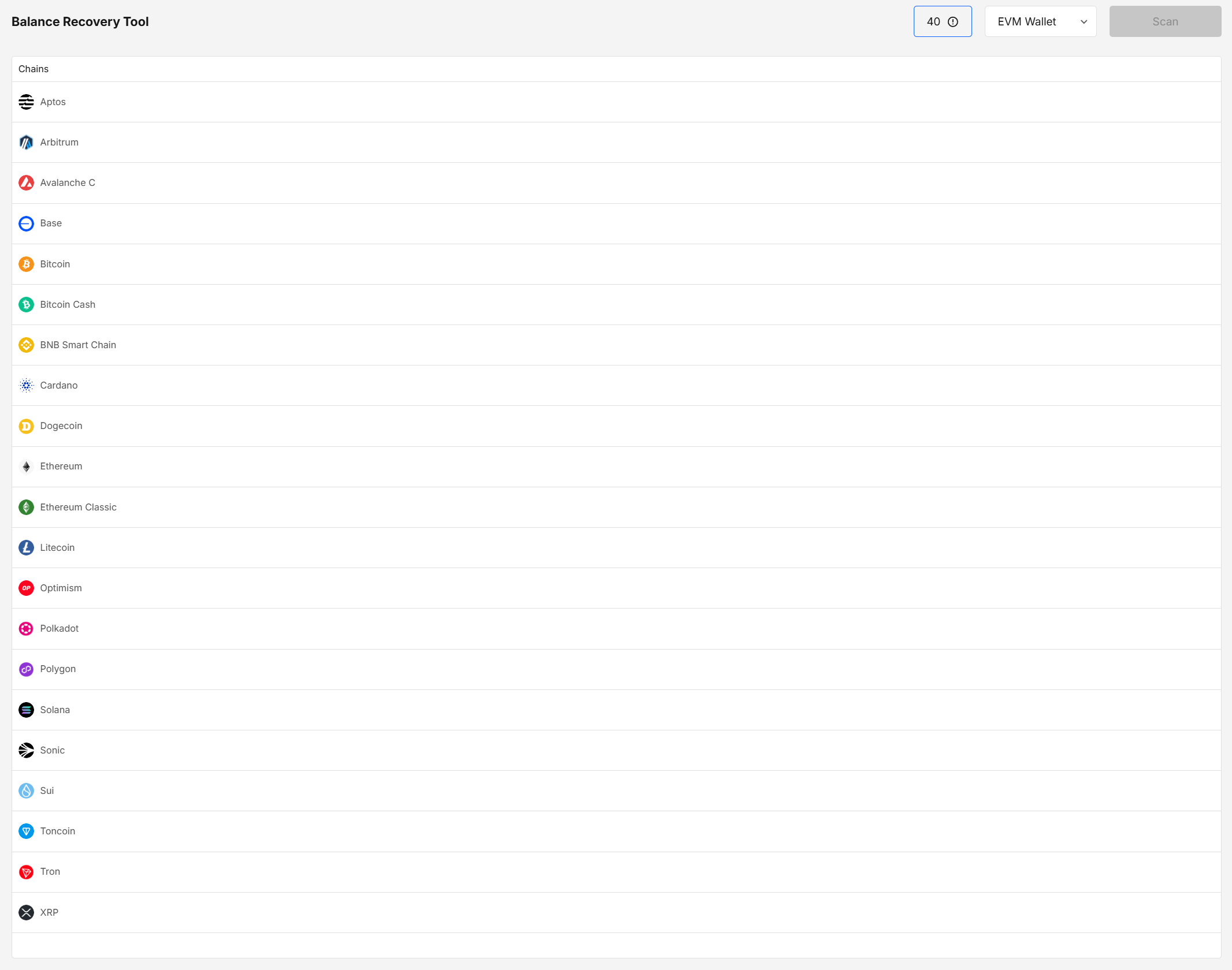
Choose the target wallet from the Wallet selector at the top to discover its accounts. The list includes every wallet in your portfolio (e.g., Aptos Wallet, EVM Wallet).
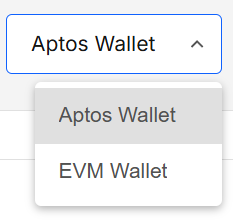
- Scope: Previews and add actions apply to the selected wallet only.
- Default: The first wallet in your portfolio.
- Switching: Changing the selected wallet refreshes the list for that wallet and clears any pending selections.
2. Pick a chain & confirm
Click a chain (e.g., Cardano, Aptos, Bitcoin, EVM chains, etc.).
Enter your portfolio password to unlock derivation for that network.
3. Browse the results
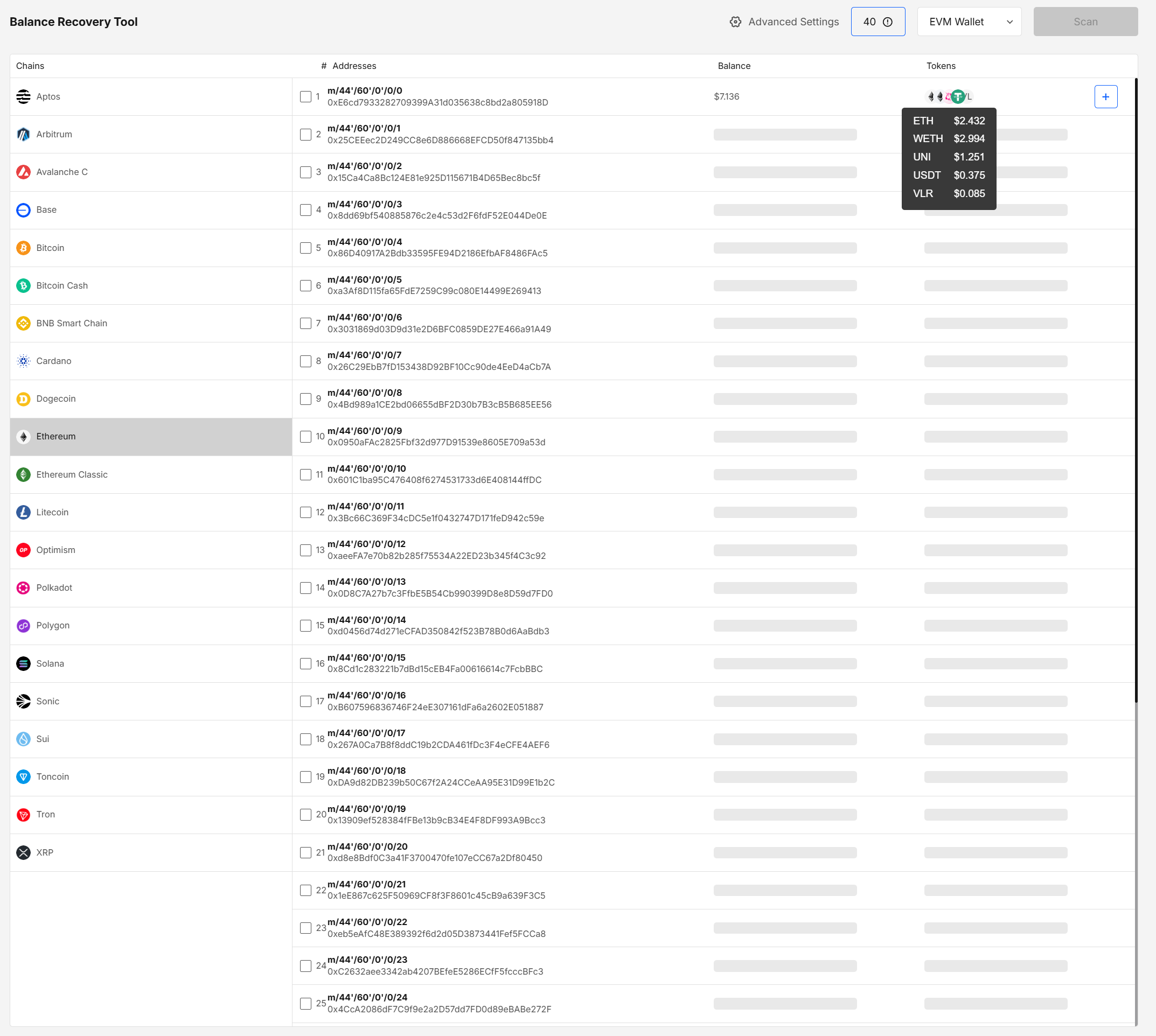
A default address range is generated. For each row you’ll see:
- # (derivation index and HD path)
- Addresses
- Balance
- Tokens (quick view of holdings)
4. Configure Advanced settings (Optional)
Click Advanced Settings to customize the chain’s derivation behavior.
Typical options include:
- Address Range (how many to preview per batch)
- Wallet Compatibility (configures derivation settings for a selected wallet)
- Chain-specific derivation paths (e.g., Enterprise, Reward, Account paths)
- Derivation Type / Scheme (e.g.,
ed25519,secp256k1,Legacy,Base – Recommended)
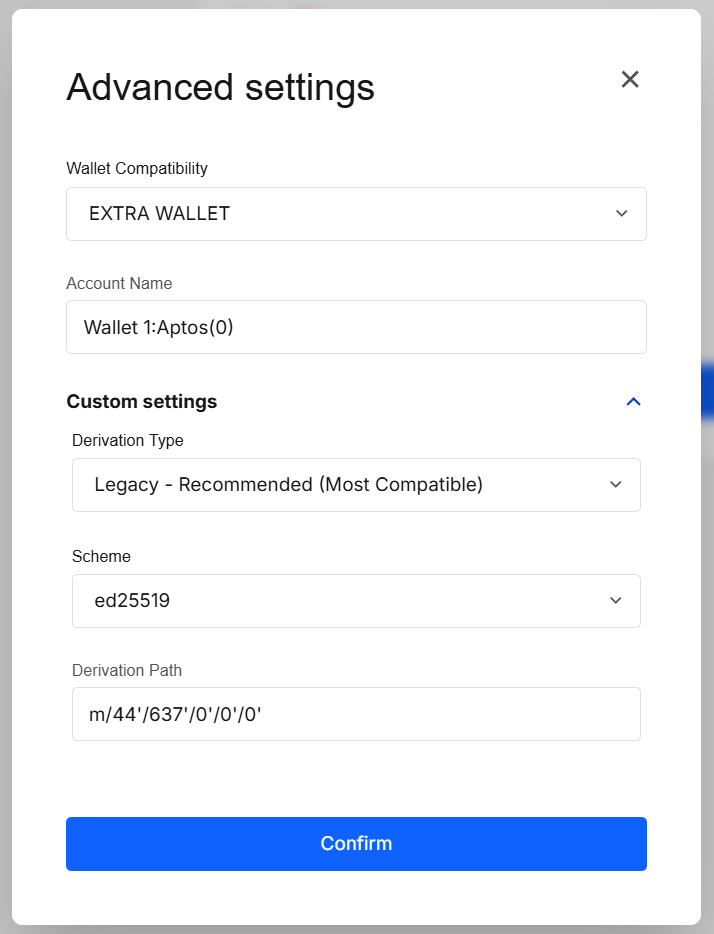
For most workflows you don’t need to change derivation specific fields under the Custom settings section. Adjust only if you know why (e.g., matching a path from another wallet, migrating accounts, testing a specific scheme/provider).
Fields vary by chain. Examples:
-
Aptos:
-
Bitcoin:
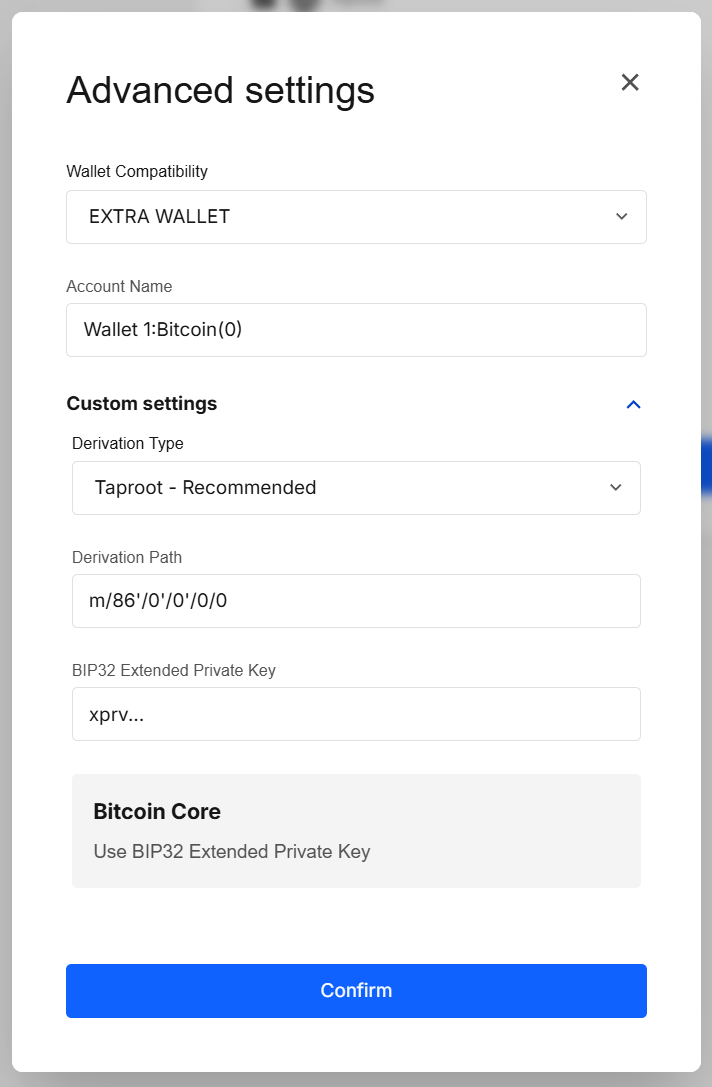
If you provide a custom derivation path, the range view is disabled and only the single address for that exact path is shown.
5. Select & apply
Tick the checkboxes for the accounts you want to scan.
After the scan, the Add to Wallet (+) button becomes enabled.
Click the Add to Wallet button, confirm with your password and the selected accounts will be added to the wallet.
Results explained
| Action | Outcome |
|---|---|
| Select chain | Preview derived addresses with paths, balances, and tokens; optionally refine via Advanced settings |
Add to Wallet (+) | Adds scanned accounts to the wallet after a password confirmation |
Validation & tips
- Password prompts: you’ll be asked a password every 10 minutes.
- Compare with Expander: Need to export a watch-only wallet? Use the offline Wallet Expander.
- Custom path: shows a single address — perfect for exact HD paths or non-standard schemes.
Security & privacy
- Derivation previews and account changes happen locally only after you confirm with a password; no data leaves your device.
- For the selected chain(s), the app queries third-party indexers/RPCs to display balances and token lists. These requests include public data only — never mnemonics, private keys, or passwords.
- Sensitive prompts (password entry) are rendered in the signer’s separate-origin iframe for DOM isolation.
Services and Pricing
Each address scan consumes credits from your balance. For more details, explore the Payment Service Services and Pricing section.
FAQ
Does this reveal my seed phrase or private keys?
No. It shows derived public addresses and queries balances. Password prompts unlock secrets but they never leave the signer.
Can I export a wallet from here?
No. Balance Recovery Tool focuses on discovery and adding accounts. Use Wallet Expander for export flows.
Can I use different derivation settings for different chains?
Yes — settings are per chain.
What’s the difference between addresses and accounts?
An address is a part of an account and related to one derivation index/path. When you add an account, we store the HD path, keys (encrypted), and metadata backing that address in your wallet; the private key never leaves the signer.
Developer Info
- Built and maintained by the EXTRA WALLET team.
- Source: EXTRA WALLET