Wallet Recovery Tools
About
Wallet Recovery Tools helps locate funds across multiple chains by deriving addresses from a recovery phrase and scanning for balances. It also includes a utility for recovering a mnemonic when one word is missing, along with an offline workflow for secure derivation and recovery.
Key Features
- Balance scanning across multiple chains (paid via credits)
- Multiple wallet presets (different derivation schemes per chain/mode)
- Flexible scan configuration:
- Select specific chains
- Define global address range with optional per-network overrides
- Advanced per-network advanced settings
- Multiple mnemonic input methods:
- Manual word entry
- Secure QR (password-protected)
- Plain QR (unprotected)
- Restore mnemonic when exactly one word is missing
- Offline workflow using pre-derived address files
- Scan history
- API key + credits system for paid operations
How to use
Balance Scan
On launch, two options are available:
- Start — main recovery workflow
- Import Offline — scan using pre-derived offline addresses

Start
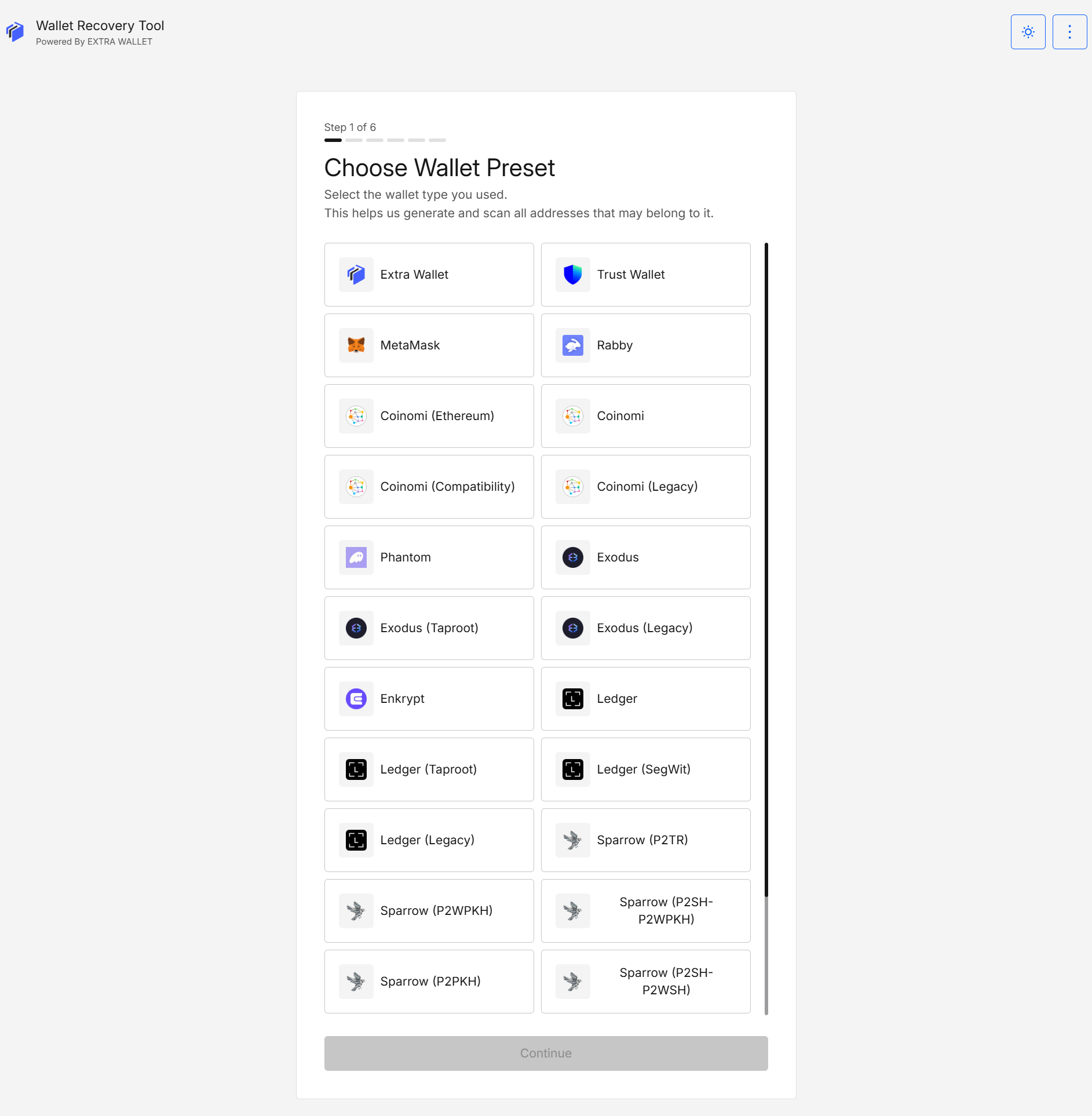
Step 1: Choose Wallet Preset
Select the preset matching the wallet or derivation scheme previously used.
A preset represents a specific derivation configuration. Some wallets may have multiple presets depending on chain or address type.
Examples:
- Exodus (Taproot) — Bitcoin Taproot derivation
- Exodus — Default multi-chain derivations
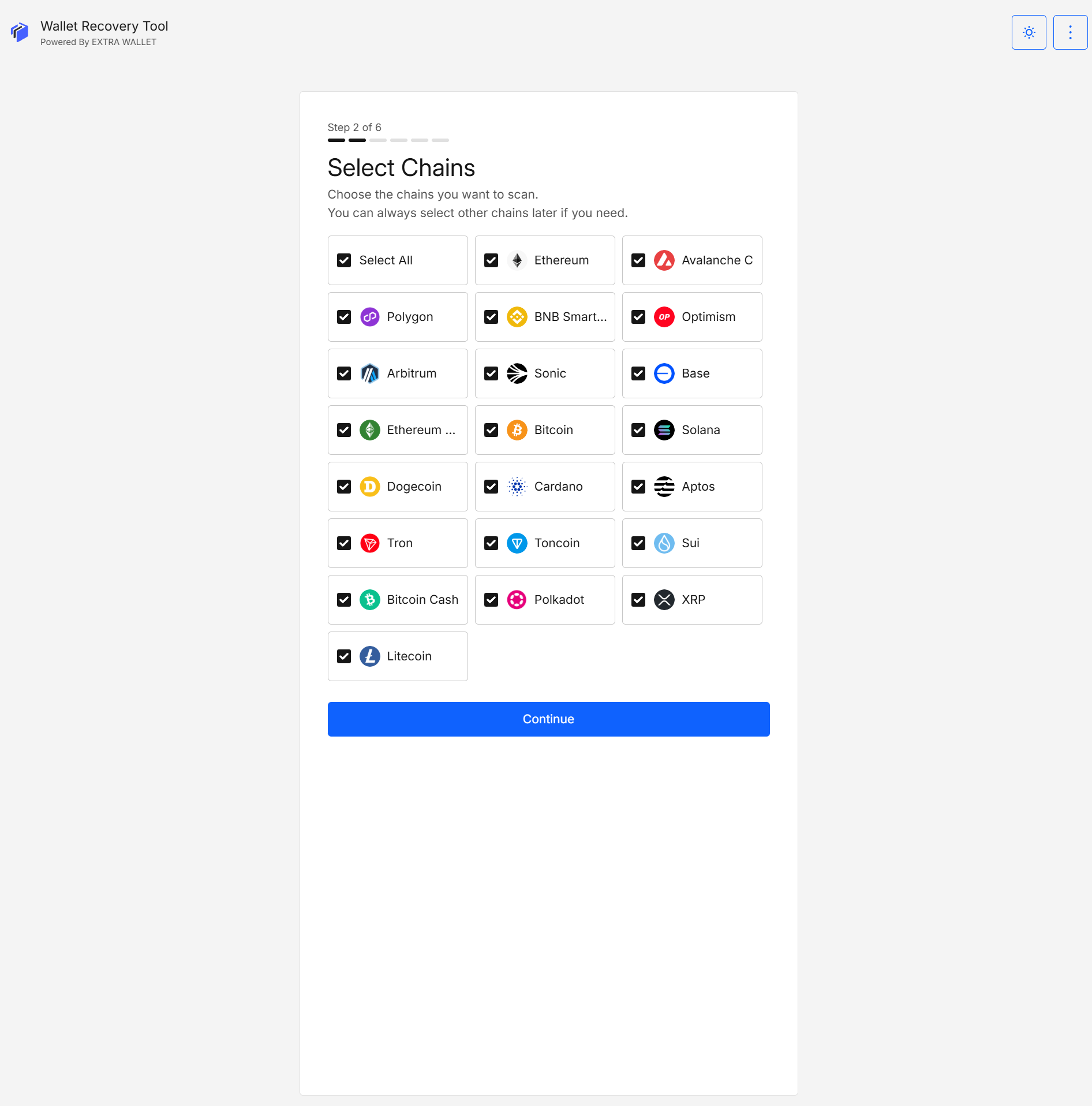
Step 2: Select Chains
Choose networks to scan. Multiple selections are supported.
Step 3: Set Address Range
Define the derivation index range.
- Controls from and to address range derived per chain
- Estimated credit cost is displayed
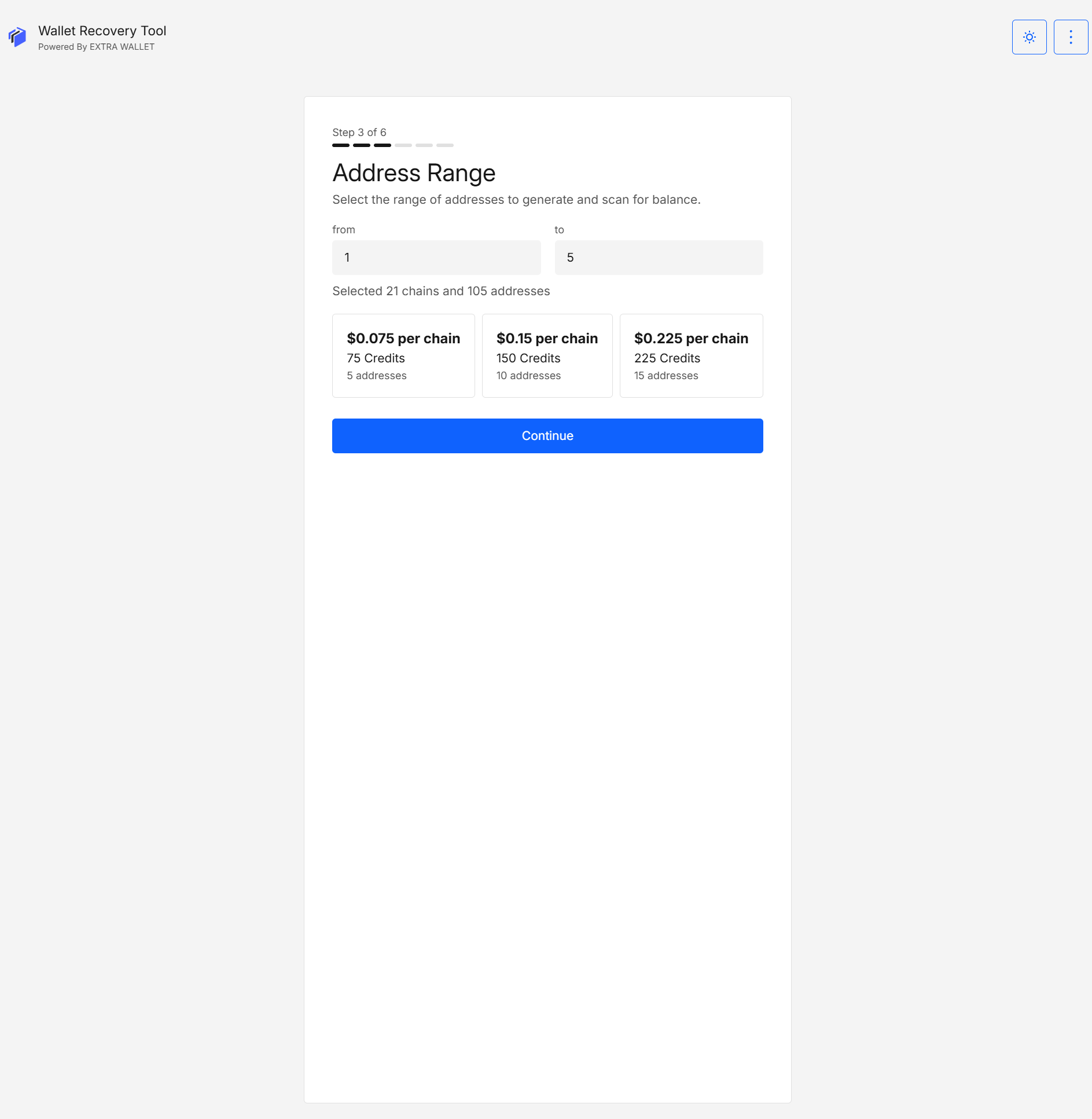
If uncertain, start with a small range and expand only if needed.
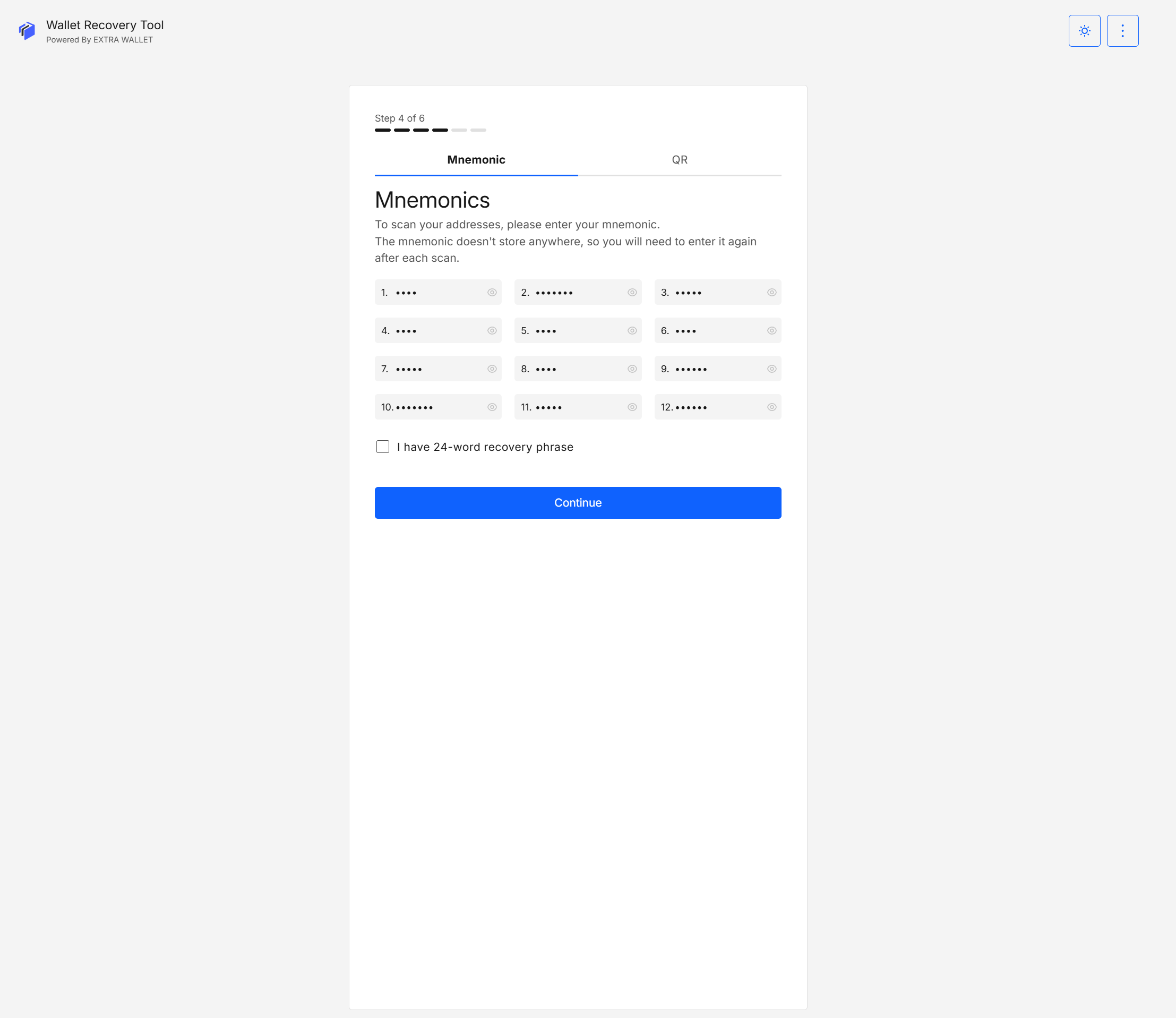
Step 4: Enter your mnemonic
You can provide your recovery phrase in one of these ways:
Option A: Manual Entry
Type or paste mnemonic words.
Option B: Secure QR
Use password-protected QR generated earlier using EXTRA WALLET Secure QR extension.
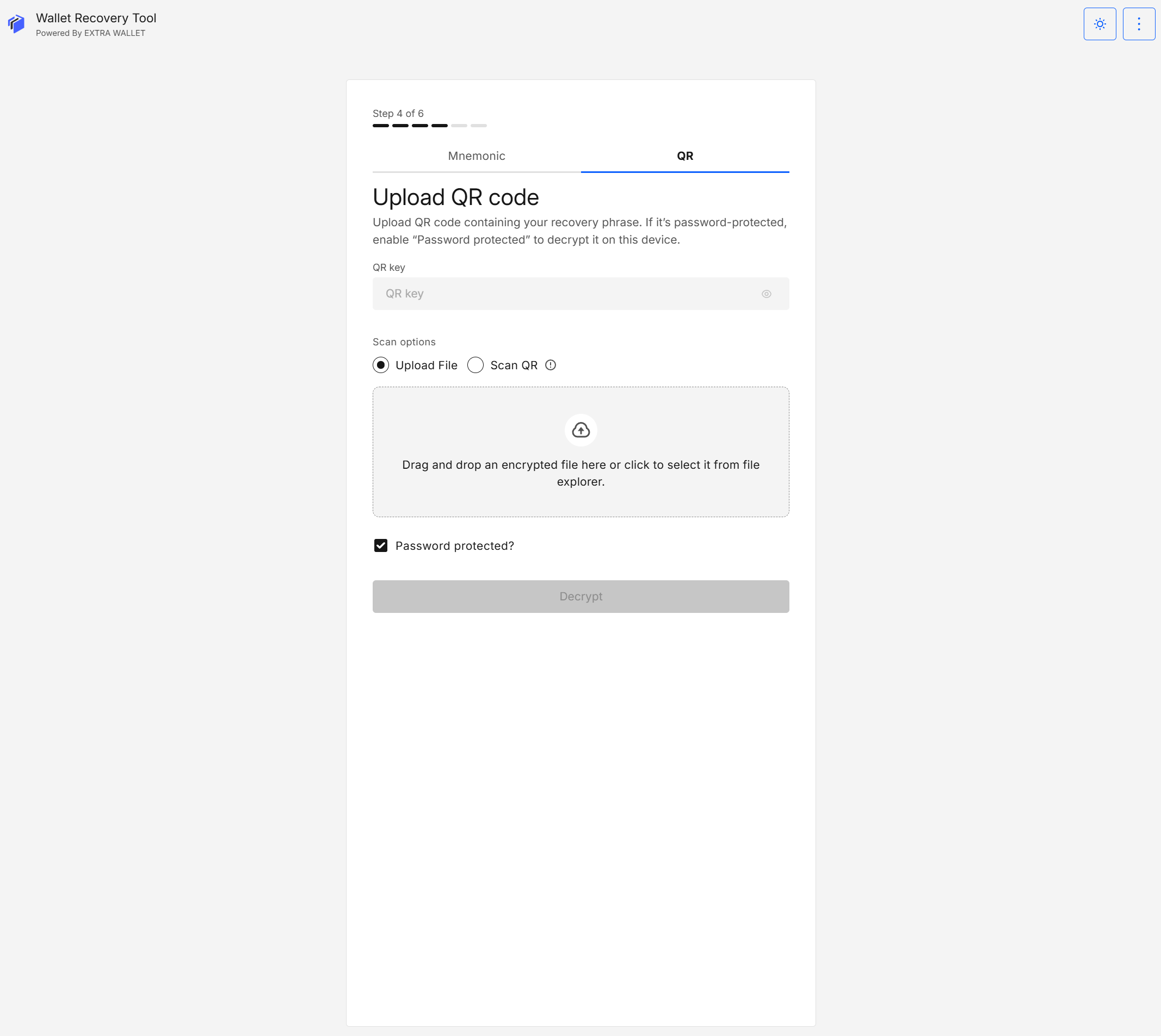
For details on creating password-protected QRs, see Secure QR.
Option C: Plain QR
Scan unprotected mnemonic QR.
Unprotected QR codes are fully readable. Use Secure QR for safer handling.
Step 5: Create Password
A password is required because the app’s security model does not keep the mnemonic in memory between screens. Instead, the mnemonic is stored temporarily and locally in your browser (IndexedDB) so the flow can continue.
For details on the security model, see the Security Model.
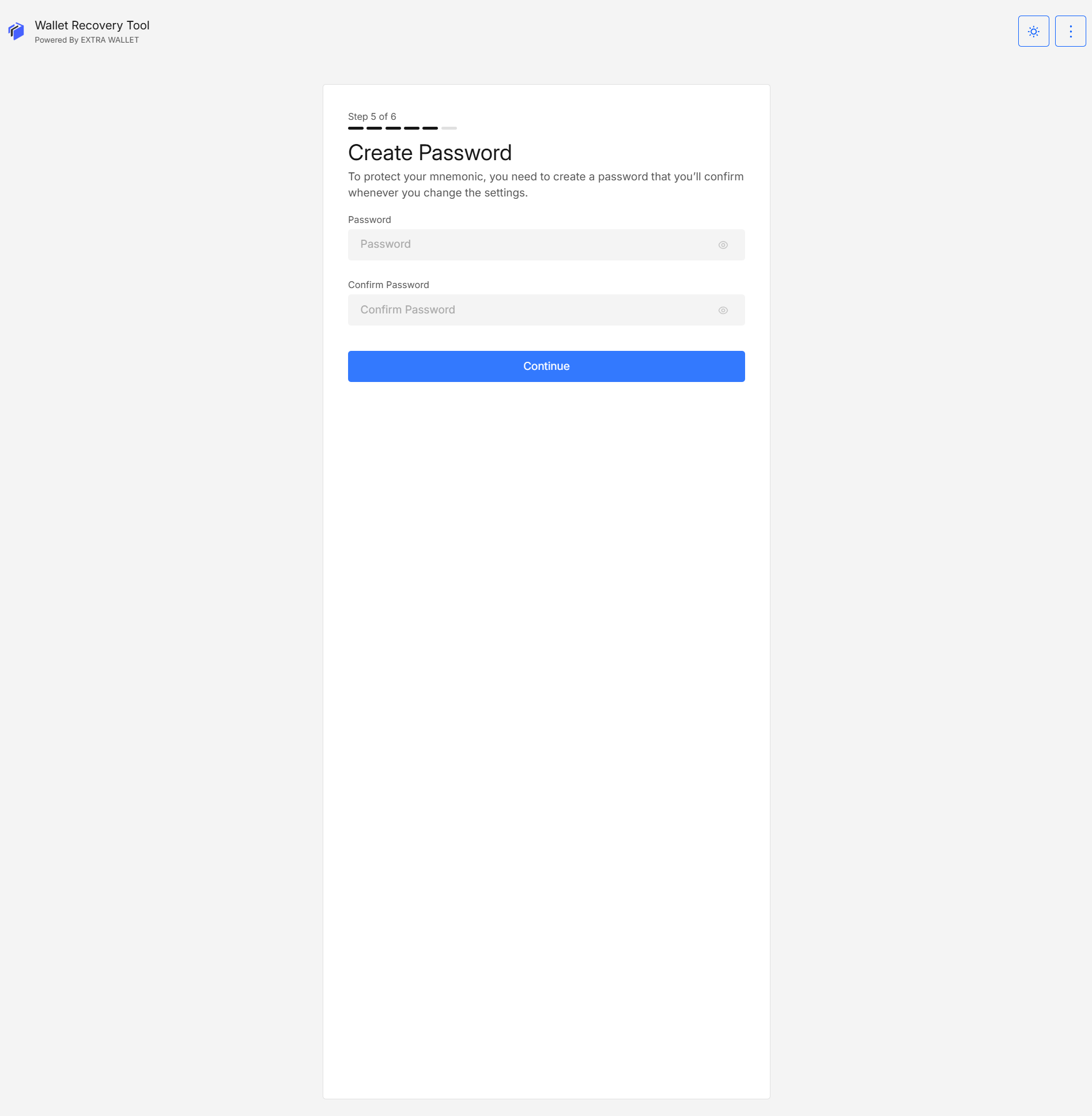
The password encrypts the mnemonic and is required to decrypt it in later operations when needed.
Step 6: Choose Scan Mode
- Scan and check — Quick scan of up to 10 derived addresses using default parameters
- Preview addresses — Inspect and configure derived addresses before scanning
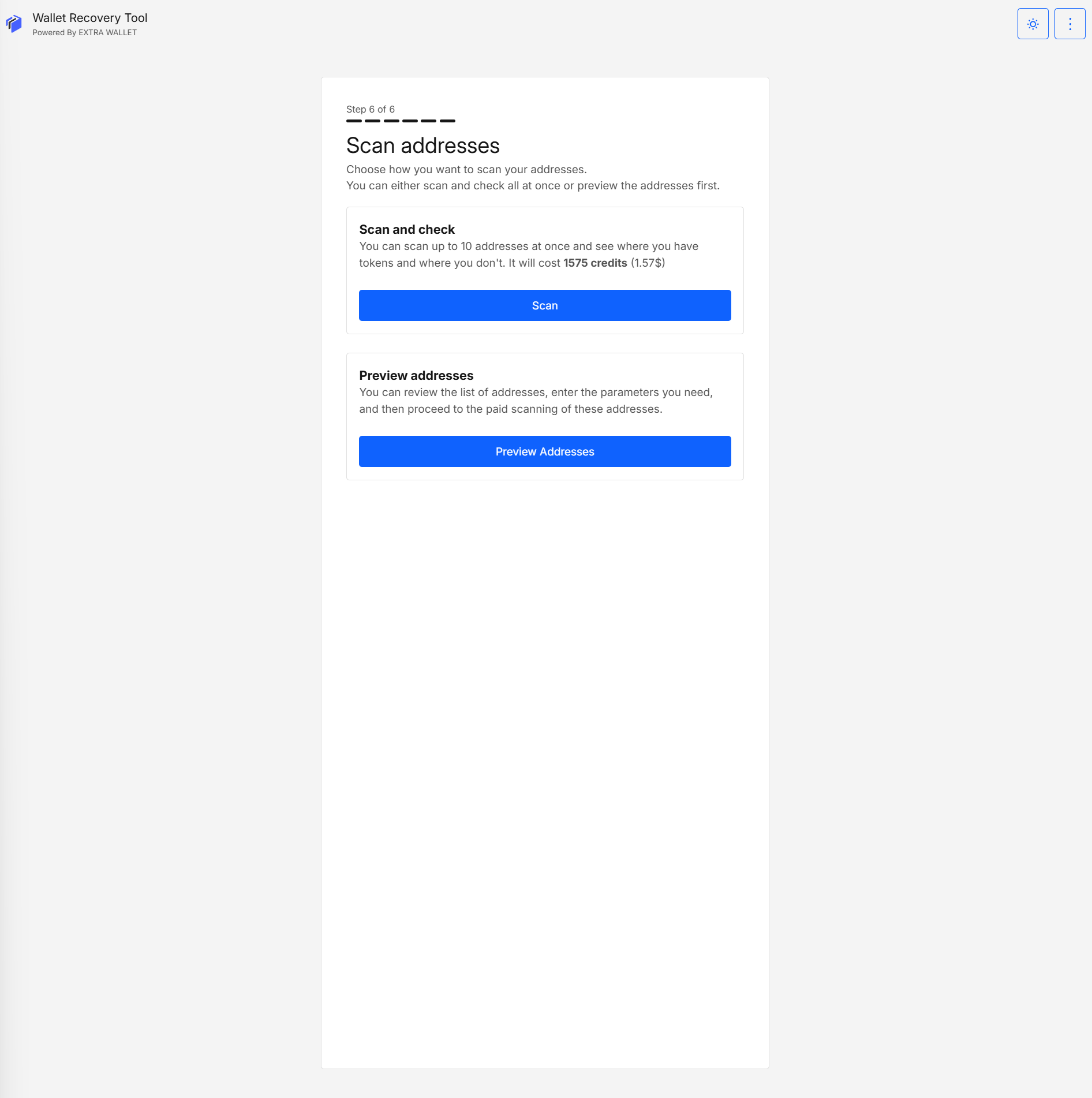
Balance scanning is a paid operation and consumes credits. Before a scan starts, the tool may prompt you for:
- an API key (if you haven’t provided one yet), and/or
- a credits top-up (if your balance is insufficient)
See API key and payment for details.
Step 7 (optional): Preview addresses
Allows:
- Reviewing networks and addresses
- Removing networks
- Customizing address ranges
- Adjusting derivation parameters
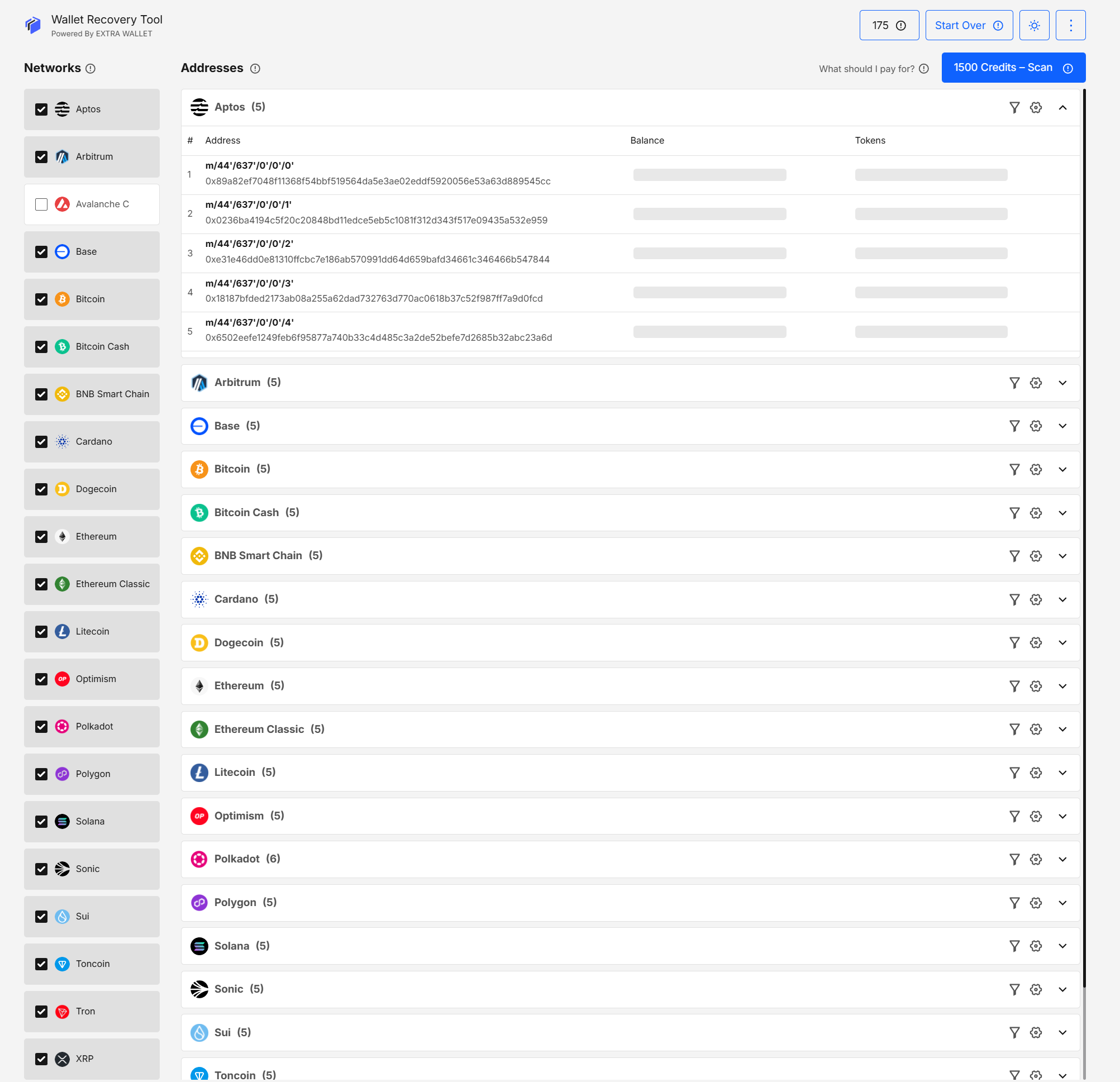
Networks list (left panel)
The left panel shows your networks. Select a network to view its derived addresses.
From here you can:
- open a network to view its addresses
- remove a network from the scan (useful if you realize you don’t need it)
- re-add / derive a network again if you previously unselected it
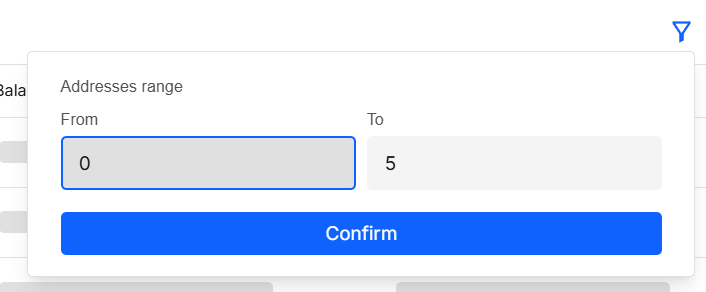
Customize address ranges (per network)
By default, the tool uses the global from/to range you picked earlier.
To fine-tune scanning, click the filter icon and set custom ranges per network.
For example, you can:
- scan more addresses on one chain where you expect funds
- scan fewer (or none) on other chains to reduce cost
Advanced settings (per network)
If the derived addresses don’t match what you expect, open Advanced settings for the specific network using the gear icon.
Advanced settings let you adjust chain-specific derivation parameters (these depend on the chain/preset).
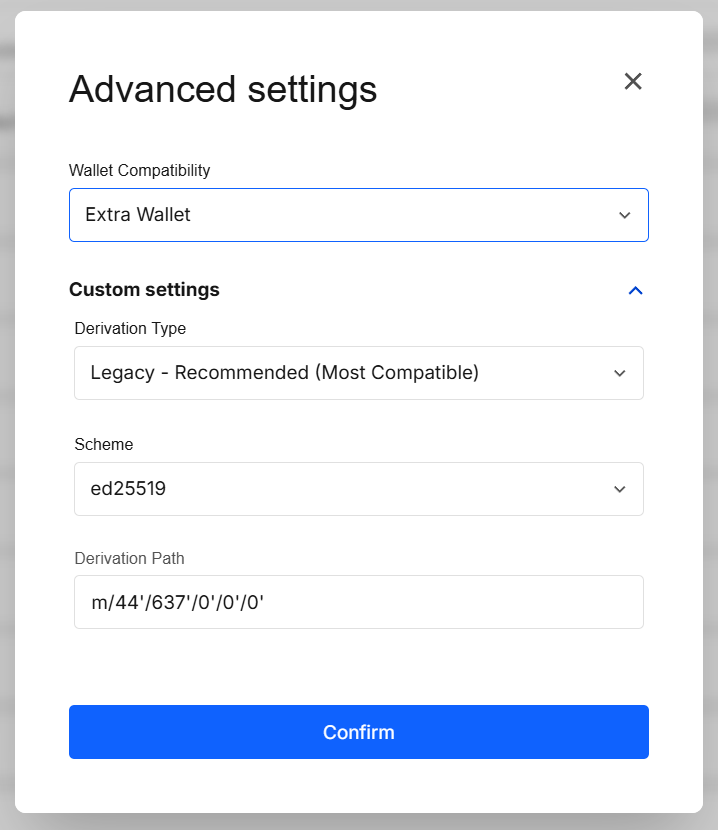
Use this when you suspect the preset is close but not exact (different account index, change index, derivation type, wallet mode, etc.).
Step 8: Start the scan (from Preview)
The tool may prompt you for:
- an API key, and/or
- a credits top-up (if your balance is insufficient)
(See API key and payment.)
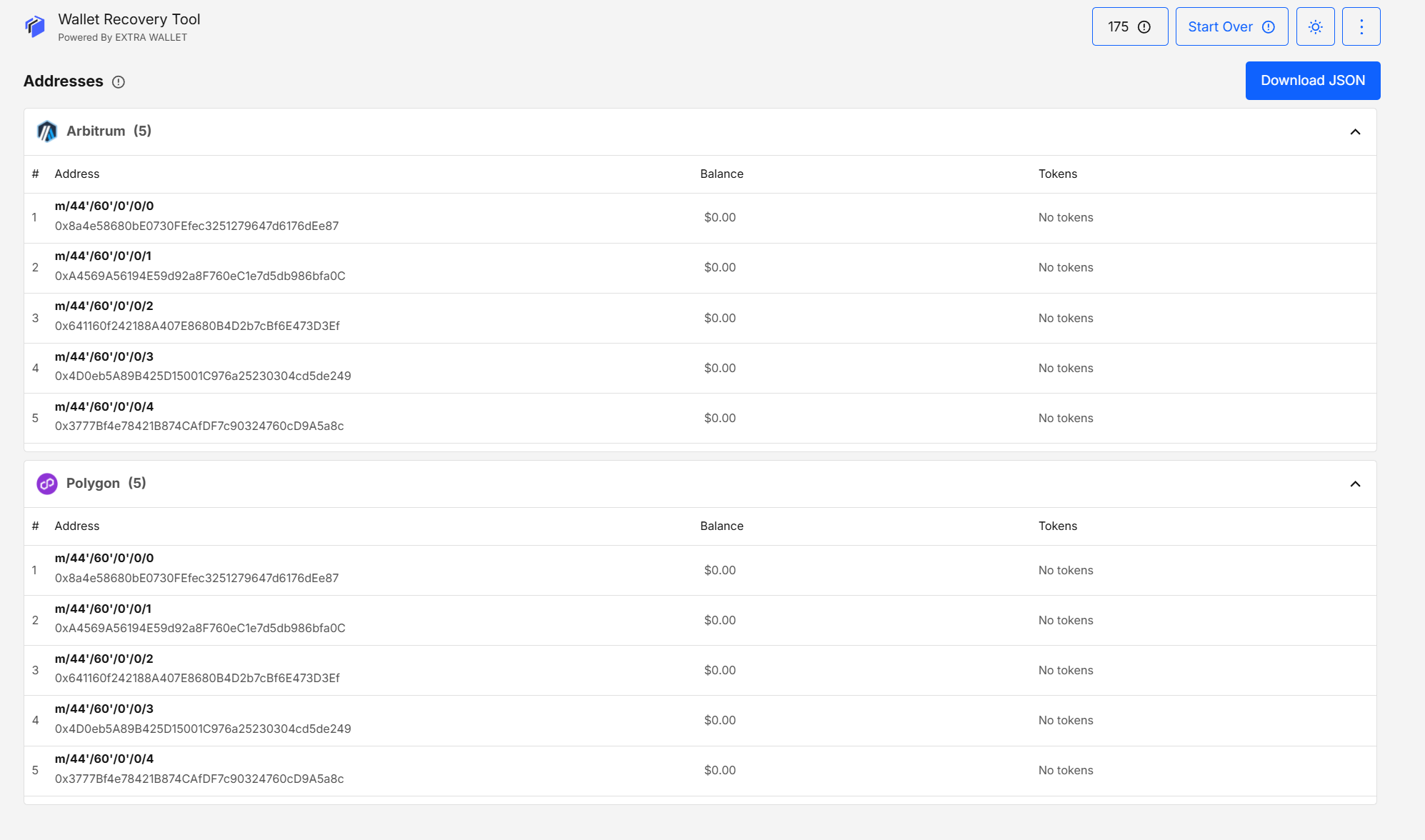
Step 9: Download Results
Reports include scanned addresses, networks, and detected balances.
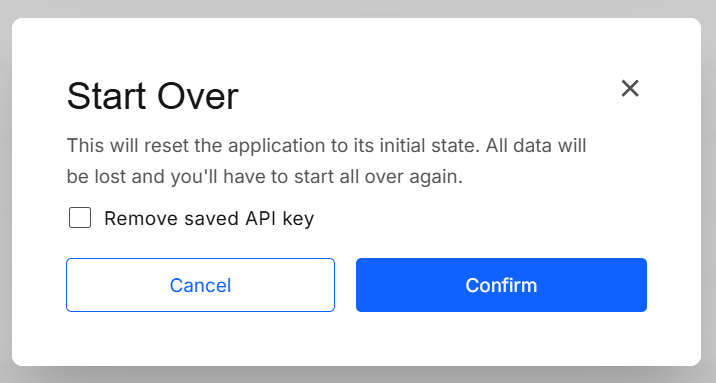
Step 10: Start Over
Resets the workflow. Removing stored API keys is recommended on shared devices.
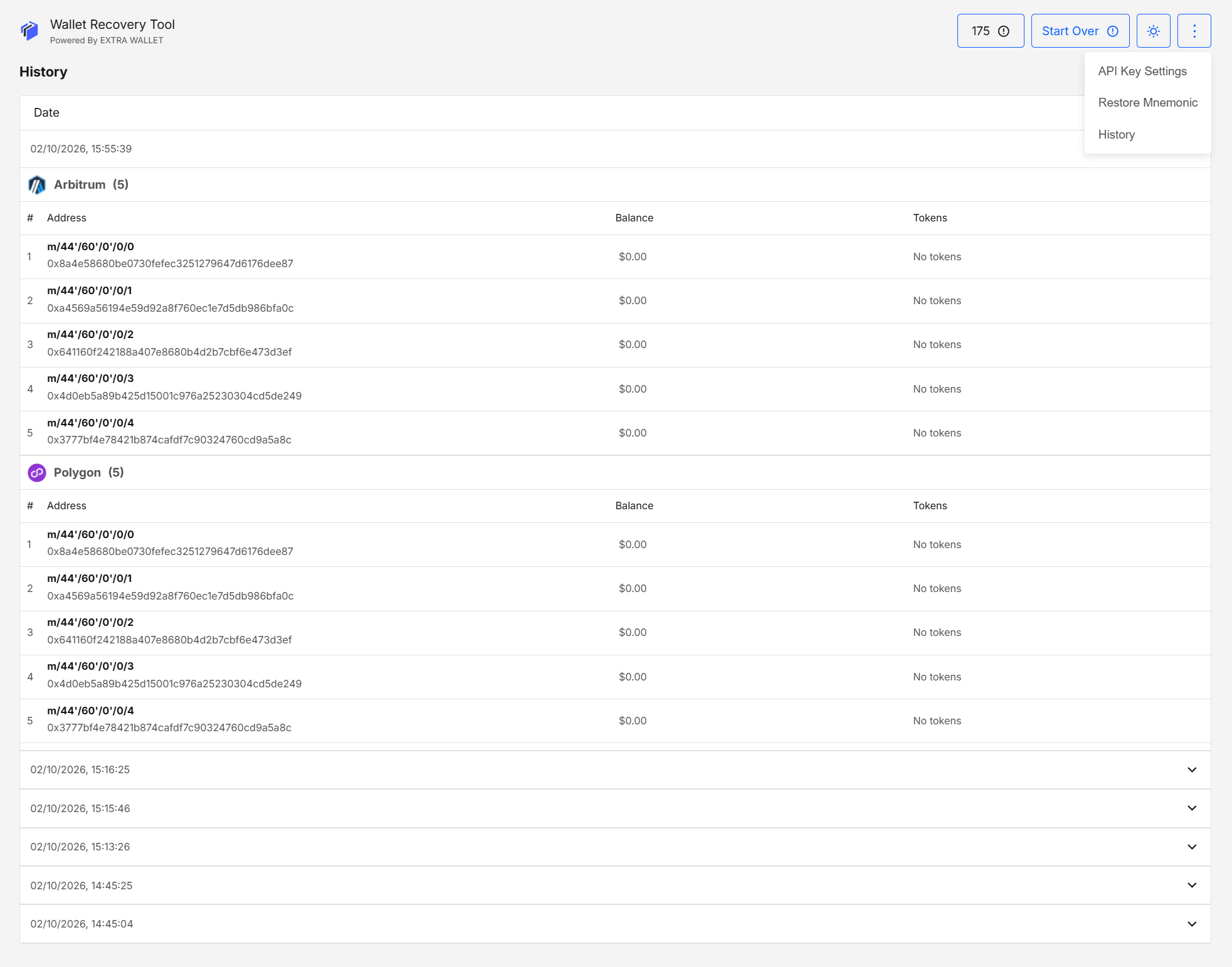
Step 11: Scan History
You can view previous scans from the top-right menu:
- open the dropdown
- select History
Previous scans are accessible via the History page.
Import Offline
Offline import scans balances using pre-derived offline address files.
Step 1: Upload File
Provide the offline-generated address file.
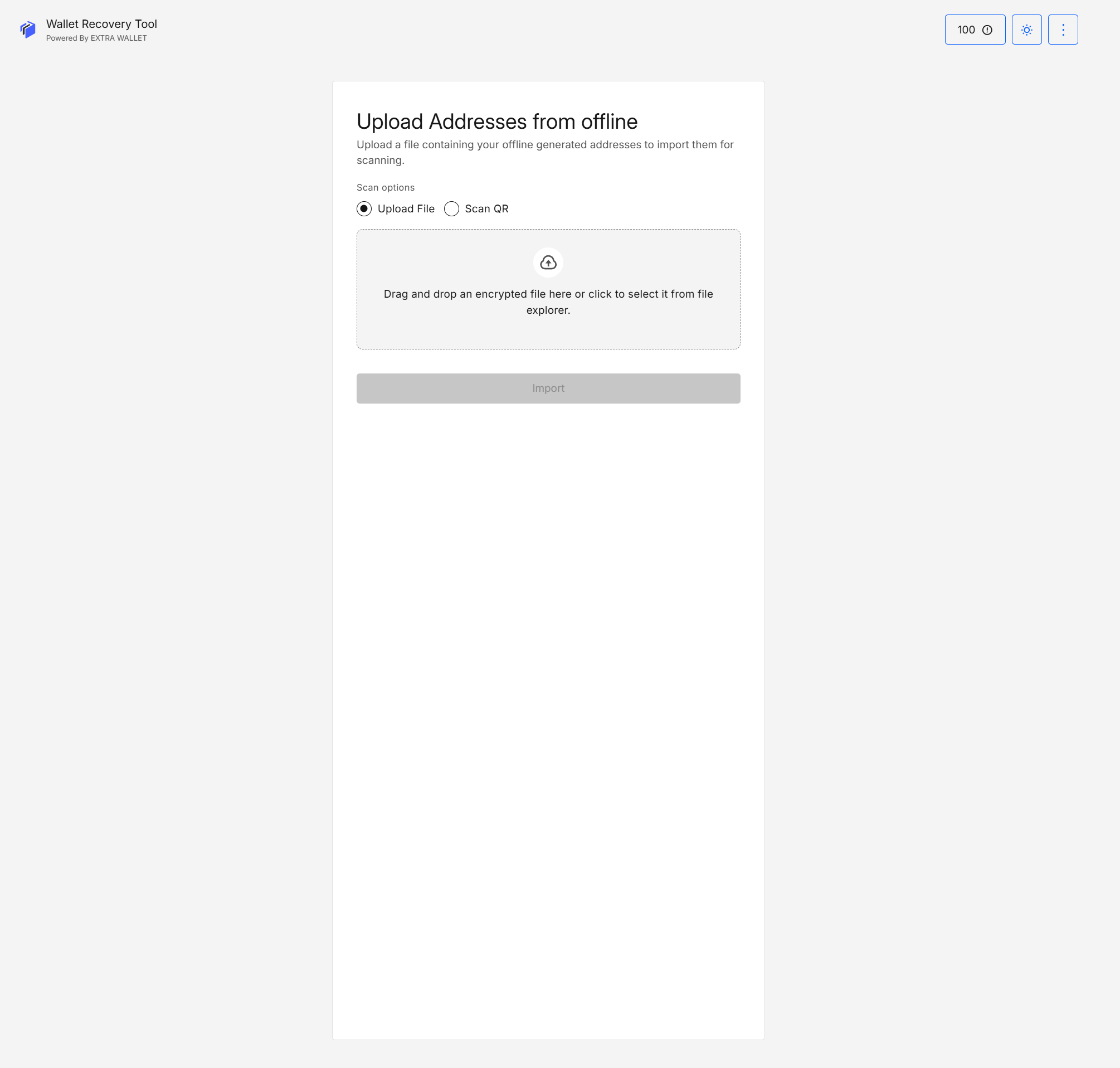
See Offline mode for how to generate the offline file.
Step 2: Review Addresses
Same interface as preview mode, except derivation settings cannot be modified.
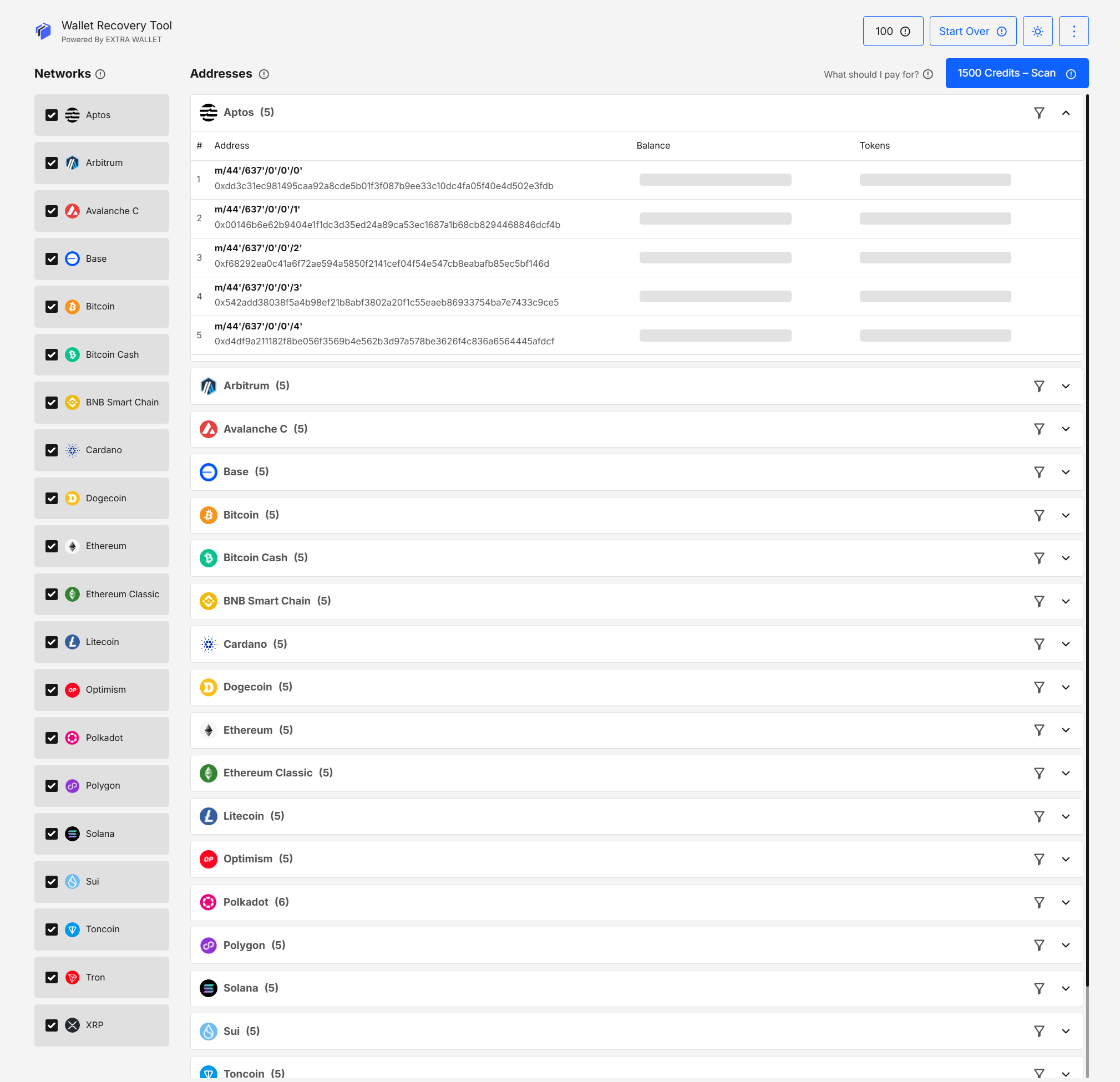
From here, the rest of the process is the same:
- start a scan (API key + credits may be required)
- download results
- use History / Start over as needed
Restore mnemonic
Used when exactly one word of the mnemonic is unknown.
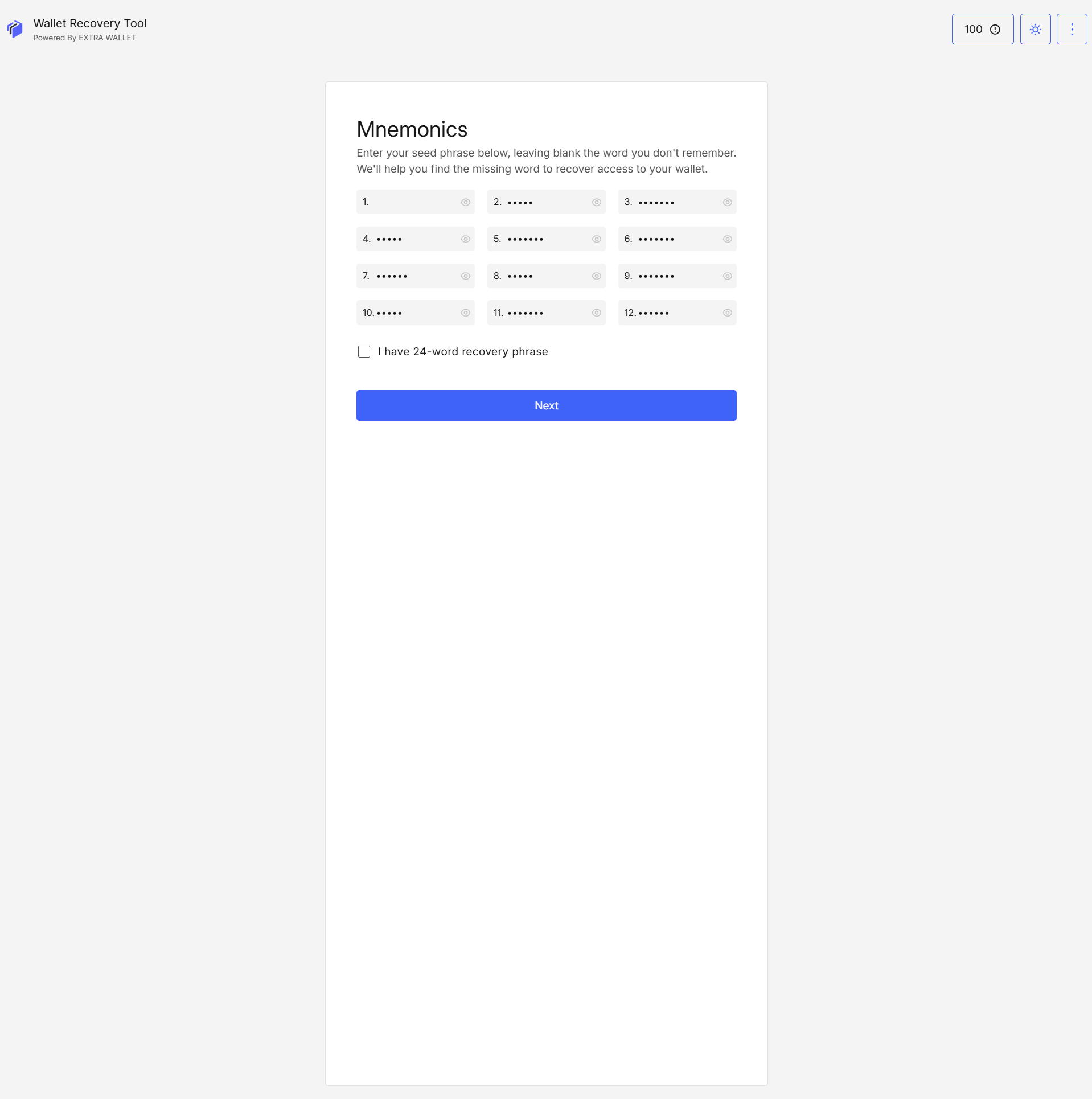
Step 1: Enter Mnemonic
Leave one word blank. Supports 12-word and 24-word phrases.
Step 2: Password Prompts
Multiple prompts may appear due to isolated secret-handling contexts.
- Password to encrypt the mnemonic for the current step.
- Password again for the results view.
This is intentional: the app uses isolated iframes for handling secrets, and the mnemonic is not persisted directly between those isolated contexts.
Step 3: Review Candidates
Matching mnemonic candidates are displayed for selection or download.
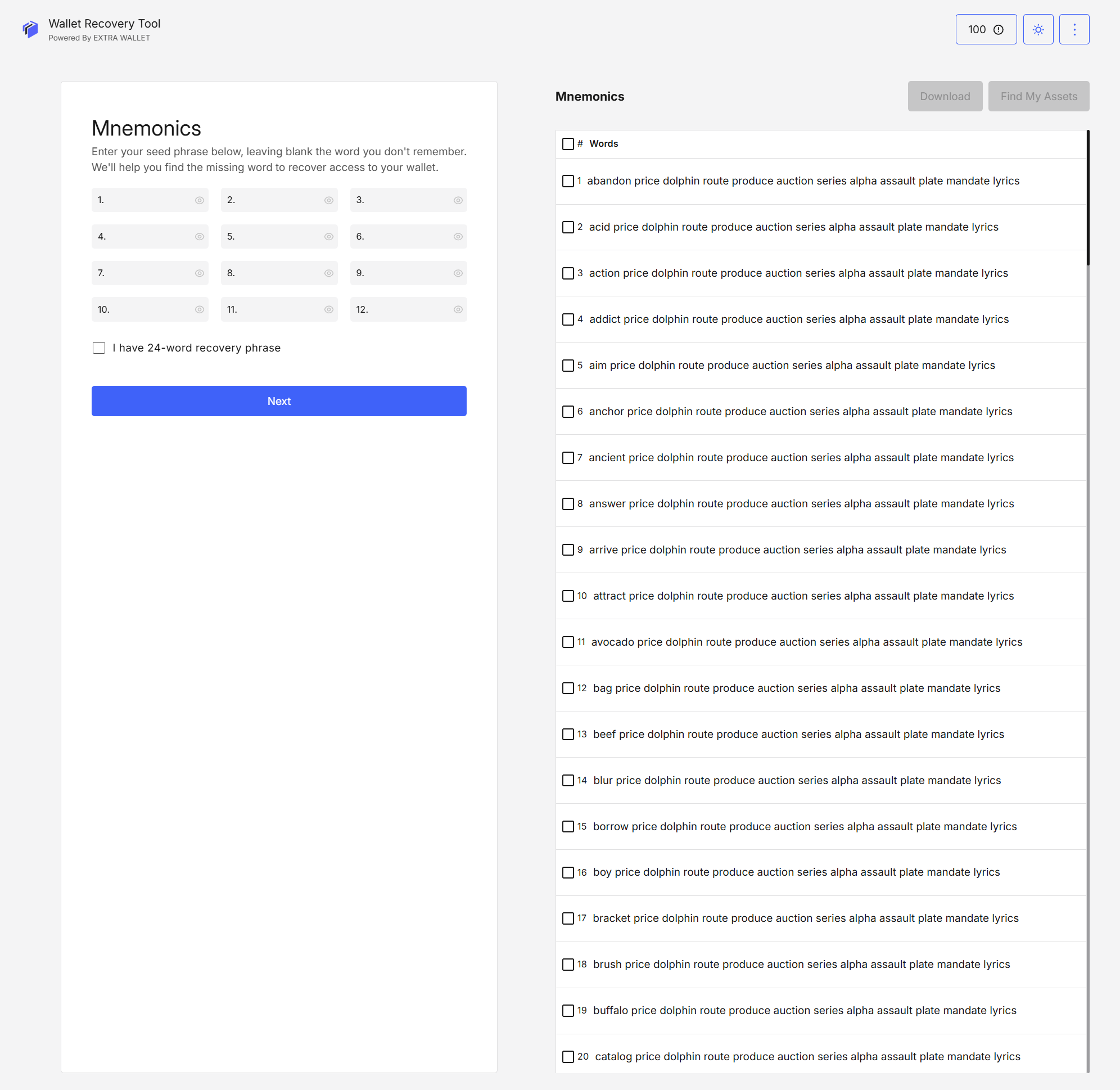
Step 4: Scan balances for restored mnemonics (optional)
There are two ways to scan balances from the results:
Option A: Find my Assets
- Select one or more mnemonics.
- Click Find My Assets.
- Choose the network and address range.
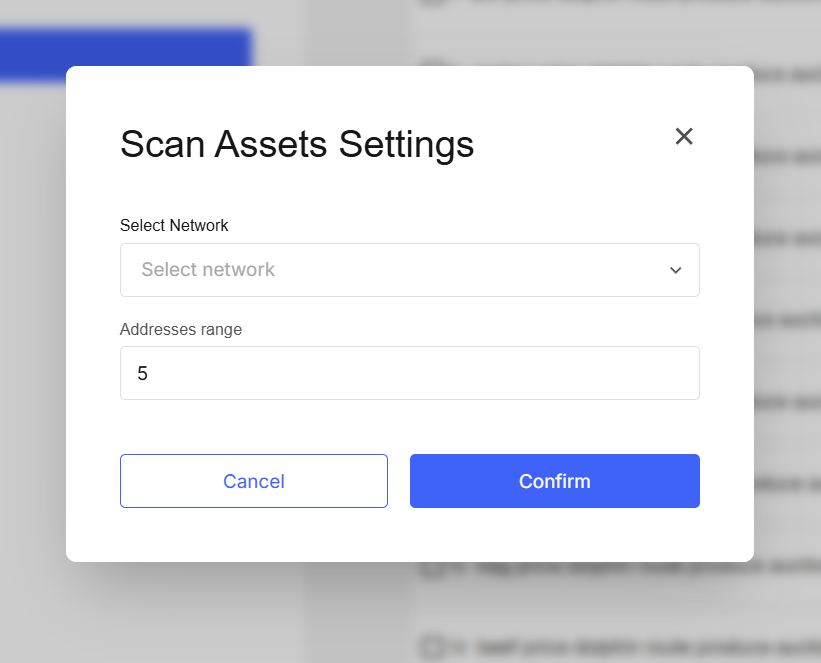
Then you’ll be redirected to a scan results view that aggregates results across the selected mnemonics.
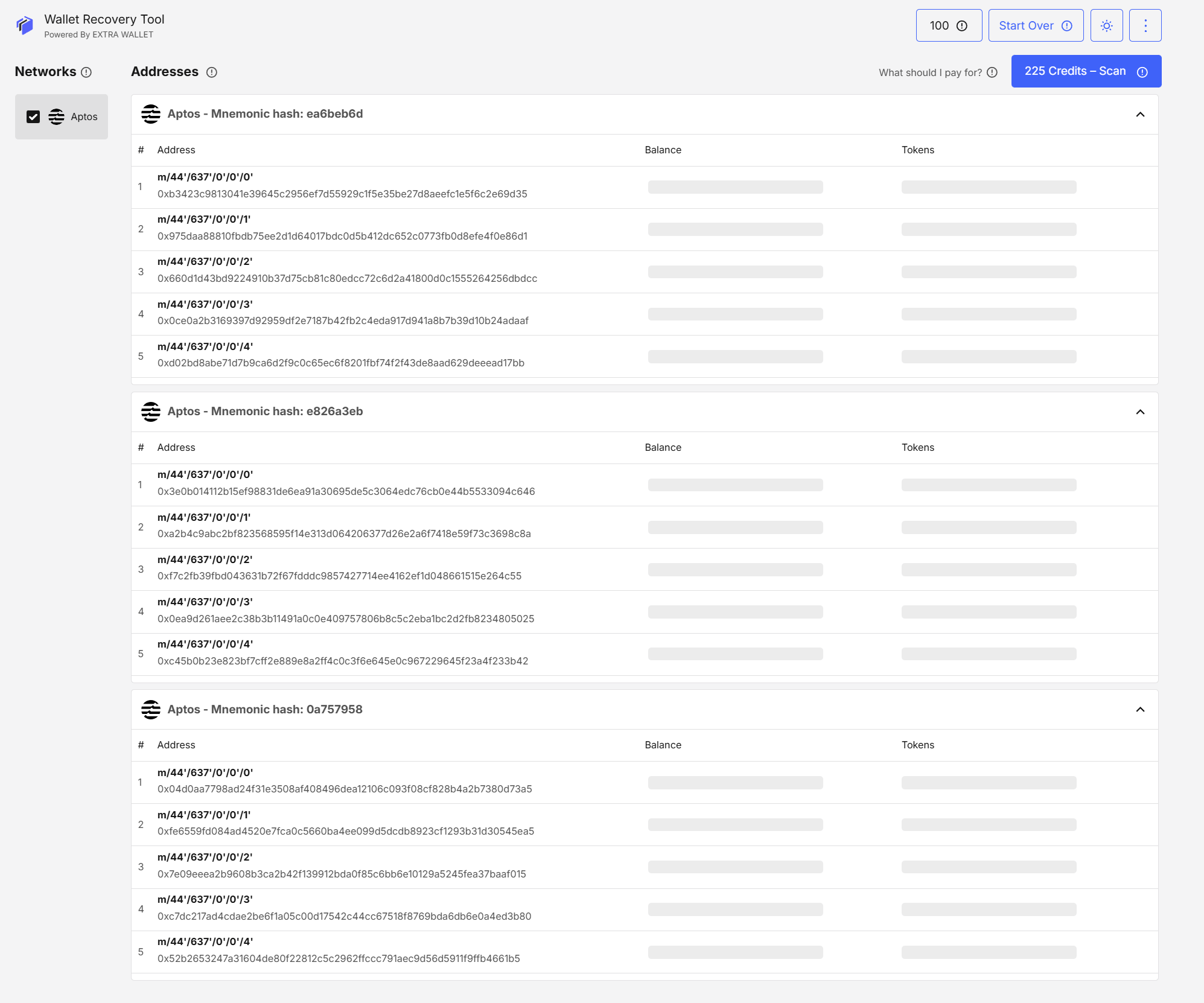
Scanning multiple mnemonics from Restore Mnemonic uses the default derivation for the chosen network and does not offer per-network advanced derivation settings.
Option B: Scan a single mnemonic
Hover a specific mnemonic row to reveal Scan Balances, then click it.
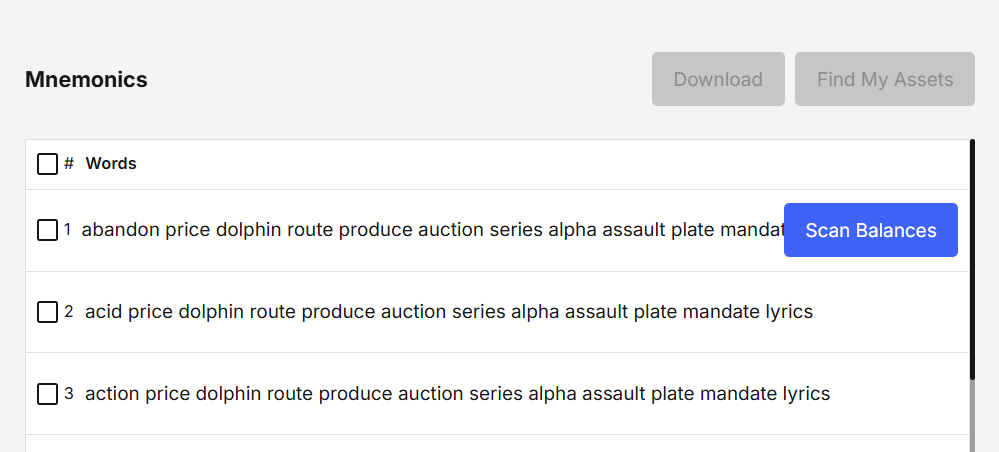
You’ll be taken to the same scan flow, but focused on that single mnemonic.
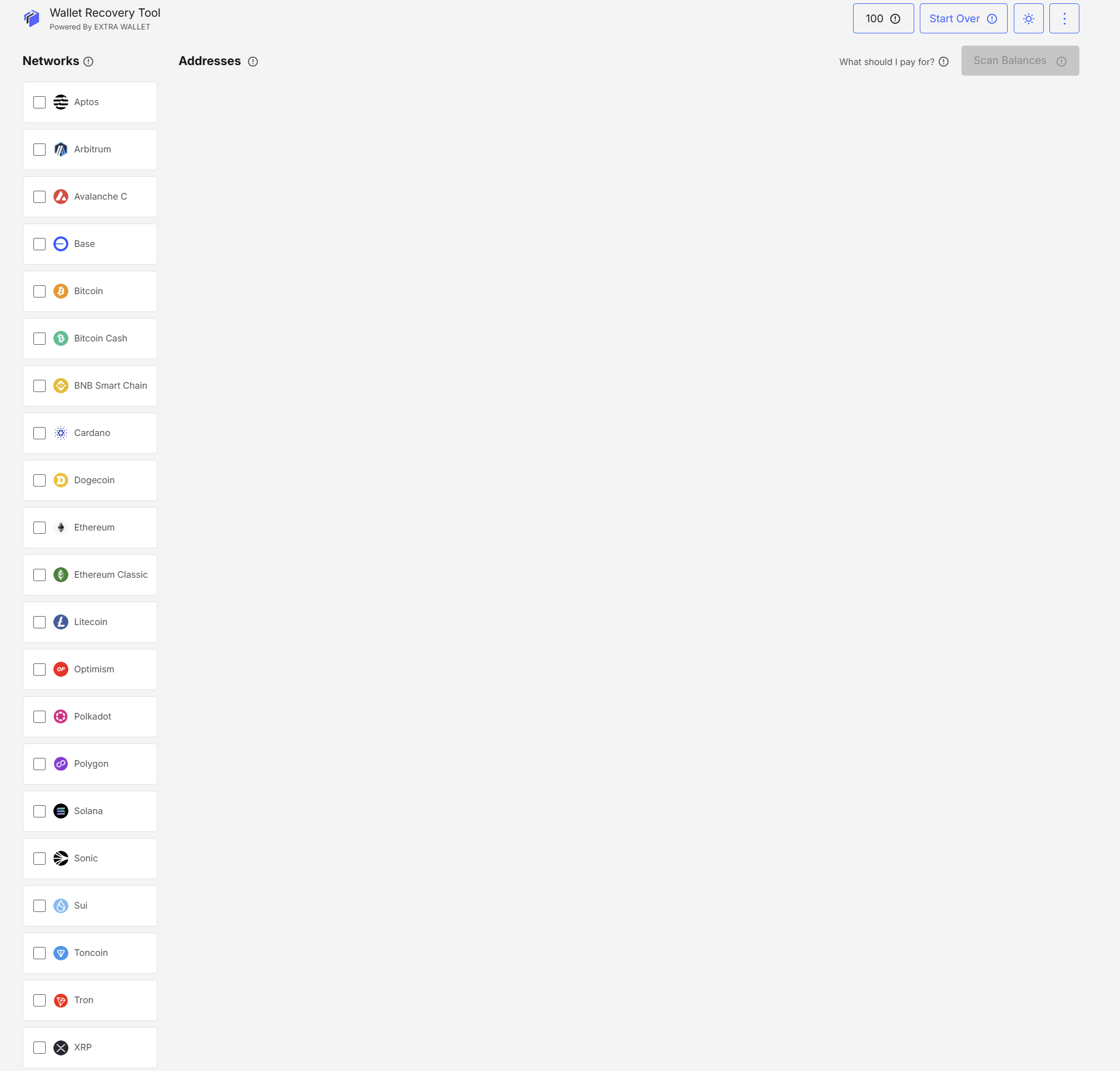
Once scanned, the rest of the experience is the same as the balance scan flow:
- download results
- start over
- access History
See Balance scan for those steps.
Restore Mnemonic can also be used while the app is offline, but balance scanning is not available (no “Find My Assets” / “Scan Balances”). You can still download the found mnemonics.
API Key and Payment
Balance scanning is a paid operation and uses credits. Credits are tied to an API key, which is used across the EXTRA WALLET ecosystem.
You can use the tool without an API key for:
- deriving and previewing addresses
- mnemonic recovery utilities
An API key is required only when you start an operation that consumes credits.
Where to configure the API key
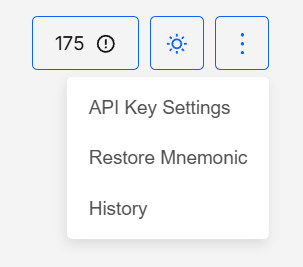
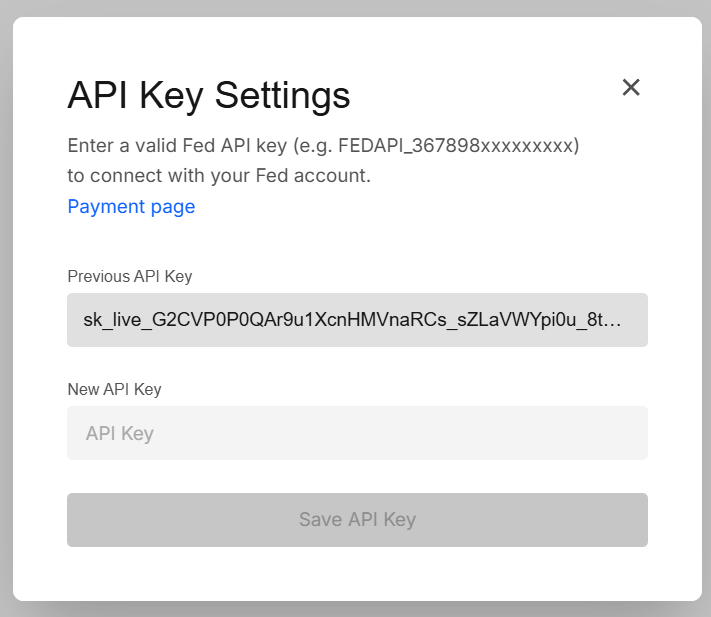
You can add a new API key or replace the old one from the dropdown, by clicking the API Key Settings option.
This opens a modal to add or replace an API key, depending on whether one is already set.
Top up credits from the header
You can initiate a credits top-up at any time:
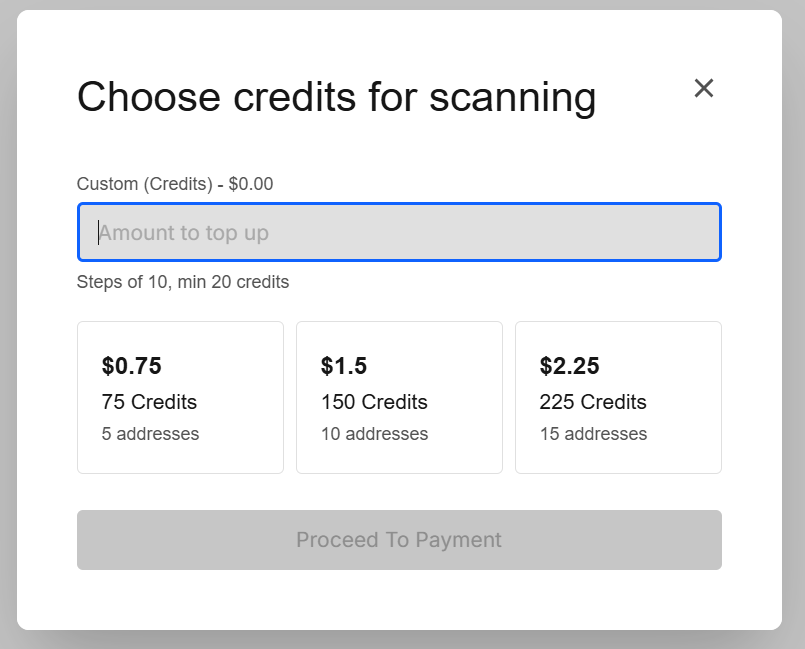
- Click the credits button in the header.

- Choose a predefined credits package or enter a custom amount.
- Proceed to the payment service.
What happens when an API key is missing or already set
When you start an operation that needs credits (a scan), the tool checks for an API key and available credits:
- No API key: you’ll be prompted to provide or create an API key.
- API key exists + enough credits: the scan starts immediately.
- API key exists + insufficient credits: you’ll see the credits top-up modal (same as the header top-up flow), then proceed to the payment service.
Treat your API key like a credential. Don’t share it publicly and avoid saving it on shared devices.
Getting an API key and topping up credits
API keys are created and managed on the Payment Service page. The payment service:
- issues and manages API keys
- shows your credit balance
- lets you top up credits using fiat or crypto
For details on API key management and payments, see the Payment Service documentation.
This is the same flow whether you scan from Scan and check, after Preview addresses, or from Restore Mnemonic.
Offline mode
Offline mode is for air-gapped / offline derivation: you generate a file with public addresses + metadata without internet access, then scan balances later online via Import Offline.
Step 1: Switch the app to offline mode
Disable your network connection (e.g., turn off Wi-Fi / unplug Ethernet / use browser offline mode), then wait a few seconds until the UI switches to the offline experience.

Offline mode supports derivation and mnemonic utilities, but does not support paid operations like balance scanning.
Step 2: Follow the normal flow up to the final step
The flow is the same as the online Balance scan → Start flow:
- choose wallet preset
- select chains
- set address range
- enter mnemonic
- create a password (local session)
Step 3: Derive addresses (offline-only final step)
In offline mode, the last step is Derive addresses.
Instead of “Scan and check”, you can only proceed to Preview Addresses, then download the derived addresses as a file.
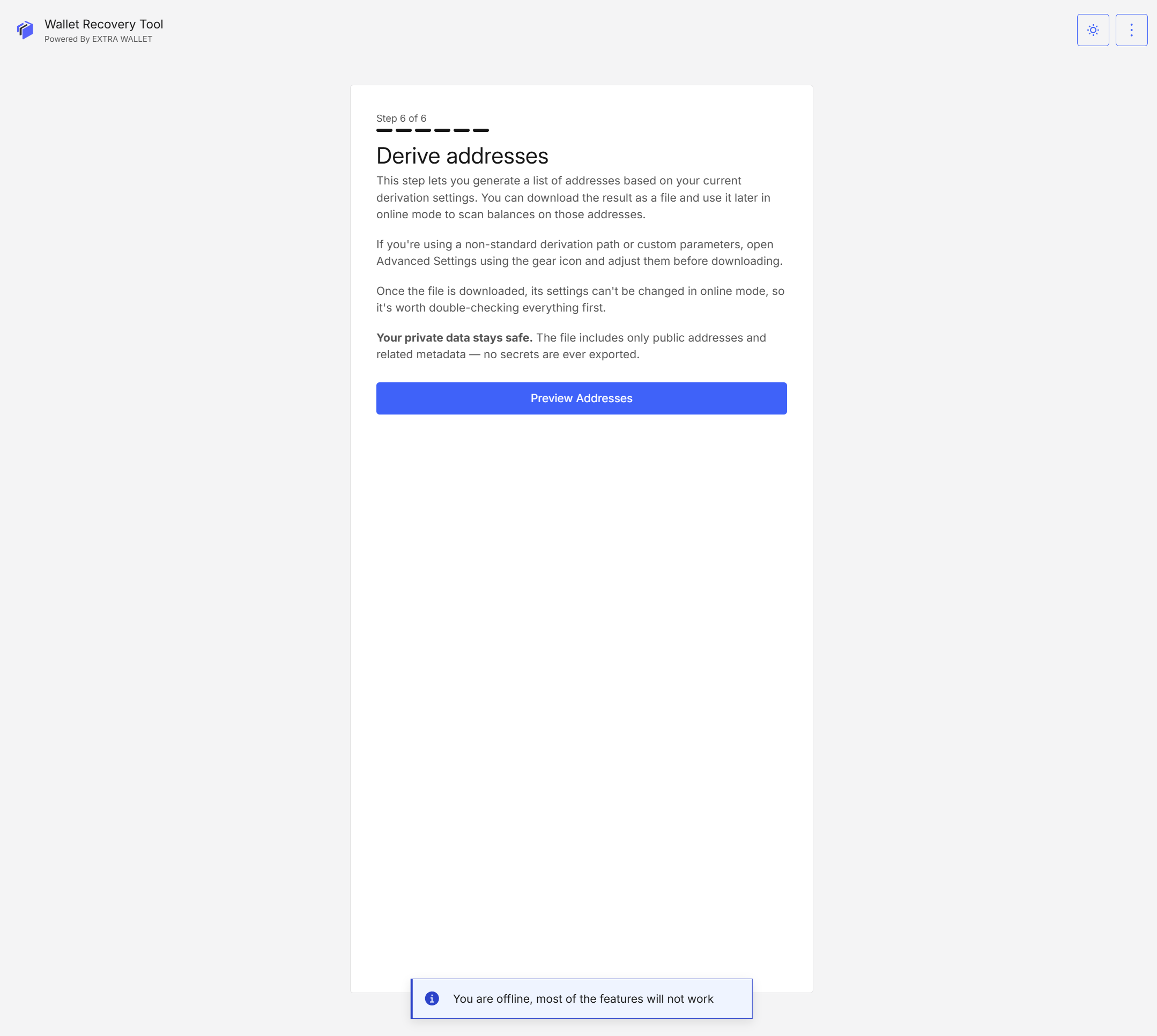
Step 4: Preview and download the offline file
On the preview screen you can still:
- review derived addresses per network
- remove networks
- adjust per-network ranges (filter icon)
- adjust derivation settings (gear icon)
When ready, click Download Addresses to export the offline file.
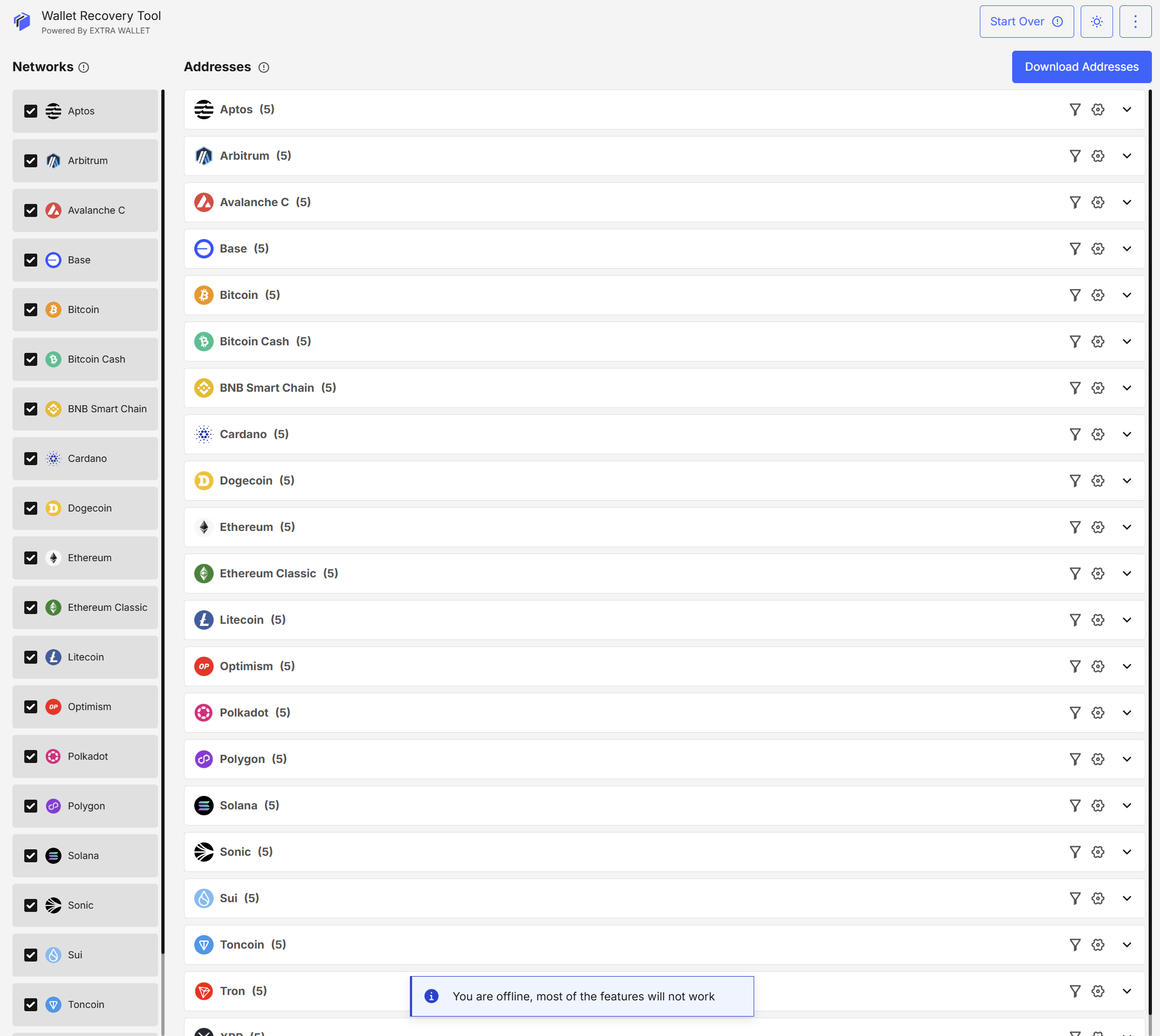
If you need non-standard derivation parameters, open Advanced settings (gear icon) and adjust them before exporting the file. Once exported, the file is meant to be scanned later and its derivation settings can’t be changed in online scan mode.
The exported file contains only public addresses and address metadata. No private keys or mnemonics are exported.
Step 5: Scan balances later (online)
Move the downloaded file to an online device/session and use:
Then proceed with scanning (API key + credits may be required), exactly like in the online flow.
Restore Mnemonic in offline mode
Offline mode also allows Restore Mnemonic (one missing word), but without balance scanning. You can still review and download found mnemonics.
Security & privacy
Wallet Recovery Tools are designed to minimize exposure of secrets while keeping the workflows usable across multiple steps and screens.
- Local-only processing: mnemonic entry, derivation, and restore operations run locally in the browser session.
- Isolated secrets handling: sensitive UI is handled via isolated contexts (iframes). Some flows require re-unlocking between isolated contexts, which is why you may see multiple password prompts.
- See the full rationale in the Security Model.
- Temporary local storage: when needed for multi-step flows, the mnemonic is stored temporarily and locally (IndexedDB) in an encrypted form under a user-provided password. It is not stored “in memory” across screens by design.
- Offline exports are watch-only: the offline download contains public addresses + metadata only. No private keys, mnemonics, or passwords are exported.
- API key hygiene: an API key is required only for paid operations (scans). Treat it like a credential and avoid using it on shared devices.
Security depends on device hygiene (malware, screen recorders, untrusted extensions).
Developer Info
- Built and maintained by the EXTRA WALLET team.
- Source: Wallet Recovery Tools