Multichain Portfolio
About
Multichain Portfolio is a read-only dashboard that aggregates assets and transactions across multiple chains for public addresses.
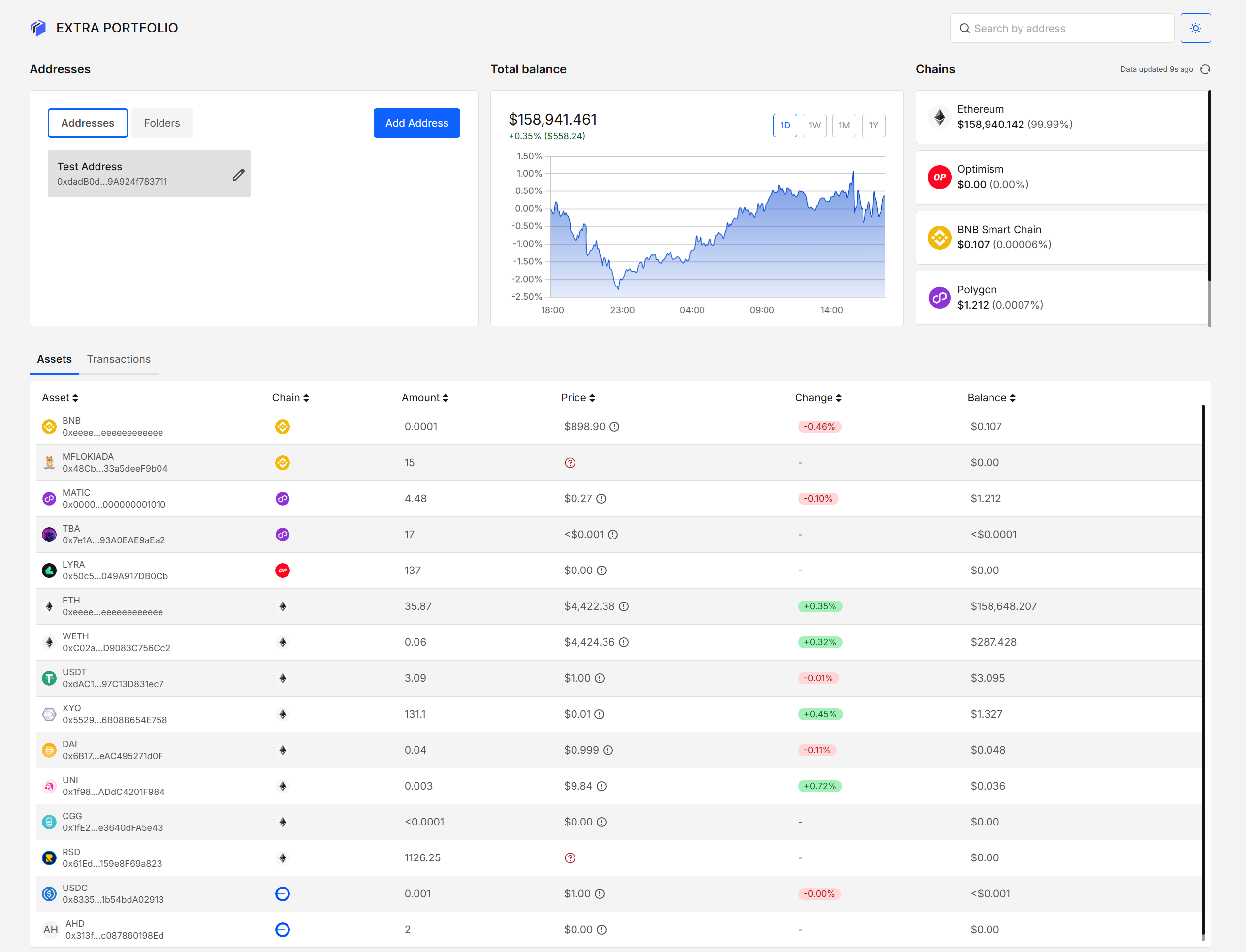
Add addresses to auto-discover chains with positive balances, filter by chain, view a total balance chart by time interval, and organize addresses into folders for a clear multi-wallet view.
Key Features
- Multi-chain coverage with automatic chain discovery per address
- Total balance chart with 1D / 1W / 1M / 1Y timeframes, showing % and $ change
- Unified Assets and Transactions views with sortable columns
- Folders to group addresses by project, portfolio, or purpose
- Top-right quick lookup with address preview and quick add
- Chain filter to focus on a single network’s balances or transactions history
- Block explorer links for transactions
- Read-only by design — no private keys, no signing
How to Use
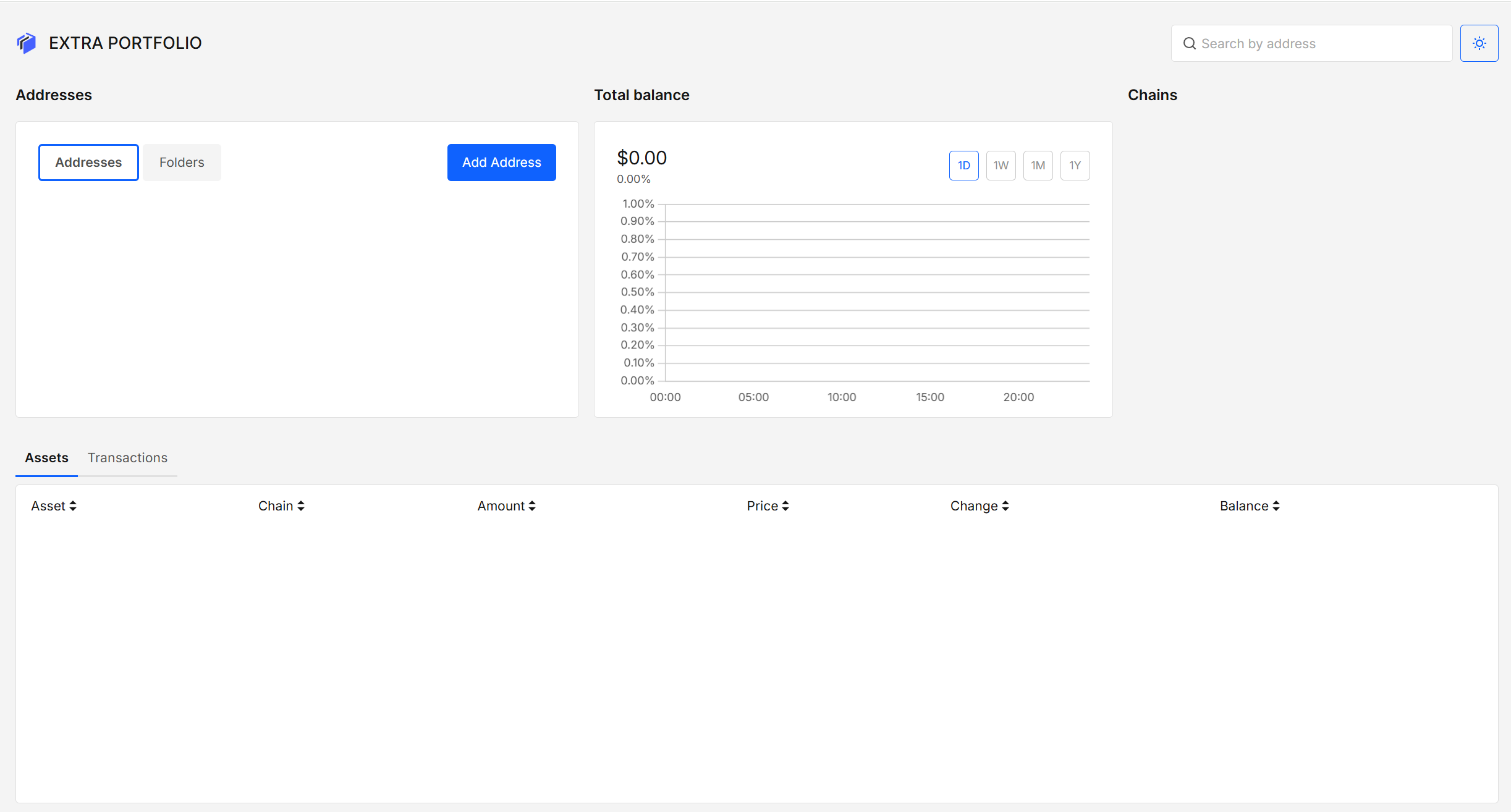
1. Start From an Empty Portfolio
You’ll see the default layout with Addresses, Chains, and the Assets / Transactions area.
2. Add an Address
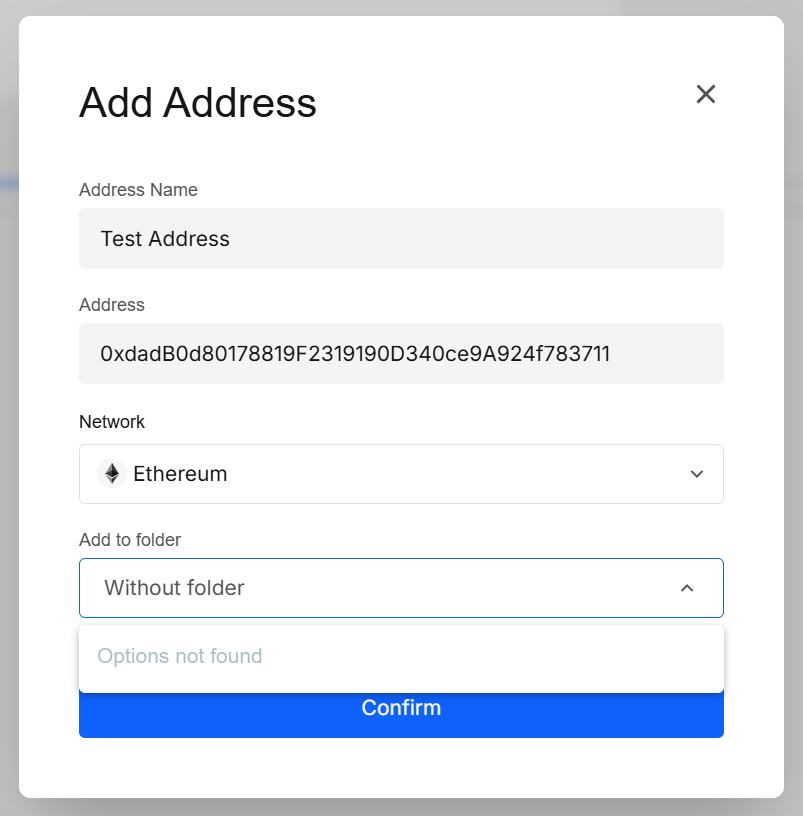
Open Add Address, enter a name, the address, pick a network, and optionally assign it to a folder.
3. Let Auto-Discovery Load Chains
The app fetches address balances for that address on every supported network. The dashboard fills with assets and chain cards for chains with positive balances.
4. Filter by Chain
Click a chain card (e.g., Arbitrum). The Assets, Transactions, and Total balance chart immediately show only that chain’s data.
5. Create and Use Folders
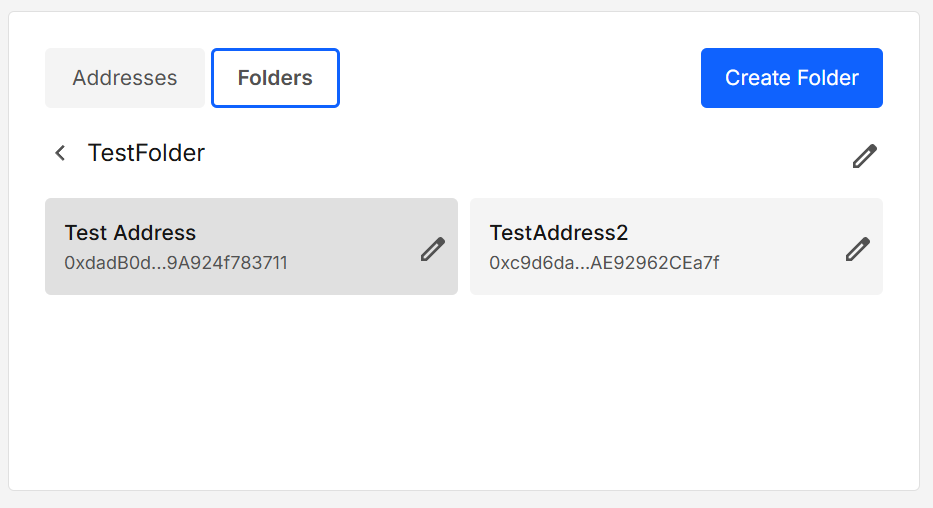
Switch to the Folders tab, click Create Folder, enter a name, and optionally assign existing addresses.
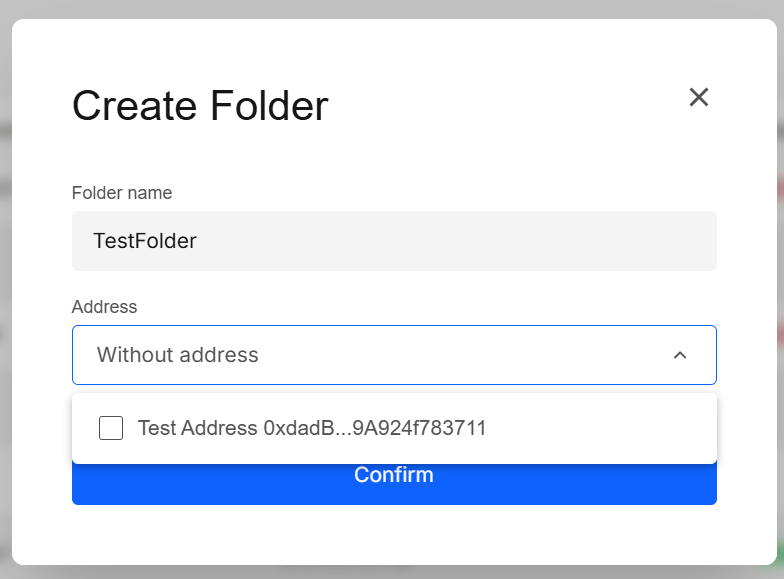
Open a folder to view only its addresses.
6. Quick Preview and Add
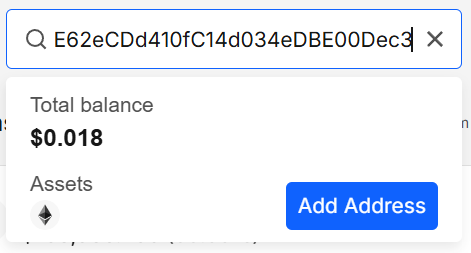
Paste an address into the top-right input. A preview popover shows total balance, assets, and an Add Address button that opens the Add Address modal with prefilled address.
7. Manage Addresses
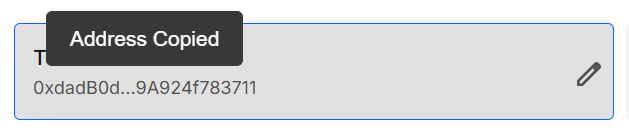
- Copy: click an address card to copy the address.
- Edit: click the ✎ Edit icon to open the edit modal.
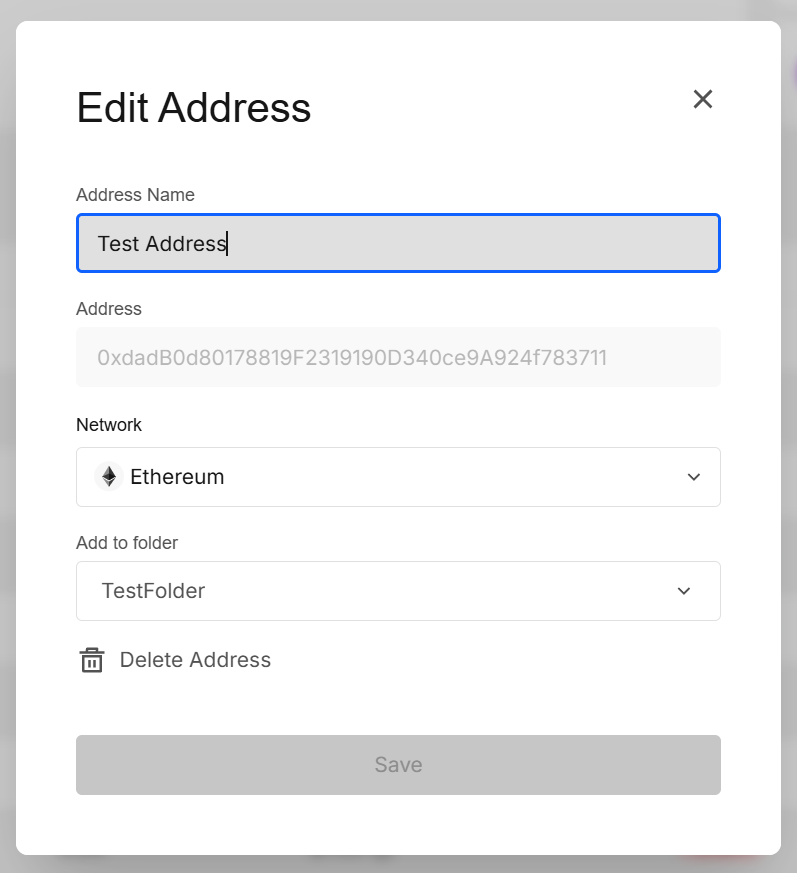
- Delete: in the edit modal, use the delete icon to remove the address.
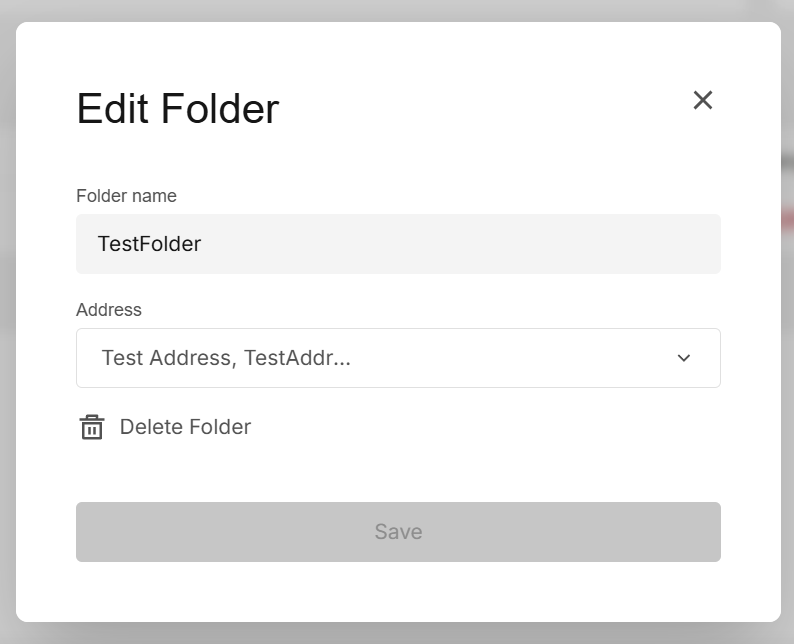
8. Manage Folders
- Edit: click the ✎ Edit icon near the folder name to open the edit modal.
- Delete: in the edit modal, use the delete icon to remove the folder.
9. View Transactions
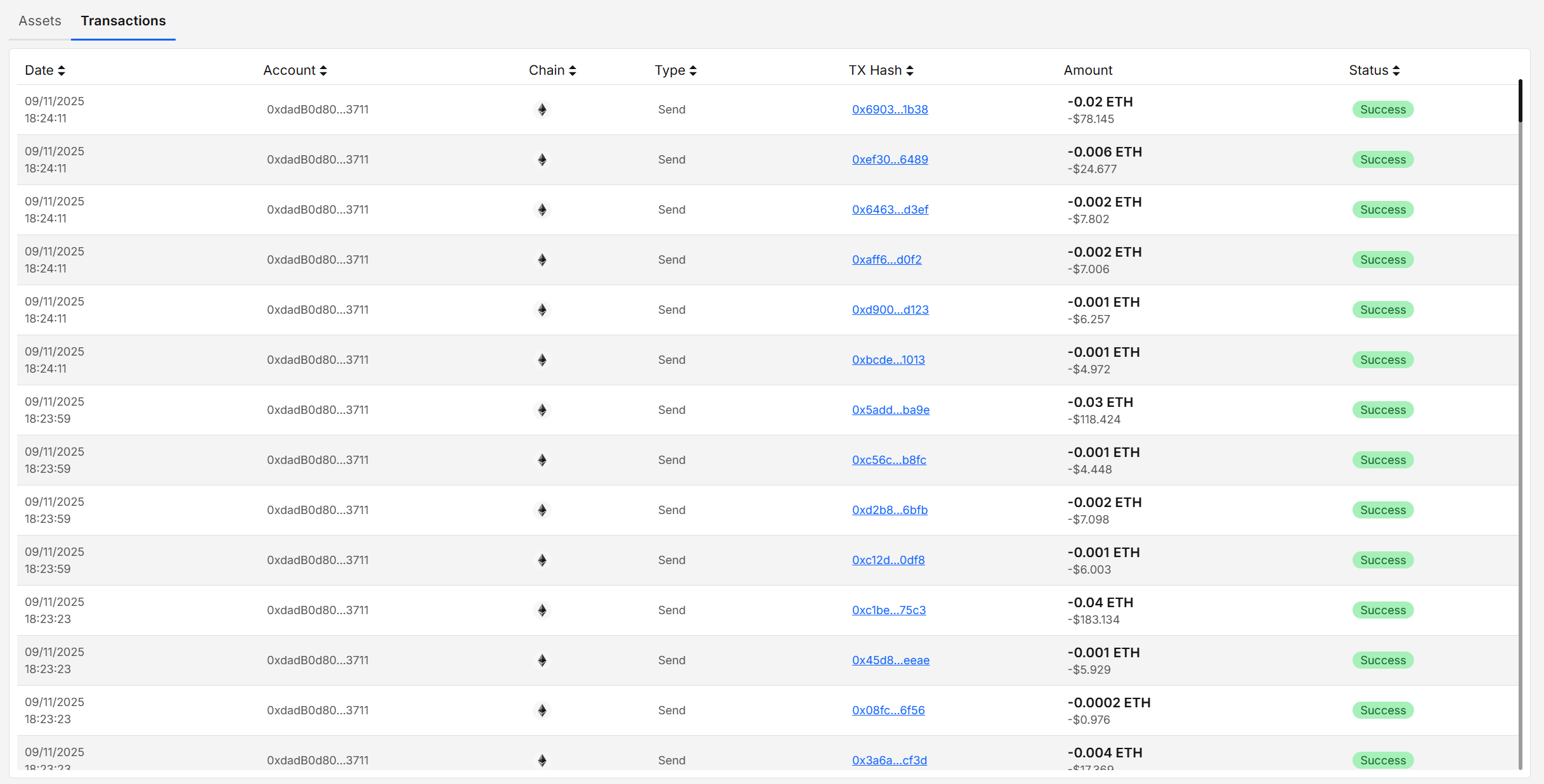
Click any address to focus the page on it; open Transactions to see its history (date, account, chain, type, transaction hash, amount, status).
10. View Total Balance
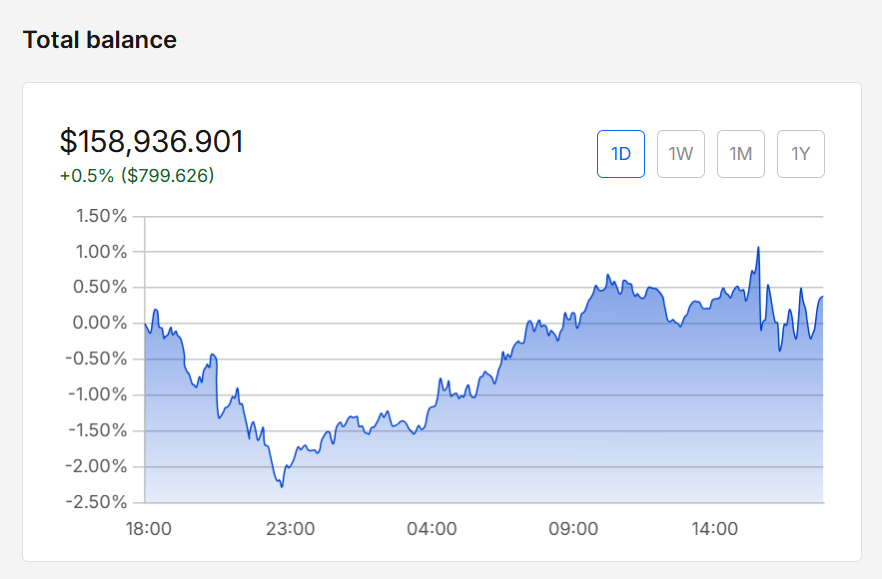
The Total balance widget visualizes your portfolio value over time and shows the current total plus period change in both % and $.
How it works
- Scope-aware: The chart aggregates all chains for the selected address by default, it also respects the chain filter (e.g., only Arbitrum).
- Timeframes: Toggle 1D, 1W, 1M, 1Y.
- Hover: Mouse over the chart to see timestamped points and values.
- Refresh: Data updates periodically and on user actions; see “Data updated … ago”.
Results
Addresses
| Action / UI | Result |
|---|---|
| Click address card | Copies the address to clipboard. |
| ✎ Edit icon | Opens Edit Address to rename, move to folder, or delete. |
| Delete (in edit modal) | Removes the address from the portfolio. |
Folders
| Action / UI | Result |
|---|---|
| ✎ Edit icon | Opens Edit Folder to rename, add addresses, or delete. |
| Delete (in edit modal) | Removes the folder from the portfolio without removing underlying addresses. |
Chain Filter
| Action / UI | Result |
|---|---|
| Click a chain | Assets and Transactions show only that chain’s data. |
| Clear selection | Tables return to all chains. |
Top-Right Quick Lookup
| Action / UI | Result |
|---|---|
| Paste any address | Shows total balance and assets (preview). |
| Click Add Address | Opens Add Address with the prefilled address value, for saving into the dashboard. |
Security & Privacy
- Read-only: the app never asks for a private key or signing.
- No wallet connection required to view balances/transactions.
- Addresses you add are public; the app may store them locally in the browser for convenience.
- Quotes and balances can be delayed; totals are not an accounting guarantee.
- Only supported chains are shown.
- Always verify critical amounts on a trusted block explorer.
FAQ
Which chains are supported?
The supported chains are displayed in Add Address modal under the Network select.
Why does my total differ from my wallet?
Update timing, price feeds, dust, or special token mechanics can create small differences. Refresh and verify on a block explorer.
How often is data refreshed?
Periodically and on user actions (manual refresh). The “Data updated … ago” label shows the last sync.
Do I need to connect a wallet?
No. Paste public addresses to track them read-only.
Developer Info
- Built and maintained by the EXTRA WALLET team.
- Source: Multichain Portfolio