WalletConnect
About
WalletConnect lets you link your wallet to decentralized applications (dApps) using a pairing URI or by scanning a QR code.
You choose the wallet & account to expose, then review and approve each connection and every request (sign message, send transaction, etc.).

Key features
- Secure pairing (no private keys ever leave the signer surface)
- Pick wallet & account before you connect (ideal for multi-wallet setups)
- Explicit approvals for connection and for each signature/transaction
- Manage sessions in one place; quick Disconnect
- Local-only storage of session data (no server persistence or telemetry)
How to use
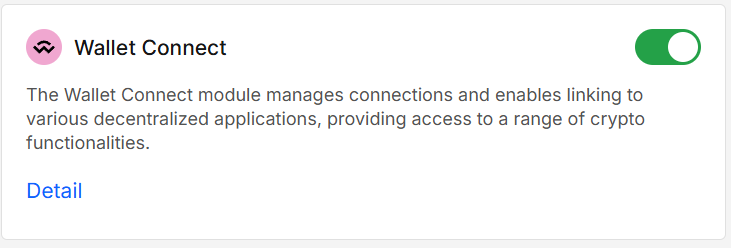
1. Enable
Enable WalletConnect in App Store.
2. Start a new connection
On the dApp:
- Click Connect Wallet
- In the opened modal look for WalletConnect option and click it
- In the next modal copy the link or keep the QR visible
In the wallet:
- On the portfolio or wallet page click WalletConnect icon
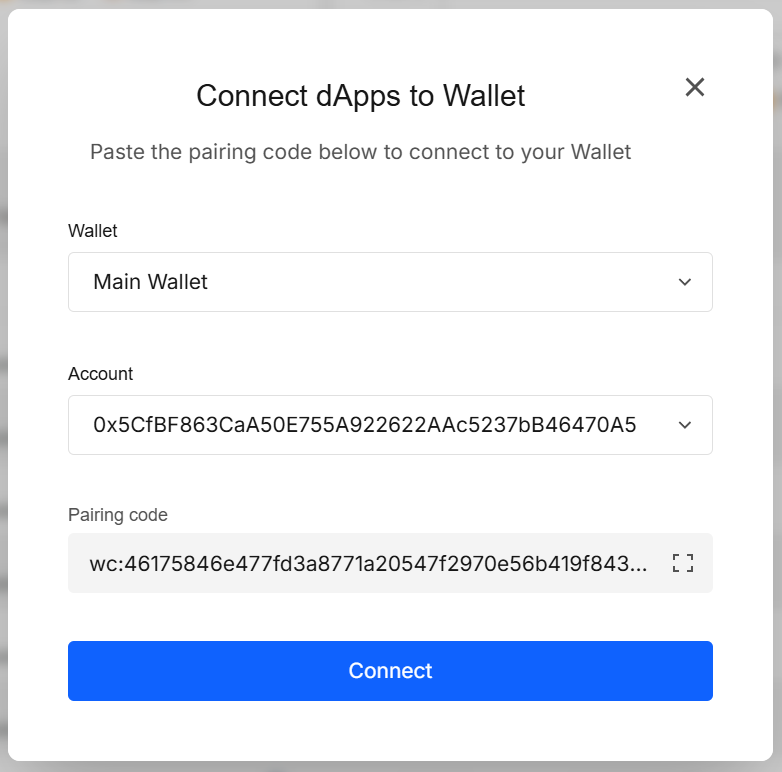
- If you already have connections, click New Connection
- Select Wallet and Account
- Either Paste pairing code or Scan QR with your camera
- Click Connect
3. Review & approve
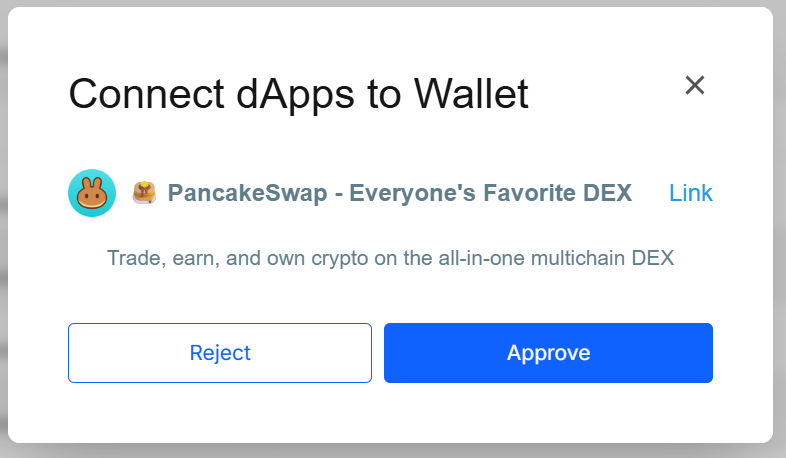
A confirmation modal shows the dApp name and a link to website. Verify the origin, then click Approve to establish the session.
4. Manage sessions
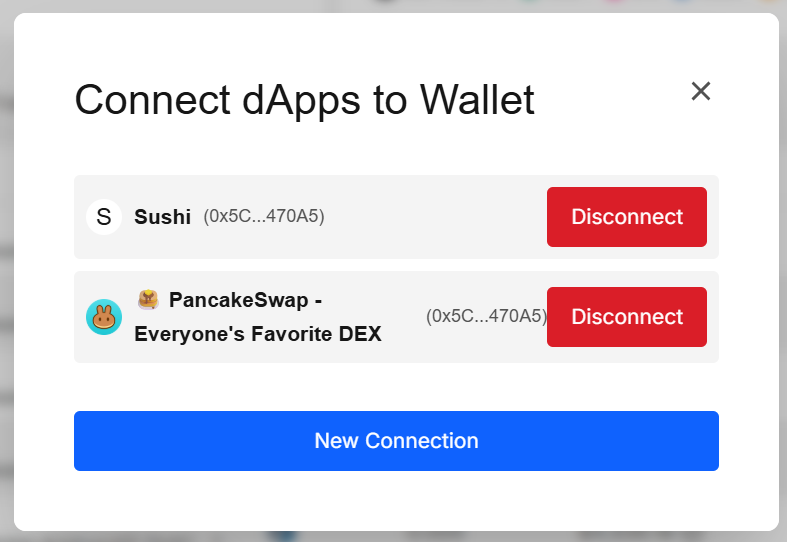
After clicking the WalletConnect icon again you will see connected dApps list with the account they’re using.
Click Disconnect and confirm to revoke access. Use New connection anytime to add more dApps.
5. Use the dApp
- Go to the connected dApp
- Select tokens to swap and specify the amount
- Click the Swap (or similar) button and confirm
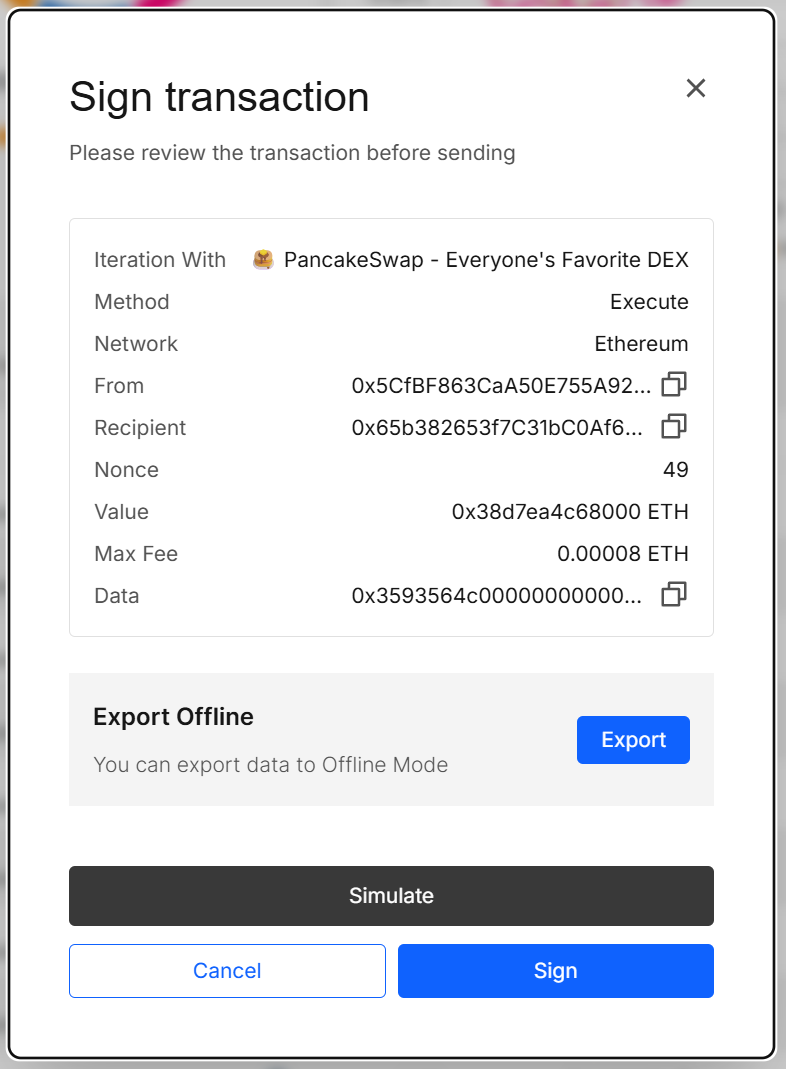
- The Sign Transaction modal will be shown in the modal, click Sign
Results explained
- Connected — The dApp can request actions from the selected account. You will still approve each request.
- Pending request — A modal appears (sign message / send transaction). Choose Approve or Cancel.
- Disconnected — The session is removed locally and cannot issue requests.
Validation & tips
- Unknown dApp? If the name/URL looks suspicious, Cancel the connection.
Security & privacy
- Keys never leave the wallet. Pairing creates an encrypted session; mnemonics/private keys remain isolated.
- Per-request consent. We never auto-sign. Transactions and signatures always prompt you first.
- Origin shown. We display the dApp’s metadata (name/URL) to help spot phishing.
- Local storage only. Sessions live in your browser/profile; there’s no server-side tracking.
Keep only the sessions you actively use. When you’re done with a dApp, Disconnect.
FAQ
What is a WalletConnect URI?
A standardized string (often embedded in a QR) that contains the information required to open an encrypted session between your wallet and a dApp.
Can a connected dApp move my funds automatically?
No. A connection alone grants no spending rights. Each transaction or signature requires your explicit approval.
Why doesn’t a request go through?
Most issues are expired sessions. Disconnect and reconnect.
Can I connect to multiple dApps at once?
Yes. Each connection is an independent session that you can view and disconnect at any time.
Developer Info
- Built and maintained by the EXTRA WALLET team.
- Source: EXTRA WALLET