Staking
About
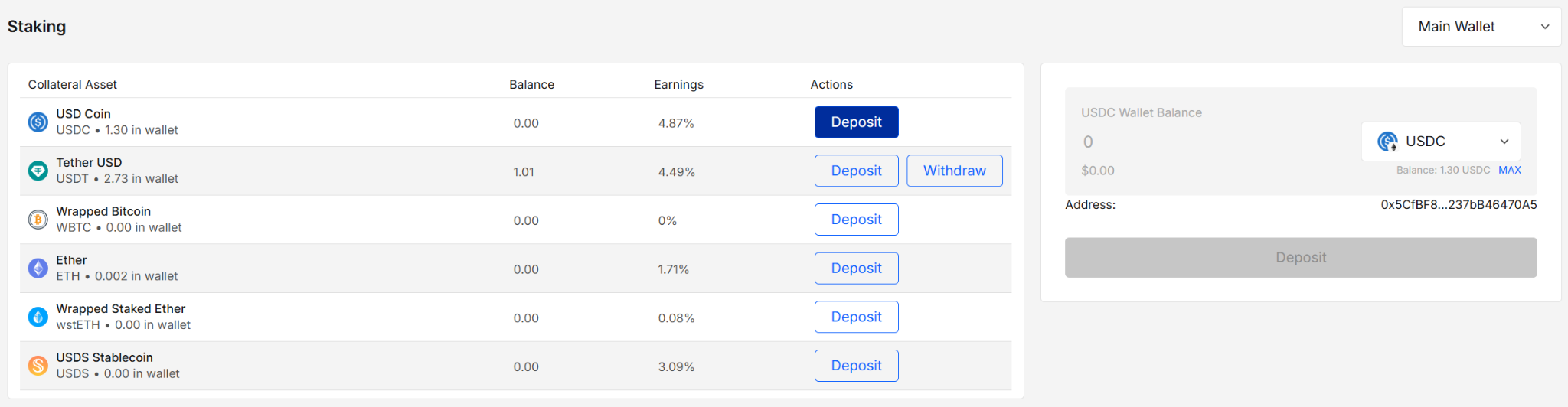
Staking lets you supply (deposit) and withdraw assets to/from the Compound protocol directly from EXTRA WALLET.
A left-side table shows supported collateral markets and your supplied balance per token; the right-side panel is the action form (select token, enter amount, deposit/withdraw).
Key features
- Token & chain picker (only tokens available on the chosen account’s chain)
- Deposit and withdraw in one place
- Simulate transactions before signing (Tenderly)
- Password-gated signing; private keys never leave the signer surface
How to Use
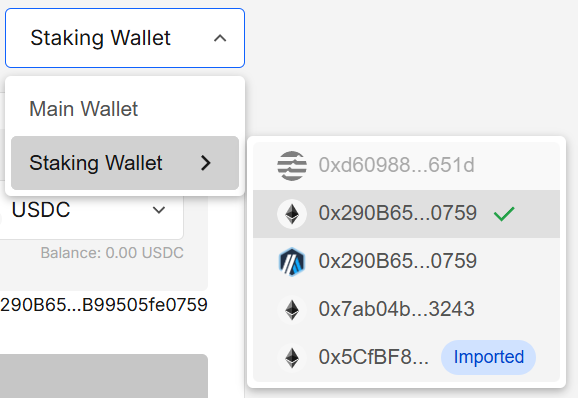
1. Pick wallet & account (optional)
When the module opens, your default wallet/account is selected.
Use the selector to switch wallets; hover a wallet to see its accounts. Non-EVM accounts are disabled; Imported accounts are labeled.
2. Review available markets
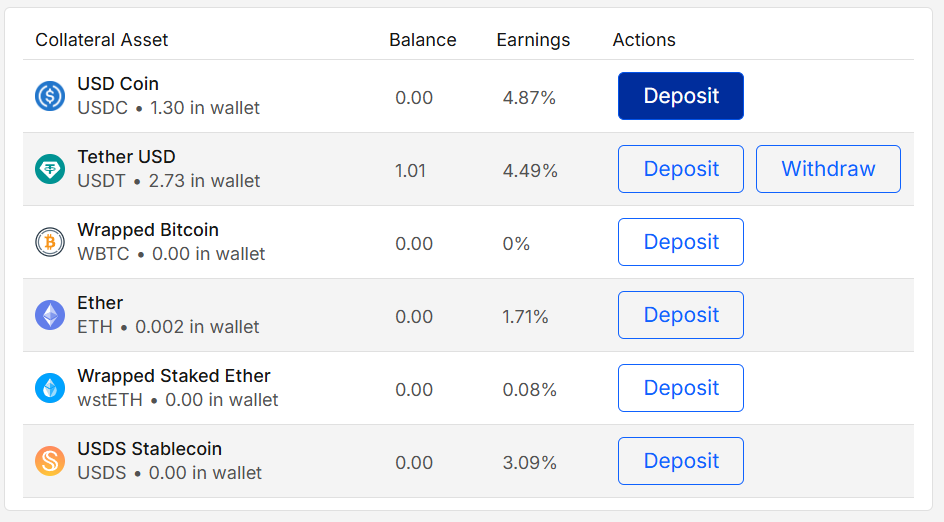
The left table lists supported tokens with four columns:
- Collateral Asset: Token and its amount in wallet (e.g., USDC • 1.30 in wallet)
- Balance: Amount currently supplied to Compound for this account
- Earnings: The current APY for the market
- Actions: Deposit (always), Withdraw (shows when you have a supplied balance)
3. Choose token & amount
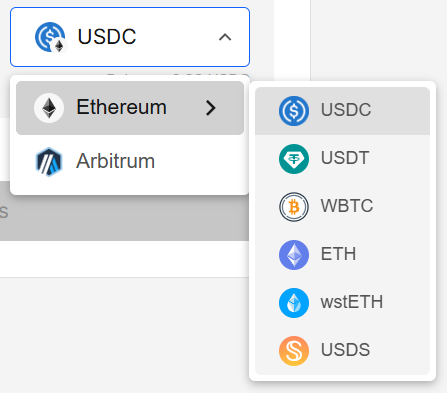
On the right panel, choose the token from the dropdown and enter the amount.
Your wallet balance for the selected token is shown under the selector.
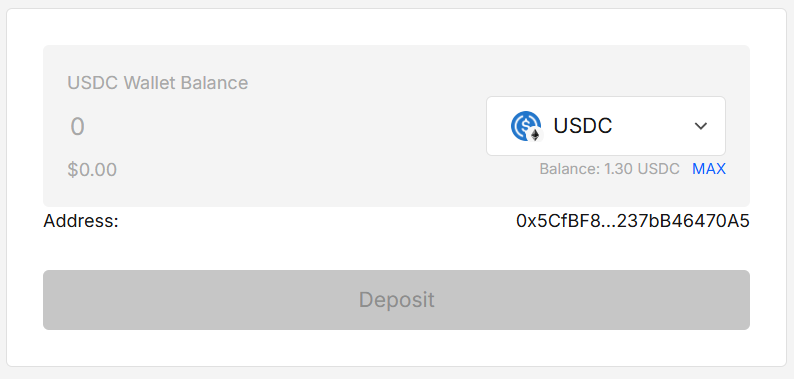
Token selector: first pick the chain (limited to chains of accounts added to the selected wallet), then pick a token available on that chain.
4. Deposit or Withdraw
The primary button reflects the action chosen in the table (e.g., Deposit or Withdraw).
Once a valid amount is entered, click the button to open Sign transaction modal.
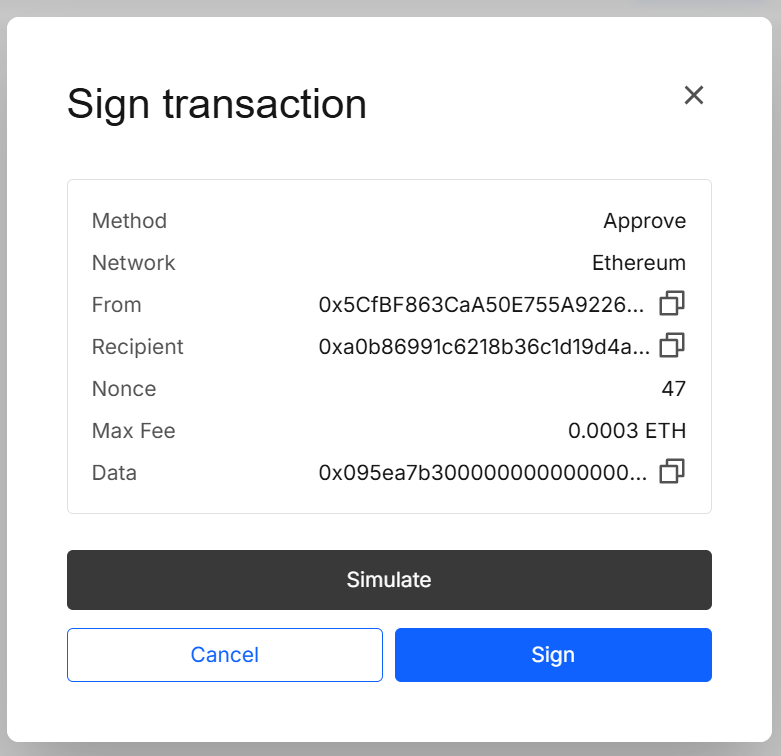
After the modal is opened you can:
- Simulate — run a Tenderly simulation to preview transaction result.
- Sign — sign and submit the transaction. You’ll be prompted for your portfolio password.
After a simulation, you’ll see the success/failure status and a link to the full Tenderly page with more details, and a Re-simulate option.
Withdrawing funds requires 20 credits.
5. Result
If the transaction completes successfully:
- Deposit — your supplied Balance for that token increases.
- Withdraw — your supplied Balance decreases; tokens return to your wallet.
Notes & tips
- Approvals: Some tokens require approval before the first deposit; you’ll be prompted automatically.
- Gas & Speed: Chain fees and confirmation times depend on the chosen chain.
- MAX button: Use MAX in the form to quickly populate the available wallet balance.
- Visibility: Withdraw appears only for markets where you have a non-zero supplied balance.
Security & privacy
- Quotes/market data and simulations may query third-party APIs/RPCs (e.g., protocol indexers, Tenderly). These requests use public data only.
- All password prompts are rendered in the signer’s separate-origin iframe. Mnemonics and private keys never leave the signer surface.
FAQ
Why is the button disabled/missing?
Check that you’ve selected a token, entered an amount, and have enough wallet balance (for deposit) or supplied balance (for withdraw).
Why don’t I see my token?
Only tokens supported by Compound on the current chain are shown, and only for EVM accounts.
Can I simulate without sending?
Yes. Use Simulate first; you can cancel or tweak details before signing.
Developer Info
- Built and maintained by the EXTRA WALLET team.
- Source: EXTRA WALLET