EVM Custom Chain
About
EVM Custom Chain lets you add non-preloaded EVM chains to EXTRA WALLET.
Provide the chain parameters (RPC URL, Chain ID, currency symbol, etc.), and the chain becomes available across the app once you derive an account for it.
Key features
- Add chains not bundled with the wallet
- Smart suggestions when a known chain ID is entered
- Multiple RPC options + Add Custom RPC
- Edit saved chains (all fields except chain ID)
- One-click delete
How to Use
1. Open the extension & fill the form
You'll see the Add New tab and an empty form.
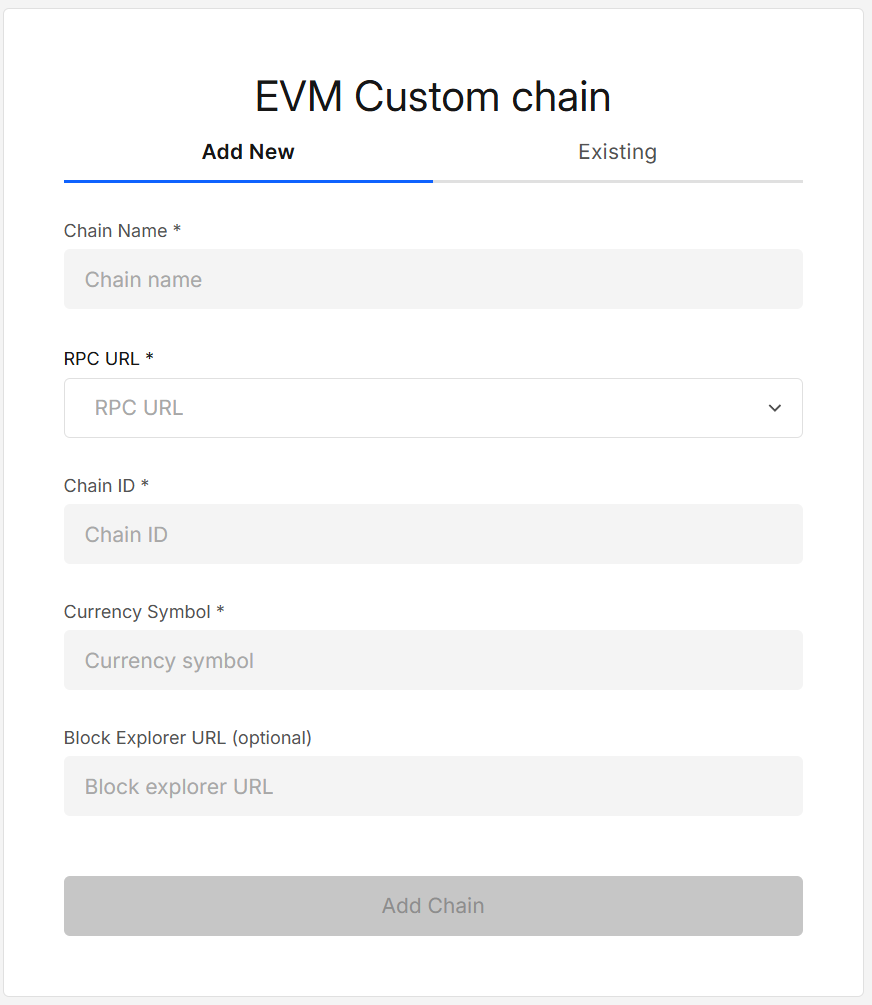
Required fields:
- Chain Name
- RPC URL
- Chain ID — enter in either:
- Decimal (e.g.,
130) - Hexadecimal (e.g.,
0x82)
- Decimal (e.g.,
- Currency Symbol (e.g.,
ETH) - Block Explorer URL (optional)
2. Use suggestions for known Chain IDs (optional)
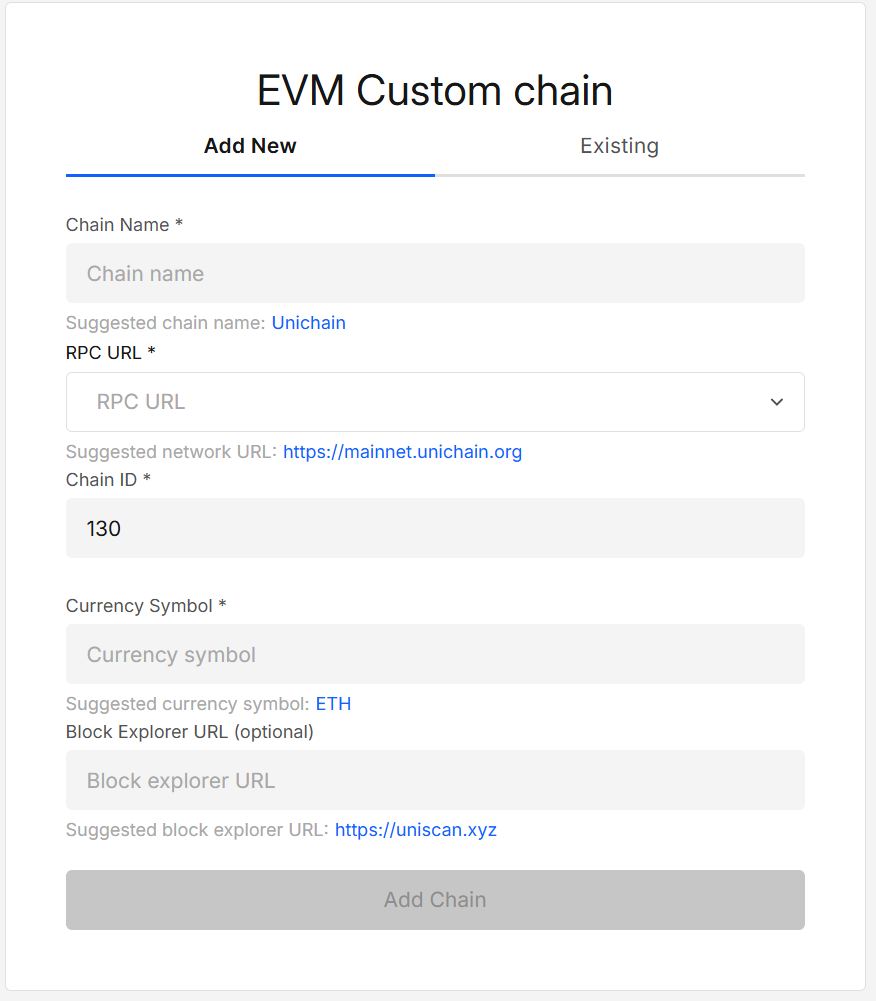
If you enter a known Chain ID, suggested values appear under each field.
Click a suggestion to autofill (you can still modify).
3. Choose or add an RPC
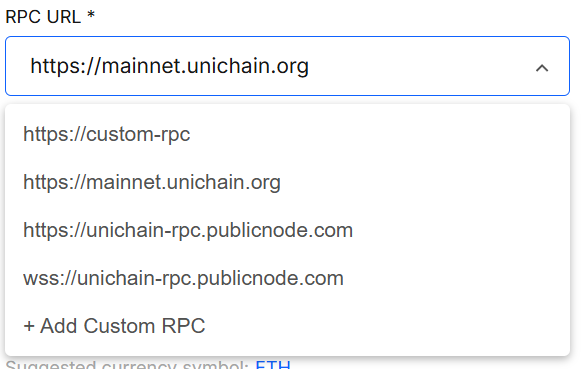
Open the RPC URL dropdown to pick a recommended endpoint or choose “+ Add Custom RPC” to paste your own.
A working RPC is critical for connectivity.
4. Add the chain
Once all required fields are valid, Add Chain becomes active.
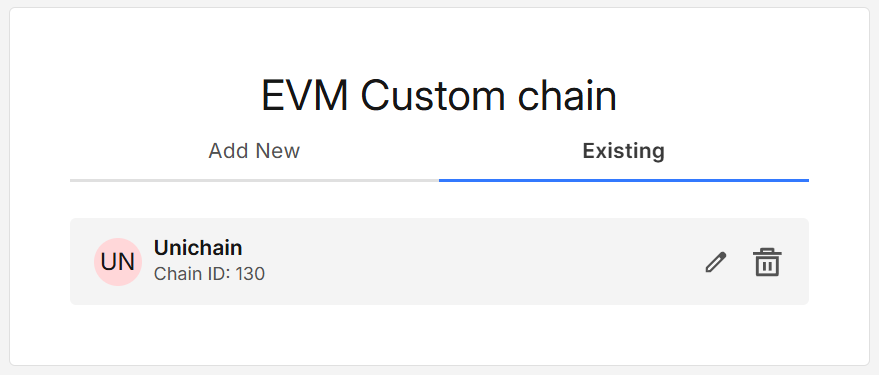
Click it to save. Saved chains are shown under Existing tab.
5. Edit or delete
- Edit: Click the pencil icon in Existing → update fields (everything except Chain ID) → Update.
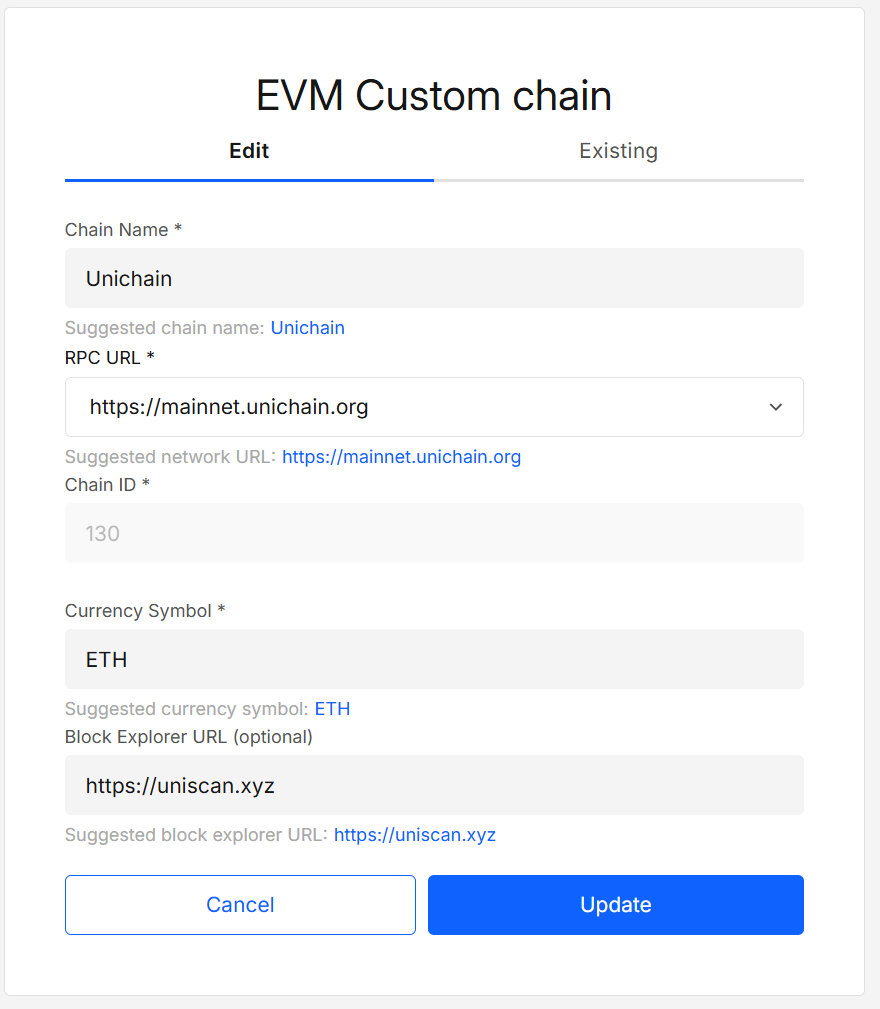
- Delete: Click the trash icon to remove the chain immediately (no prompt).
6. Derive an account to use the chain
A chain alone isn’t usable until there’s at least one account for it.
Open Wallet Expander and derive/add an account on the new chain.
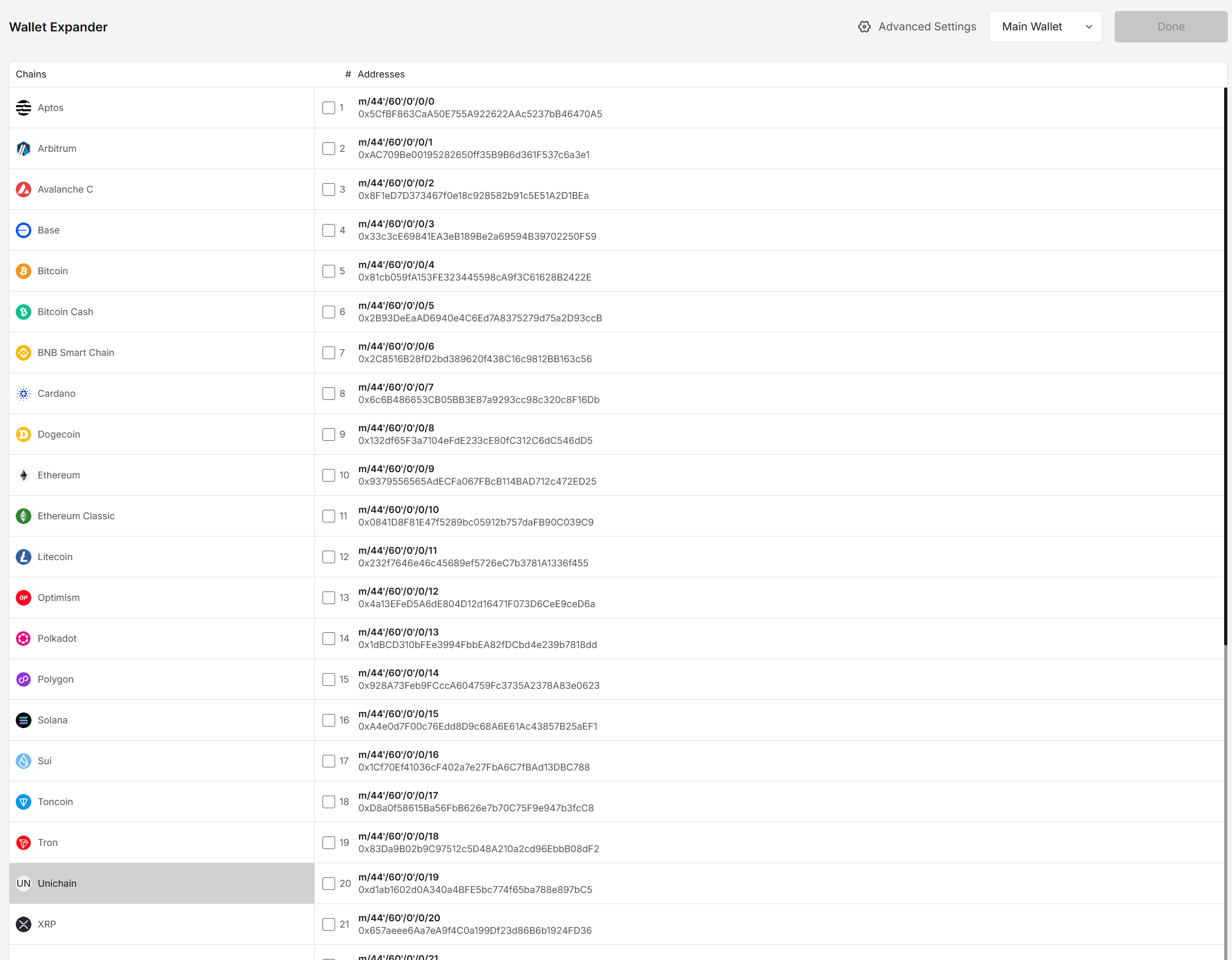
After that, the chain will appear in selectors and flows like any built-in chain.
Results
| Action | Outcome |
|---|---|
| Add Chain | Chain saved and visible in Existing |
| Edit | Fields updated (except Chain ID) |
| Delete | Chain removed immediately |
| Derive account | Chain becomes available across the app for that wallet/account |
Tips
- If connectivity fails, try another RPC from the dropdown or add your own.
Security & privacy
- RPC endpoints are third-party services; only public request data (addresses, calls) is sent to them.
- No mnemonics or private keys are ever shared; signing happens in the wallet’s isolated surface.
FAQ
Why is the “Add Chain” button disabled?
One or more required fields are empty or invalid. Ensure RPC URL, Chain ID, Chain Name, and Currency Symbol are filled with valid values.
What is the RPC URL and which one should I pick?
It’s the endpoint the wallet uses to talk to the chain (read state, broadcast txs). Pick a reliable HTTPS endpoint. You can paste your own (Add Custom RPC) or choose one of the suggested endpoints when a known Chain ID is detected.
Is the Block Explorer URL required?
No. It’s optional and only used to generate handy transaction/address links from the UI.
Can I edit the Chain ID later?
No. If you need to change Chain ID, delete the chain and add it again with the correct value.
Where are custom chains stored? Will they follow my backups?
They’re saved in your local portfolio storage and are carried with your portfolio backup/restore.
Can I add testnets?
Yes — enter the correct parameters (name them clearly, e.g., Sepolia) and use a working RPC.
I added a chain but can’t use it anywhere — why?
You also need at least one account on that chain. Use Wallet Expander to derive and add an account.
Do custom chains expose my secrets to the RPC?
No. RPC calls use public data only. Private keys never leave the signer surface.
WSS vs HTTPS RPC — does it matter?
Most flows work with WSS. But HTTPS is generally preferred for broad compatibility.
Developer Info
- Built and maintained by the EXTRA WALLET team.
- Source: EXTRA WALLET