QR Safe Keeper
About
QR Safe Keeper converts sensitive text (mnemonics, private keys, recovery codes, etc.) into a password-protected QR code, and lets you decrypt it later with the same password. Everything runs locally in your browser, which makes it suitable for offline/air-gapped workflows and multi-device recovery.
Key features
- Client-side AES-256 encryption of arbitrary text
- Password-protected QR generation (user-defined password)
- Decrypt via upload, paste, file picker, or camera scan
- Decrypted result is shown locally after successful unlock
- Isolated secrets view: password field and decrypted text are rendered in an iframe on a separate origin (see Security)
- Ideal for backing up mnemonics, private keys, and other sensitive text
How to use
1. Encrypt text into a QR
- Go to the Encrypt tab.
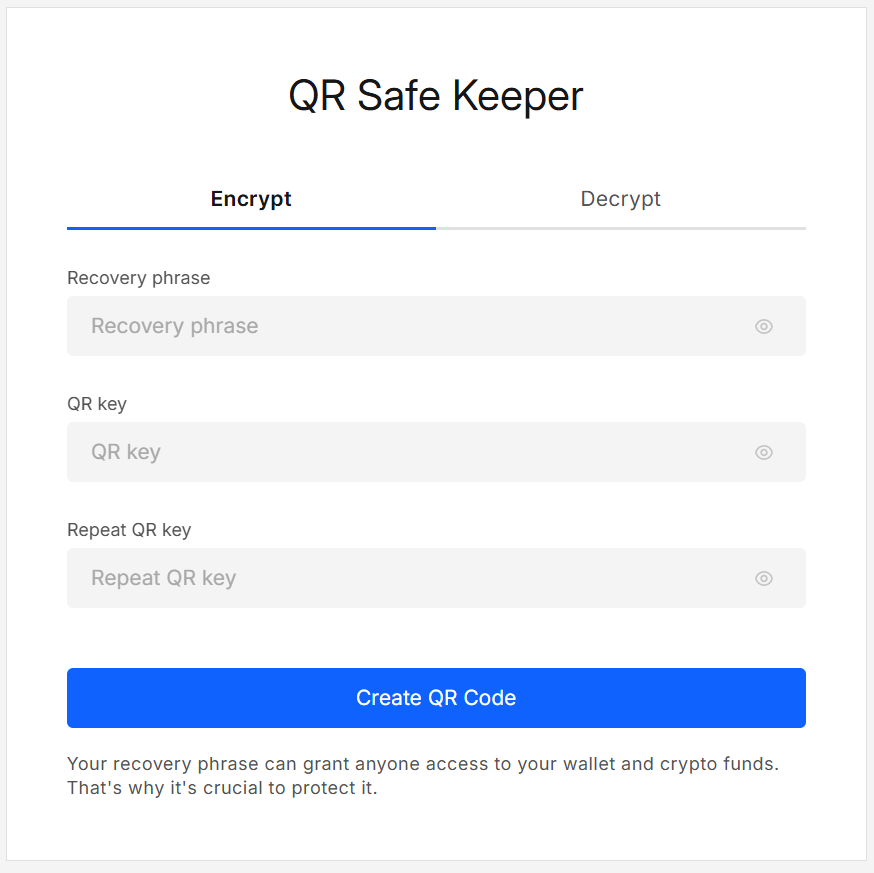
- Paste the text to protect (e.g., your seed phrase).
- Enter a strong password (See FAQ below) and repeat it to confirm.
- Click Create QR Code.
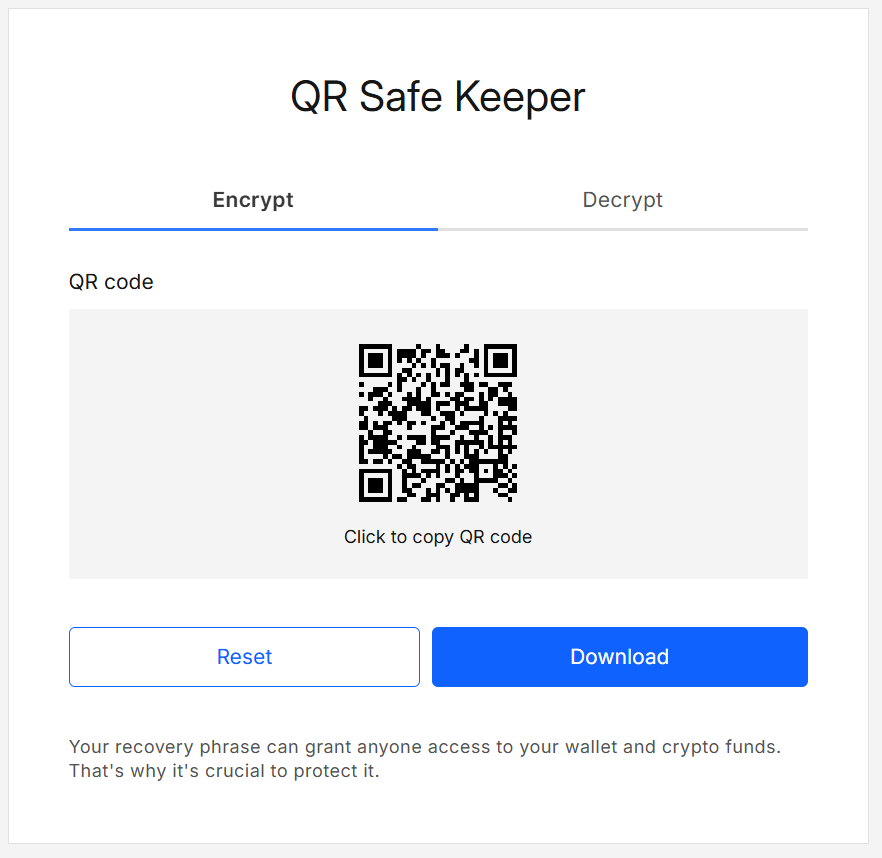
The result view shows your QR code and action buttons.
This will create a password-protected QR code you can save, print, or scan later.
2. Decrypt a protected QR
-
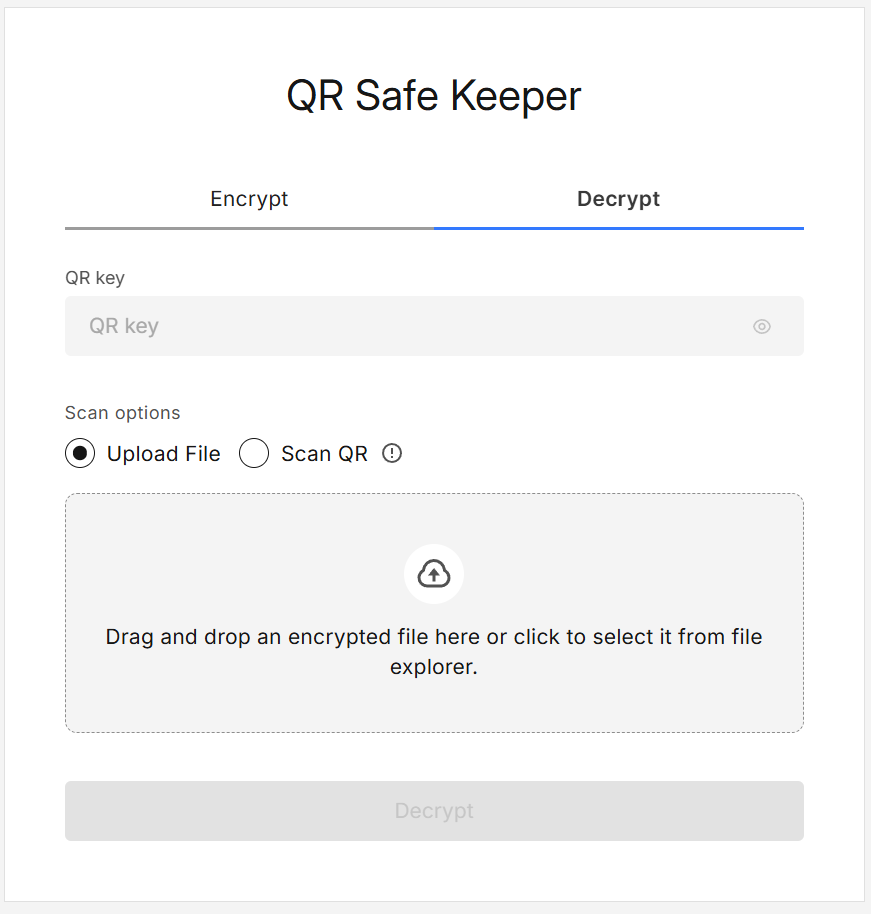
Switch to the Decrypt tab.
-
Enter the password used during encryption.
-
Choose a source:
- Upload QR File, or
- Scan QR with your device camera, or
- Paste QR image, or
- Pick from your device
-
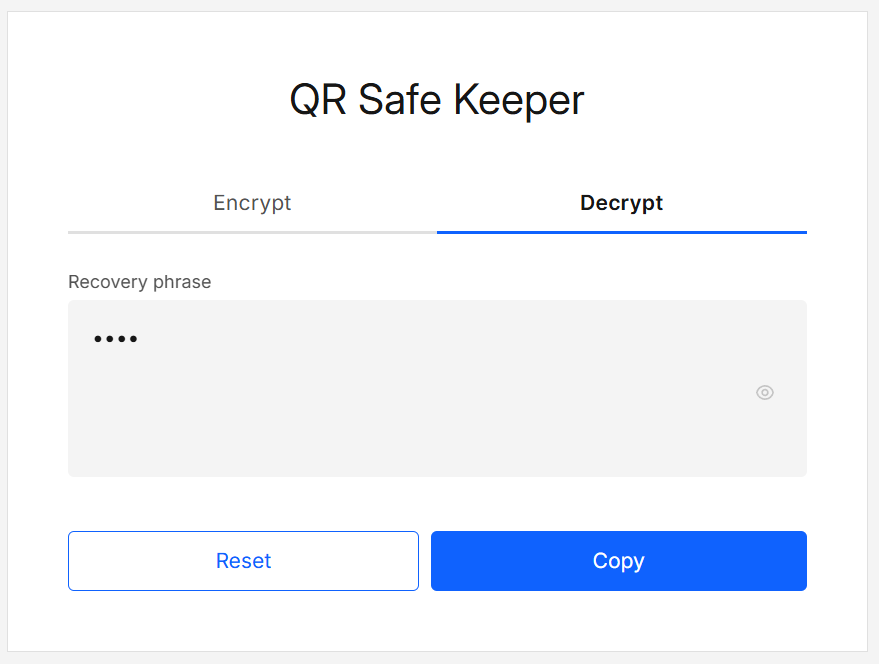
If the password is correct, the original text appears in the result view with actions.
Results explained
Encrypt result (QR view)
| UI element / action | What it does |
|---|---|
| Click the QR | Copies the QR image to the clipboard for pasting elsewhere. |
| Download | Downloads the QR image (SVG) to your device. |
| Reset | Clears the data and returns you to the Encrypt tab. |
Decrypt result (text view)
| UI element / action | What it does |
|---|---|
| Copy | Copies the decrypted text to the clipboard. |
| Reset | Clears the data and returns you to the Decrypt tab. |
After generating a QR, try to test decryption immediately (offline if possible) to make sure your printout or file works with your chosen workflow.
Security & privacy
- Encryption/decryption happens entirely in the browser (offline-capable), no data leaves your device.
- Passwords are never stored or transmitted.
- Uses AES-256 via the app’s crypto library.
- No telemetry; inputs are used only for the local operation.
- Isolated secrets view: the password field and decrypted text are rendered inside an iframe hosted on a separate origin.
- The parent page cannot read that DOM due to the browser’s Same-Origin Policy.
- Only minimal non-sensitive status messages cross the boundary via
postMessage(never the password or decrypted payload).
Separating origins prevents scripts on the host page (including injected extensions or potential XSS) from accessing elements that display secrets. This adds a strong containment layer and allows tighter CSP on the secrets surface.
- Security depends on password strength and device hygiene (malware, screen recorders, cloud sync, etc.).
- Very long texts produce dense QRs that can be harder to scan — test before printing out.
- Camera scanning requires granting camera access in your browser.
- Always test decryption before archiving a backup.
FAQ
What should my password be like?
-
Memorizable option: use 6+ truly random words (not a quote/lyric). Hyphen or space separators are fine.
-
Non-memorizable option: generate a 20–24 characters random string in a password manager (letters/numbers/symbols), then print/store offline.
-
Always: do not reuse this password; keep it different from your Extra Wallet or other services sign-in; never include the seed itself.
Can I use it fully offline?
Yes. After loading the page once, you can use it offline; all crypto runs locally.
Is the QR the only backup I need?
Treat it as a convenient backup. For critical funds, keep multiple independent backups and rehearse recovery.
What if the QR is too dense to scan?
Shorten the content or increase print size.
Developer Info
- Built and maintained by the Extra Wallet team.
- Source: Extra Wallet